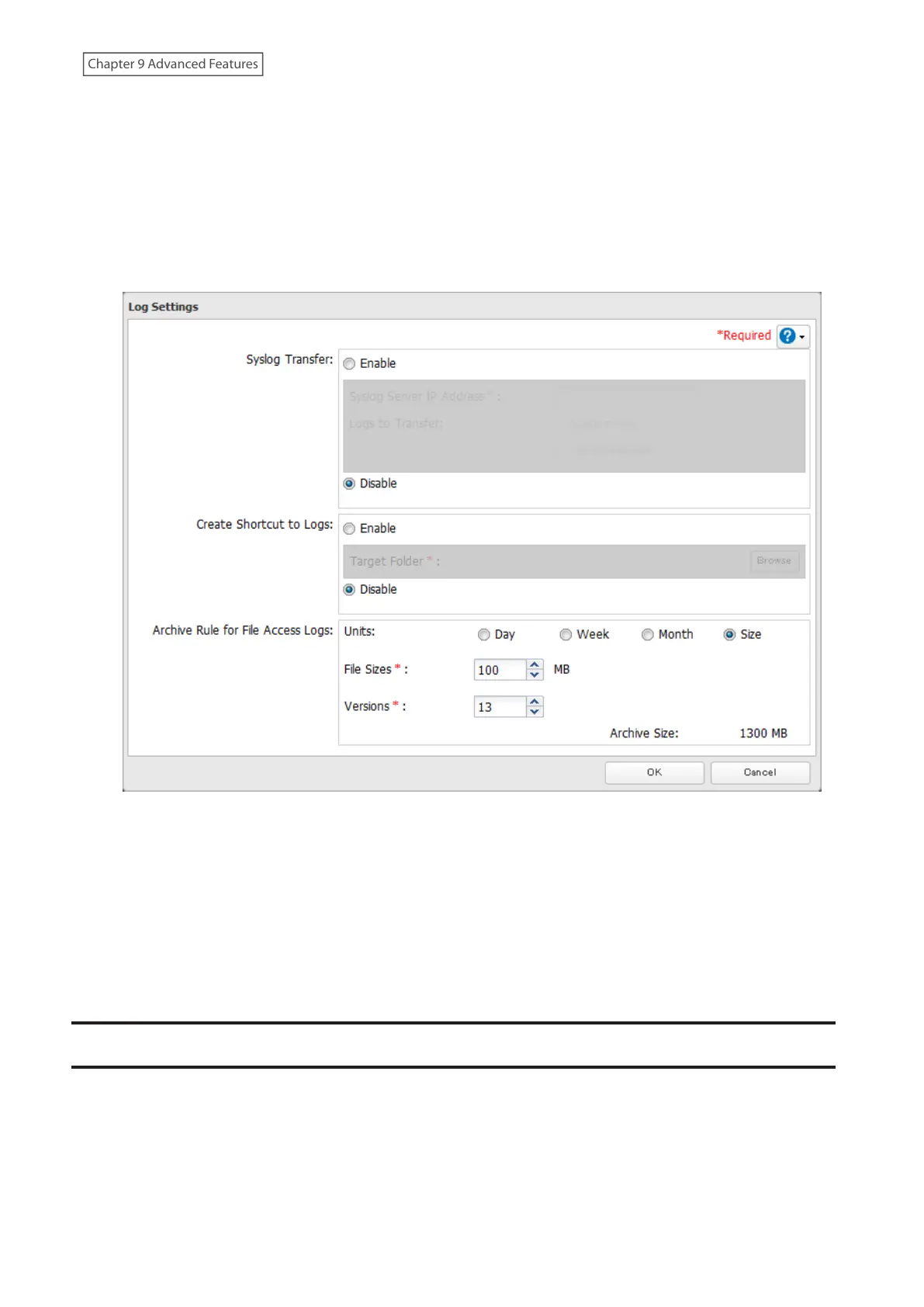
4 Select the unit and version to save logs to the right of “Archive Rule for File Access Logs”. For example, if you
select “Month” for the unit and enter “7” for the version, the file access logs for the next 7 months will be saved
on the LinkStation.
Available duration and capacity to save logs will vary depending on the unit. The following values are
available:
• Unit (Day): 1–367 for all versions
• Unit (Week): 1–53 for all versions
• Unit (Month): 1–13 for all versions
• Unit (Size): 1–100 for file sizes and 1–13 for all versions
5 Click OK.
Notes:
• To delete the saved logs, click Delete at the window in step 3.
• If there is not enough space to save logs, the I70 message will appear on the Dashboard in Settings and NAS
Navigator2. When it appears, delete unnecessary logs or move them to another device from the LinkStation. To
access logs, go to the “system_log” folder created in the shared folder that you have configured as the shortcut to
the logs. If no free space is made available elsewhere, older logs will automatically be deleted.
Updating the Firmware
If a new firmware version is available, a message is displayed when the LinkStation boots. You can update the
firmware either manually or automatically.
Notes:
• If all drives and RAID arrays on the LinkStation have LVM enabled but no LVM volumes have been created, you will
not able to update the firmware from Settings.
176
Chapter 9 Advanced Features











 To Next Page