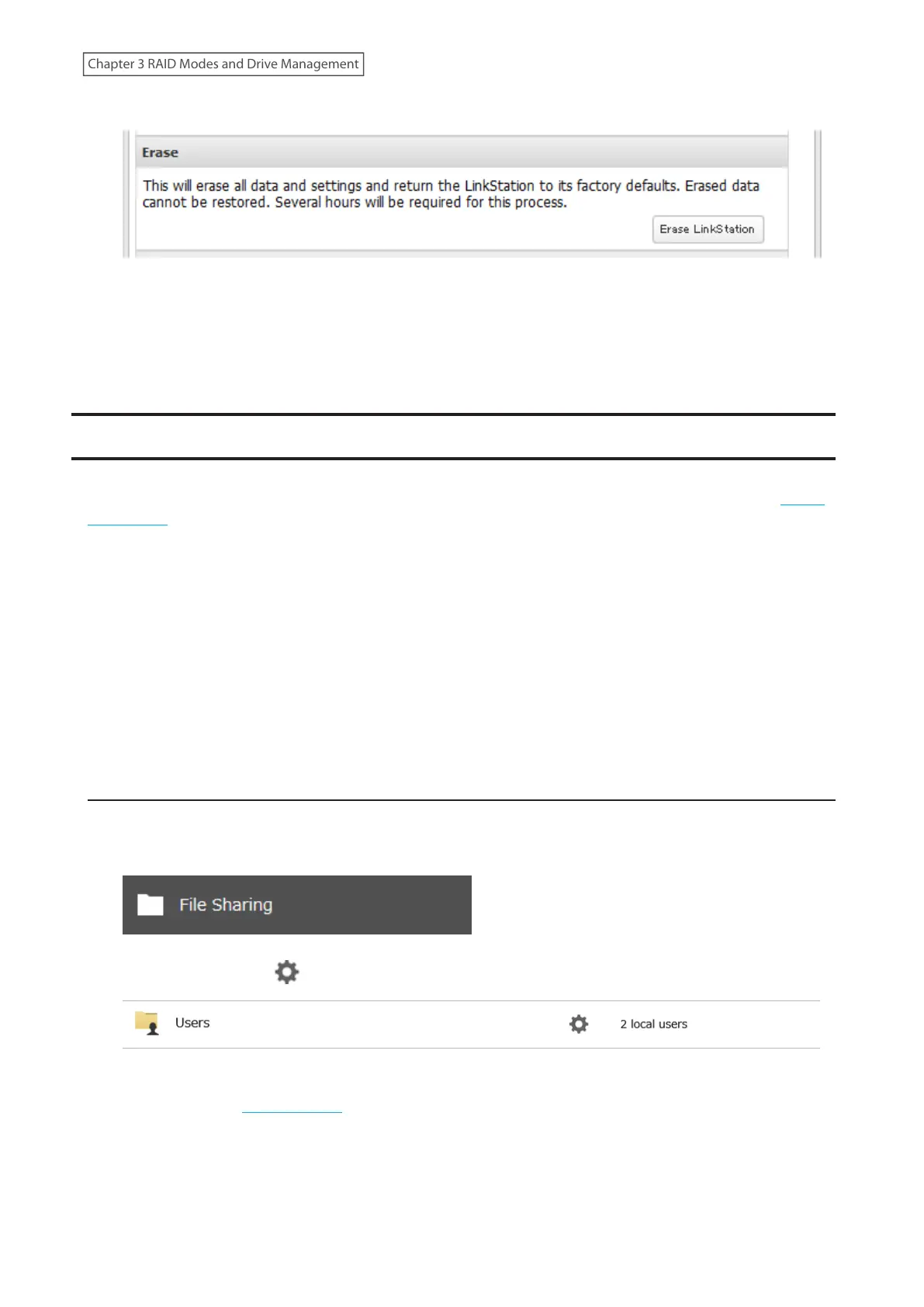
3 Click Erase LinkStation.
4 The “Confirm Operation” screen will open. Enter the confirmation number, then click OK.
5 The complete format process will begin. After the complete format is finished, the LinkStation will shut down
automatically. To power on the LinkStation, move the power switch to the “Off” position, then back to the “On”
position.
Quotas
You can set a quota for each user or group as well as a threshold alert where you will receive an email notification if
the space used exceeds the configured threshold. To configure email notifications for the quota, refer to the “Email
Notification” section in chapter 9.
Notes:
• When using quotas, disable the recycle bin or empty the trash folder often. The limited space includes the space
used for trash.
• Quotas apply per drive or per array. If a quota is set to 1 GB, each array or drive can use a maximum of 1 GB.
• Quotas cannot be set for external drives connected to the LinkStation.
• If both user and group quotas are configured for a user and the group quota size is smaller than the user quota
size, an error may occur if the space used exceeds the threshold for the group quota. The group quota size should
be larger than the user quota size.
• When joined to a domain, only local users and groups will be able to set quotas. Domain users and groups will be
able to configure access restrictions for shares but cannot set quotas.
Quotas for Users
Follow this procedure to limit the shared folder space available for a user.
1 From Settings, click File Sharing.
2 Click the settings icon ( ) to the right of “Users”.
3 Select the user that will be given a quota and click Edit. If you want to set a quota for a new user, create a user
by referring to the “Adding a User” section in chapter 2.
60
Chapter 3 RAID Modes and Drive Management











 To Next Page