◦ Restarting the LinkStation.
◦ Dismounting the USB drive.
• If there is not enough free space on the LinkStation, it may cause abnormal system behavior. Make sure that there
is always at least 1 GB or more of free space on the LinkStation.
Shutting Down or Restarting the LinkStation from Settings
You can shut down or restart the LinkStation remotely from a computer or a mobile device. Follow the appropriate
procedure below to remotely shut down or restart the LinkStation from Settings.
Using a Computer
1 Log in to Settings using NAS Navigator2.
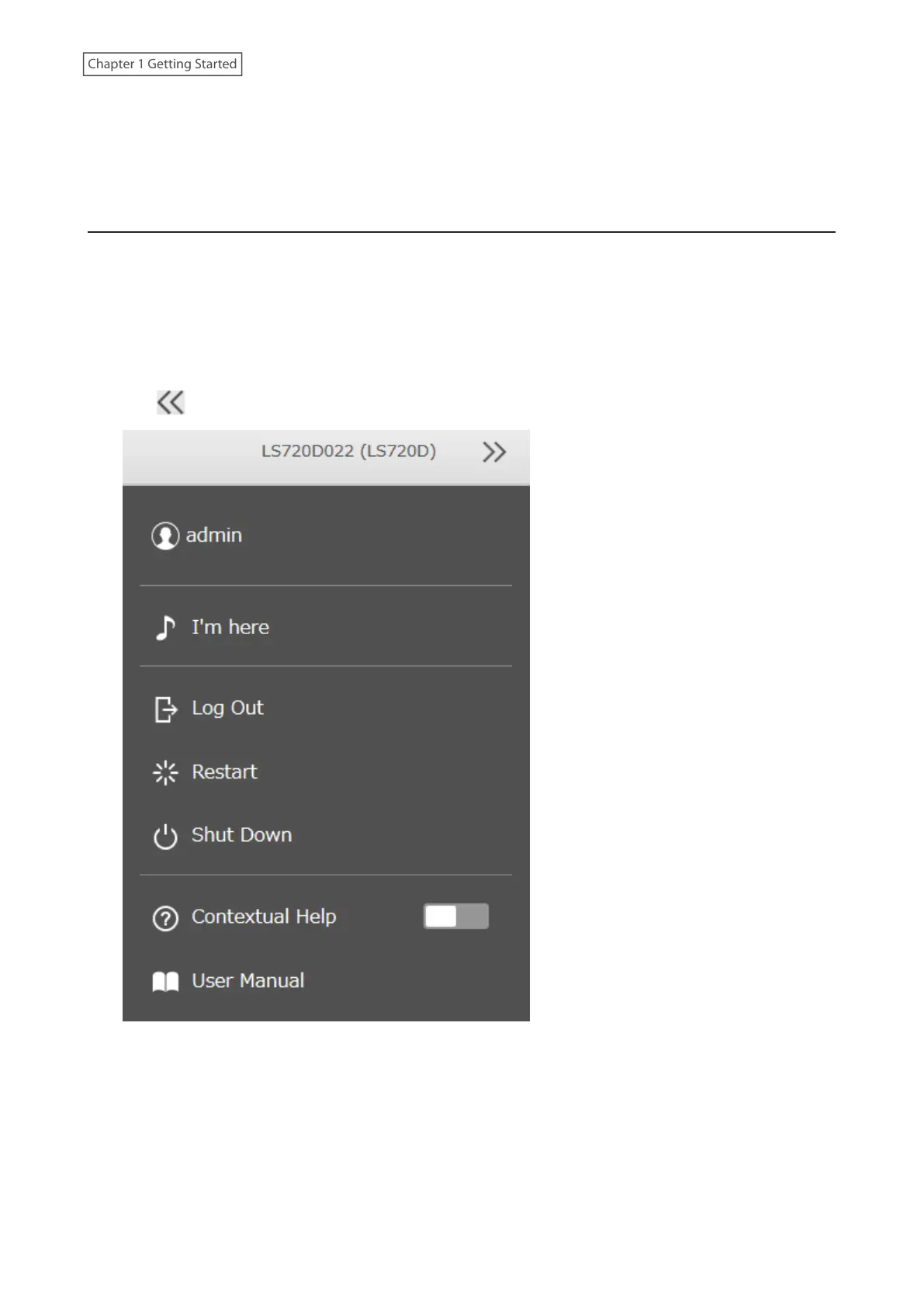
2 Click at the top-right of Settings and choose Shut Down or Restart.
3 Click Yes.
4 The “Confirm Operation” screen will open. Enter the confirmation number, then click OK.
If shutting down the LinkStation, the shutdown process will finish once the power LED turns off. To shut down
completely, move the power switch to the “Off” position. If you leave the power switch in the “On” position, you can
power on the LinkStation using Wake-on-LAN remotely or the function button.
If restarting the LinkStation, wait until the power LED changes to a steady white.
20
Chapter 1 Getting Started











 To Next Page