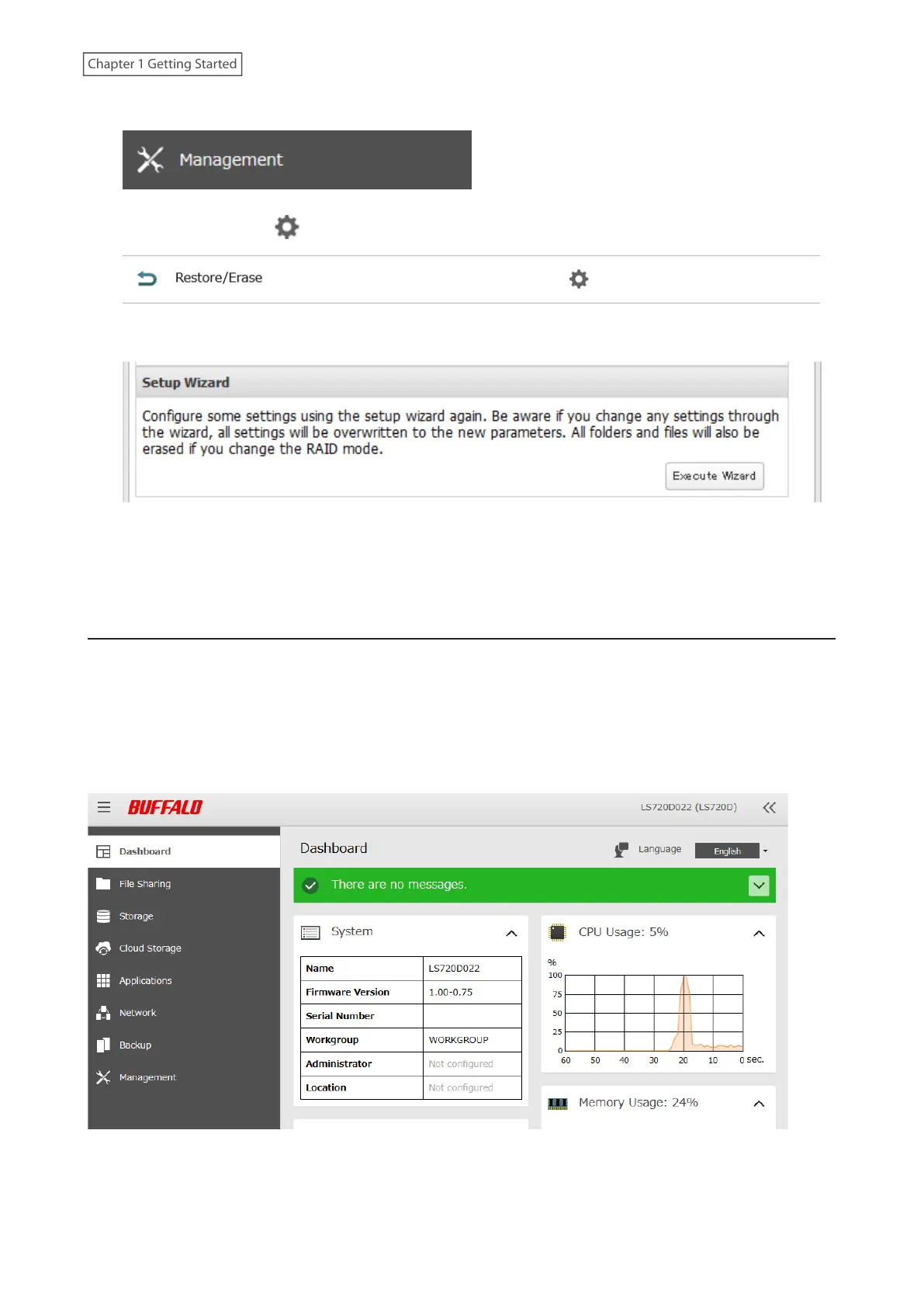
1 From Settings, click Management.
2 Click the settings icon ( ) to the right of “Restore/Erase”.
3 Click Execute Wizard.
4 The “Confirm Operation” screen will open. Enter the confirmation number, then click OK.
5 Follow the procedure on the screen and finish the setup wizard.
Checking the Device Information from Dashboard
When opening the Settings interface, the Dashboard page will appear first. Dashboard will show the following
device information:
• Notices, such as information events and errors
• System information, such as hostname, firmware version, IP address, etc.
• Drive information, such as used space of internal drives or LVM volumes, etc.
• CPU and system memory usage
• Network information, such as IP address, link speed, sent and received rates, etc.
Notes:
• If the number of files on the LinkStation increases, it will also increase the memory usage of the LinkStation. This
memory usage will decrease after a certain period of time passes. To reduce the memory usage immediately, try
the following operations:
19
Chapter 1 Getting Started











 To Next Page