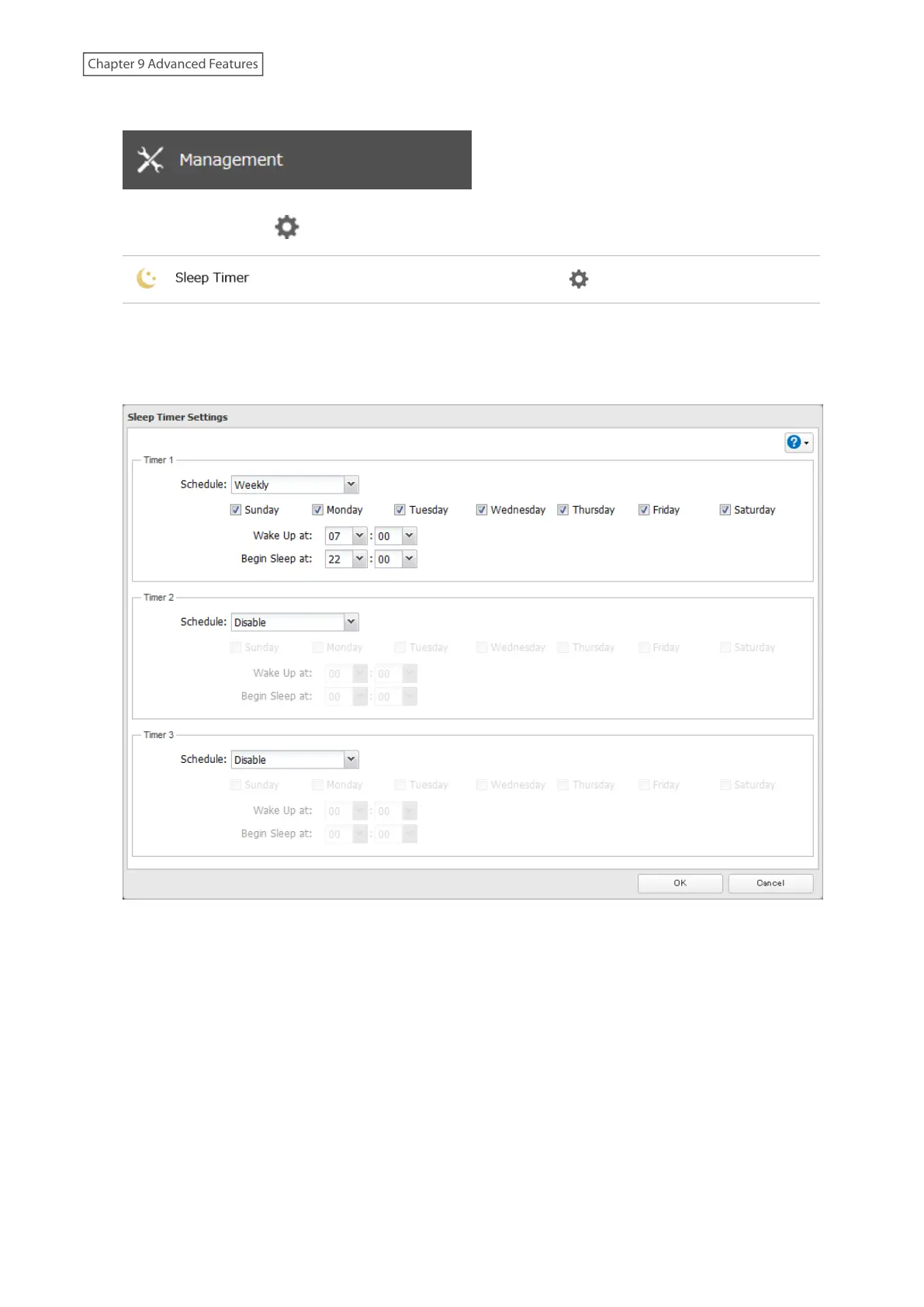
1 From Settings, click Management.
2 Click the settings icon ( ) to the right of “Sleep Timer”.
3 Click Edit.
4 Specify the timer interval, wake-up time, and time to enter sleep mode, then click OK.
Notes:
• Up to three timers can be set.
• The time to enter sleep mode can be set from 12:00 a.m. to 3:45 a.m. of the next day. The time to wake from sleep
mode can be set from 12:00 a.m. to 11:45 p.m. If the time to enter sleep mode is after 12:00 a.m., the wake-up
time setting may be from 4:00 a.m. to 11:45 p.m.
• The time to enter sleep mode should not be set to the same time as or earlier than the start time.
• If sleep mode timer is scheduled to go off while checking or formatting a drive, or updating the firmware, the
LinkStation will not enter sleep mode when the configured time is reached.
• While backups are configured or DLNA server is enabled, sleep timer settings cannot be changed.
• If you have configured this LinkStation as a backup destination for another Buffalo NAS device and it enters sleep
mode, a backup job may fail because the LinkStation won’t wake up from sleep mode.
• If scheduled times in the timer overlap, the operation is performed using the widest time interval.
169
Chapter 9 Advanced Features











 To Next Page