5-10
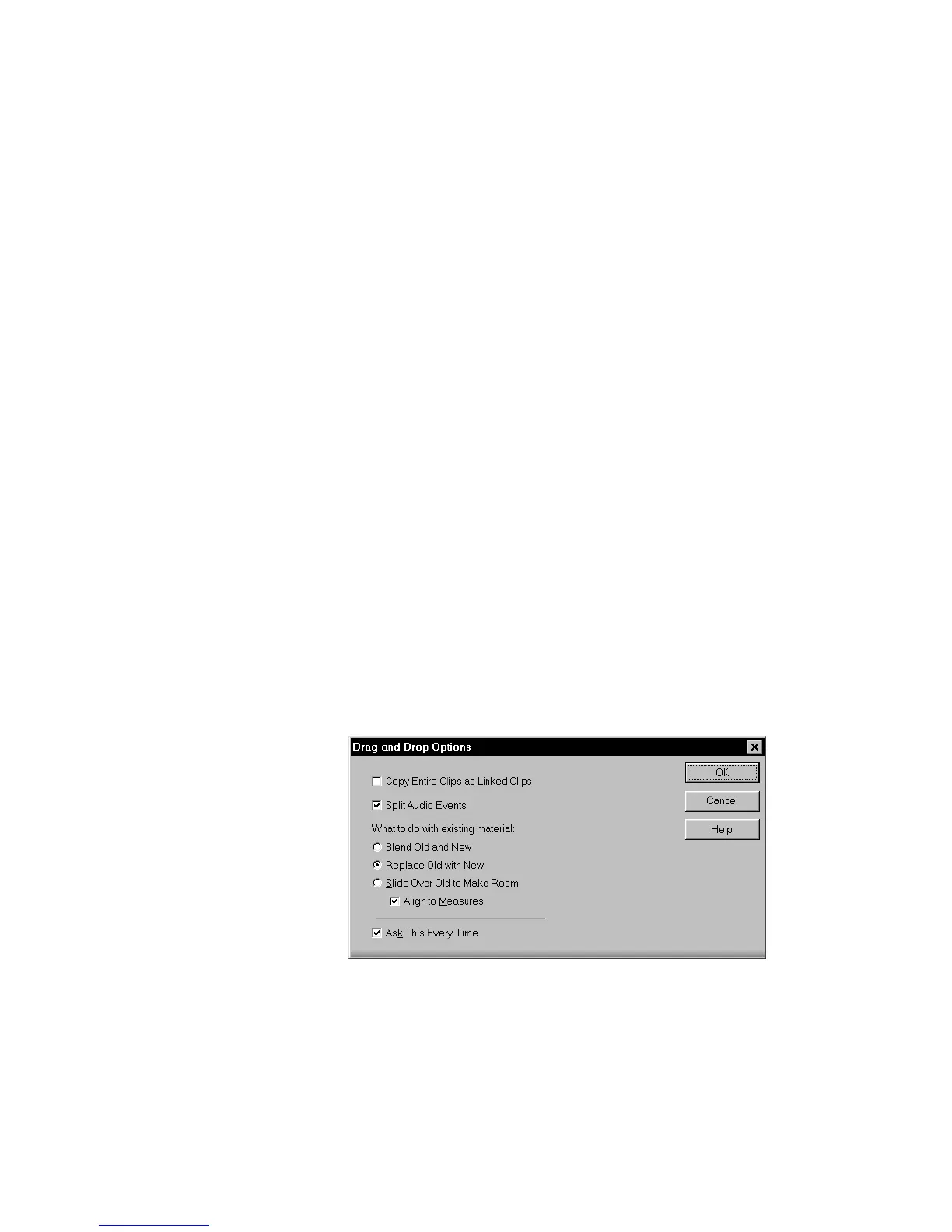
When you use drag-and-drop editing:
¥ You can set the above options every time you perform an edit, or you
can set them once and have the same settings carry over
automatically. Check or uncheck the Ask This Every Time box to
indicate your preference.
¥ If you drag to the edge of the Clips pane, it will scroll automatically
in the direction you drag.
¥ If you change your mind while dragging clips, press the Escape key
to cancel the operation.
Pro Audio also lets you move and copy clips between projects.
To Move Clips Using Drag and Drop…
1. Select the clips you want to move.
2. If you want to move the clips by an exact amount of time, enable
the Snap Grid (see 5-16).
3. Position the mouse over one of the selected clips.
4. Press and hold down the left mouse button. A rectangle is
displayed around the selected clips.
5. Drag the clips to their new location, and release the mouse
button.
6. If necessary, choose the options you want from the Drag and
Drop Options dialog box (use
Options-Global-Drag and Drop
or
right-click in the Clips Pane), and click OK.
Pro Audio moves the clips to their new location.



 To Next Page