6-38
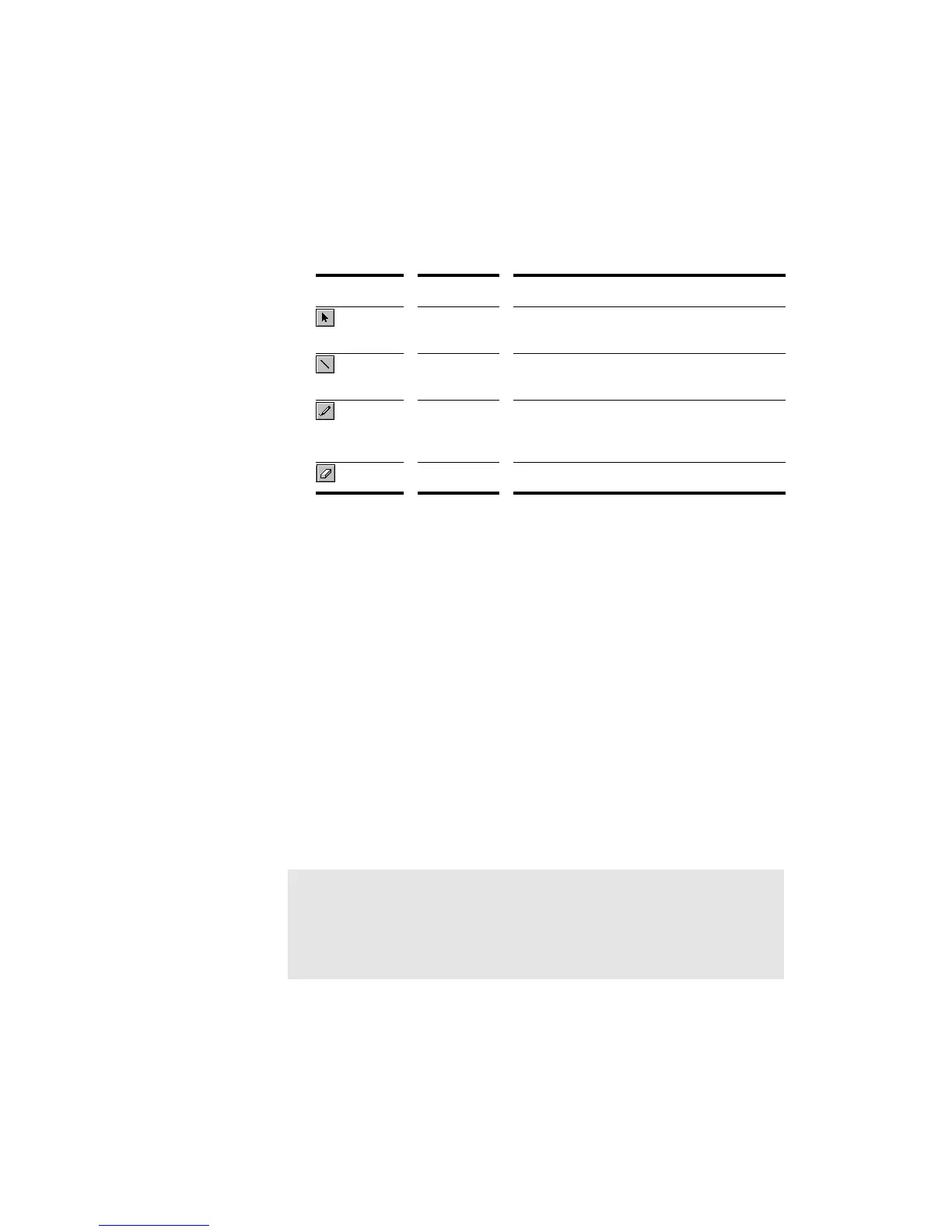
The Controllers pane has several tools you can use to add or modify
events. The following tools apply only to the track that is selected in the
Track List pane:
Note that you can also add controllers using the Insert-Series of
Controllers command. If you make a mistake using any of these tools or
commands, you can use Undo to correct the error.
When you use the Draw tool, the speed with which you drag the mouse
determines the density of controller events. To insert a larger number of
controller events with relatively small changes in value, move the mouse
slowly. To insert a smaller number of controller events with relatively
large changes in value, drag the mouse quickly.
Creating a change that sounds smooth does not always require making
the value change by one on each tick. Bigger jumps may sound very
gradual if the tempo is fast. Also, many devices round off the controller
values. For example, many instruments respond to volume controller
values of 100 and 101 with exactly the same loudness. Using too high a
density of controller events can backÞre by making the computer work
so hard during playback that it is unable to keep up. This will usually
cause hiccups or poor timing during playback.
Tool... Name... What it’s for...
Select Select controller events, so you can delete
them
Line Draw a straight line indicating a steady
increase or decrease in controller value
Draw Draw a custom curve indicating changes in
controller value. Draw a straight line by holding
down the Shift key while using the Draw tool.
Erase Erase controller changes already in place
Note:
Pro Audio includes a CAL program (THIN CONTROLLER DATA.CAL) you
can use to reduce the density of controller events in a track.



 To Next Page