C Creative Auto Shooting
74
(4) Background blur
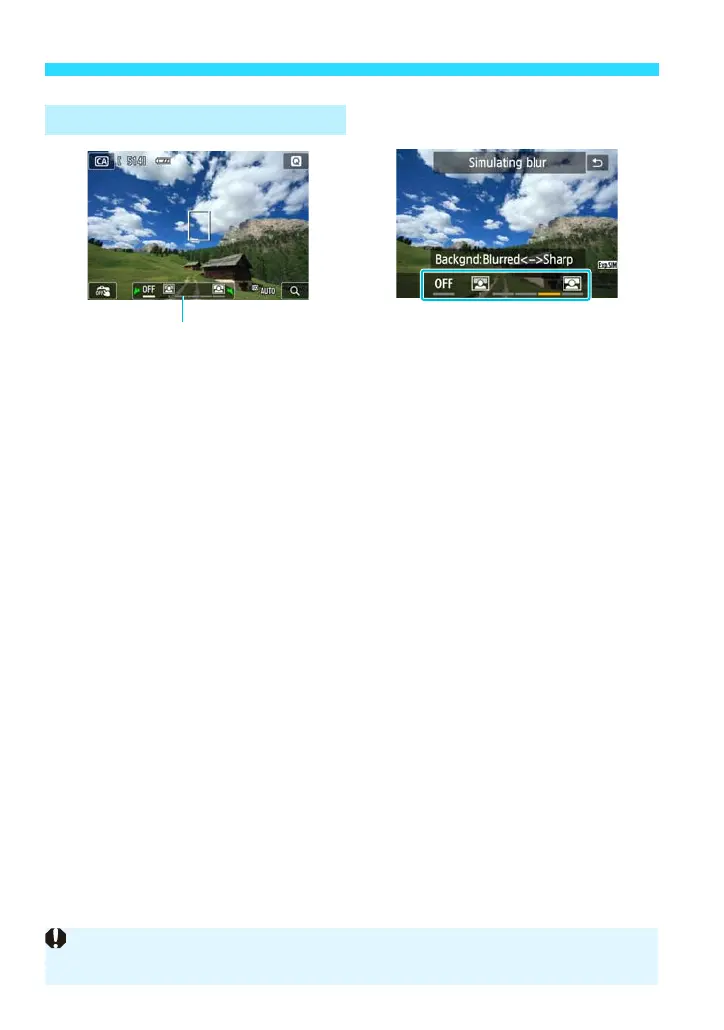
• On the shooting screen, tap Background blur and set it.
• If [2] is set, the degree of background blur will change depending on
the brightness.
• If it is set to other than [2], [Simulating blur] will appear on the
screen and you can adjust the background blur regardless of brightness.
• Set by tapping the screen. Move the index mark toward the right to make
the background look more in focus, or move it toward the left to make
the background look more blurred. Note that depending on the lens’
maximum aperture (f/number), some positions may not be selectable.
• If you want to blur the background, see “Shooting Portraits” on page 76.
• Depending on the lens and shooting conditions, the background may not
look so blurred.
• Cannot be used with flash.
• When using a Speedlite, Background blur will change to [2] when
the Speedlite is fully recharged.
Setting by Tapping the Screen
If [g] blinks while [Simulating blur] is displayed, the image may have more
noise or look darker than the actual image.











 To Next Page