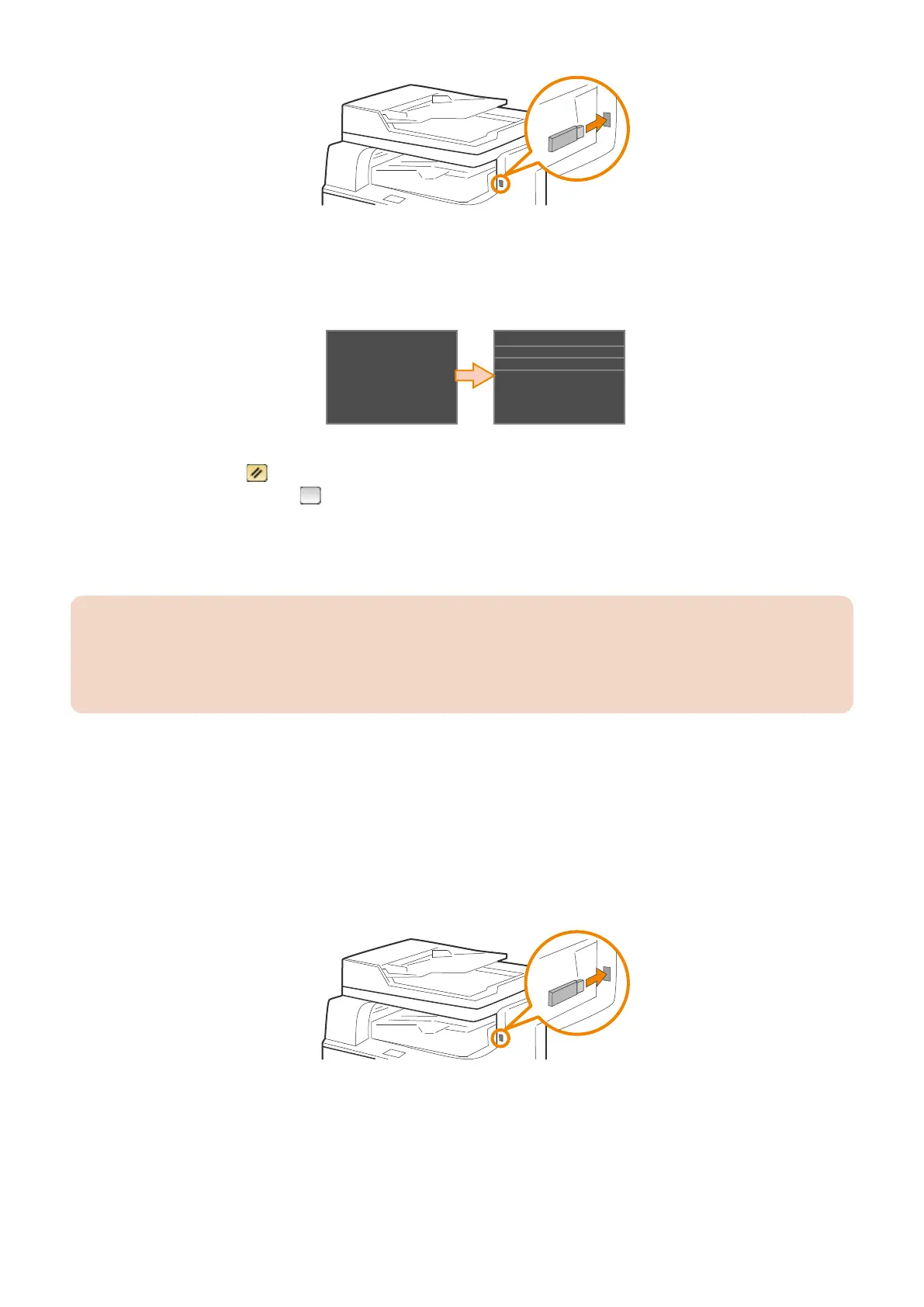
2. Enter service mode, and execute the following service mode.
• COPIER > FUNCTION > SYSTEM > EXPORT
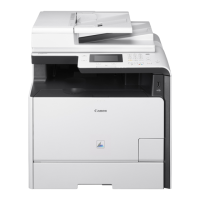
3. The message shown below which is displayed during the process will disappear. When the display has returned to
the original state, remove the USB flash drive.
Executing...
PANEL-UP
LOGWRITE
IMPORT
EXPORT
The procedure for removing the USB flash drive is shown below.
1. Press the [Reset] (
)key.
2. Press the [Status Monitor] ( )key.
3. Tap "Device Status".
4. Tap "Remove Memory Media".
Wait until the message "The memory media can be safely removed." is displayed.
5. Remove the USB flash drive.
CAUTION:
When exporting setting information using the [Settings/Registration] menu, if a USB flash drive is not connected, a message
prompting the user to connect a USB flash drive will appear and the process cannot be executed.On the other hand, when
this function is used, export can be executed without connecting a USB flash drive, therefore be sure to connect a USB
flash drive before executing export.
4. Check that a setting information file (service.dcm) exists in the directory directly under the root of the USB flash
drive.
This completes the procedure for exporting a setting information file.
● Procedure for Import Using Service Mode
1. To the directory directly under the root of the USB flash drive, save a setting information file (service.dcm) to be
imported.
2. Connect a USB memory device to the USB memory port.
3. Enter service mode, and execute the following service mode.
• COPIER > FUNCTION > SYSTEM > IMPORT
2. Technical Explanation
65



 To Next Page