M-Series Operator’s Manual 4/9/15
10-54
Selecting DXF geometry
After selecting an operation to from the Select Intercon operation menu, one of two menus appears. Contour, pocket
and frame operations display the Select Chain menu and Drill, Bore, Tap and Thread operations display the Select
Point menu. These menus allow you to select the geometry you wish to use to create the specified Intercon
operation(s).
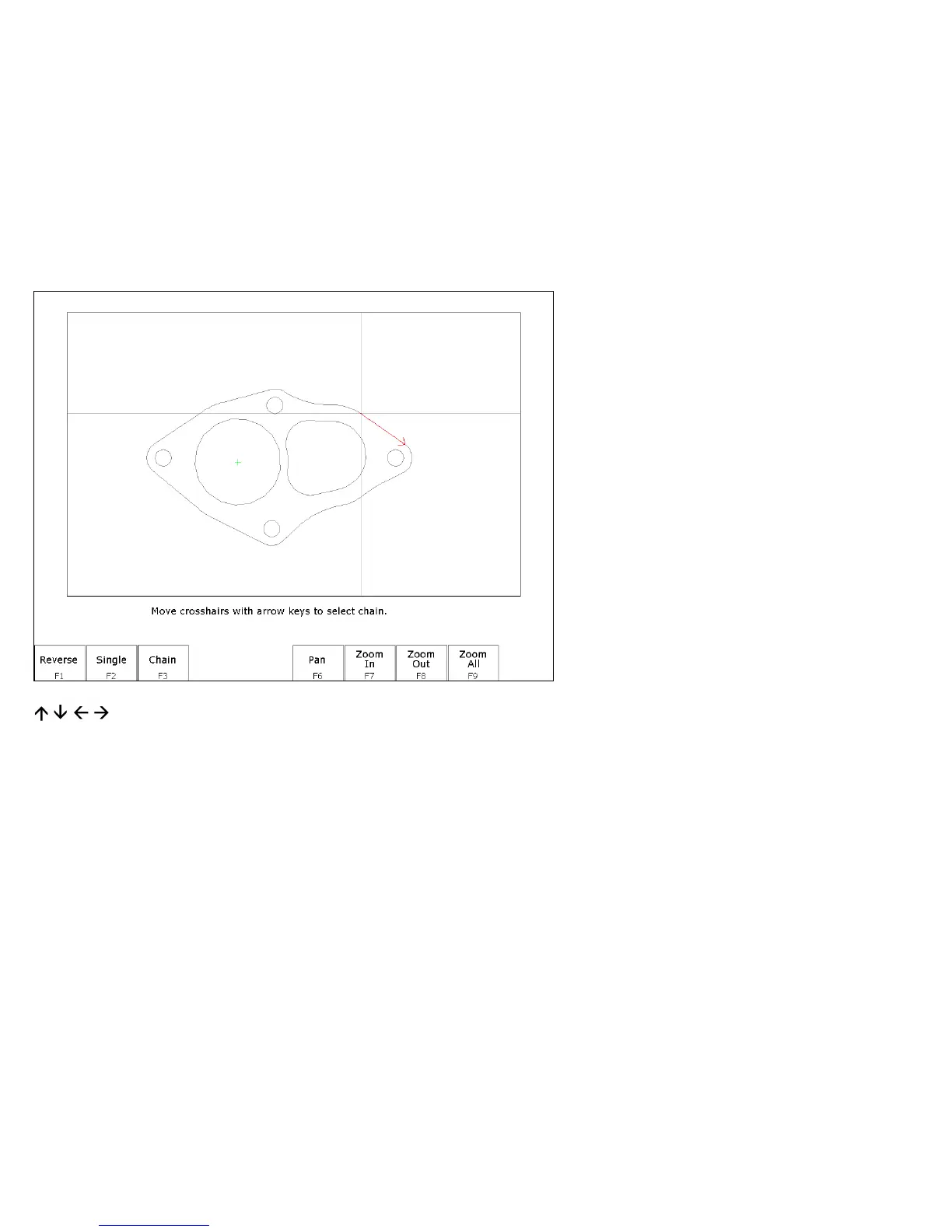
Select Chain menu
This menu allows you to select a chain of one or more lines and/or arcs. To select a chain, highlight the first line or arc
with the crosshairs. Press either F2 - Single to accept only that object or press F3 - Chain to accept that object and
create a chain of lines and arcs connected to that entity. When satisfied with the selected chain, press F10 - Done to
edit the values for the chosen Intercon operation.
(Arrow Keys) – Move crosshairs Use the arrow keys to move the crosshairs.
F1 – Reverse When a line or arc is highlighted, an arrow appears indicating the direction of the object. Contour
operations use this direction when cutting lines and arcs. To reverse the direction of the highlighted line or
arc, press F1 - Reverse.
F2 – Single Select the currently highlighted line or arc.
F3 – Chain Select the currently highlighted line or arc and create a chain of connected lines or arcs in the direction of
this selected object. Chaining will stop if there are no more connected, unselected lines or arcs, or the
chain connects to the first object in the chain, or a branch point occurs. A branch point occurs when the
last object in the chain is connected to more than one unselected lines or arcs. When this situation occurs,
highlight the desired unselected line or arc that connects to the last object in the chain and press F3 -
Chain to continue chaining.
F5 – Undo Unselect the last line or arc in the chain.
F6 – Pan Set the plot center to the center of the crosshairs.


 To Next Page