Control Station Duetto Program interface
2.0/0518 115
Contact details
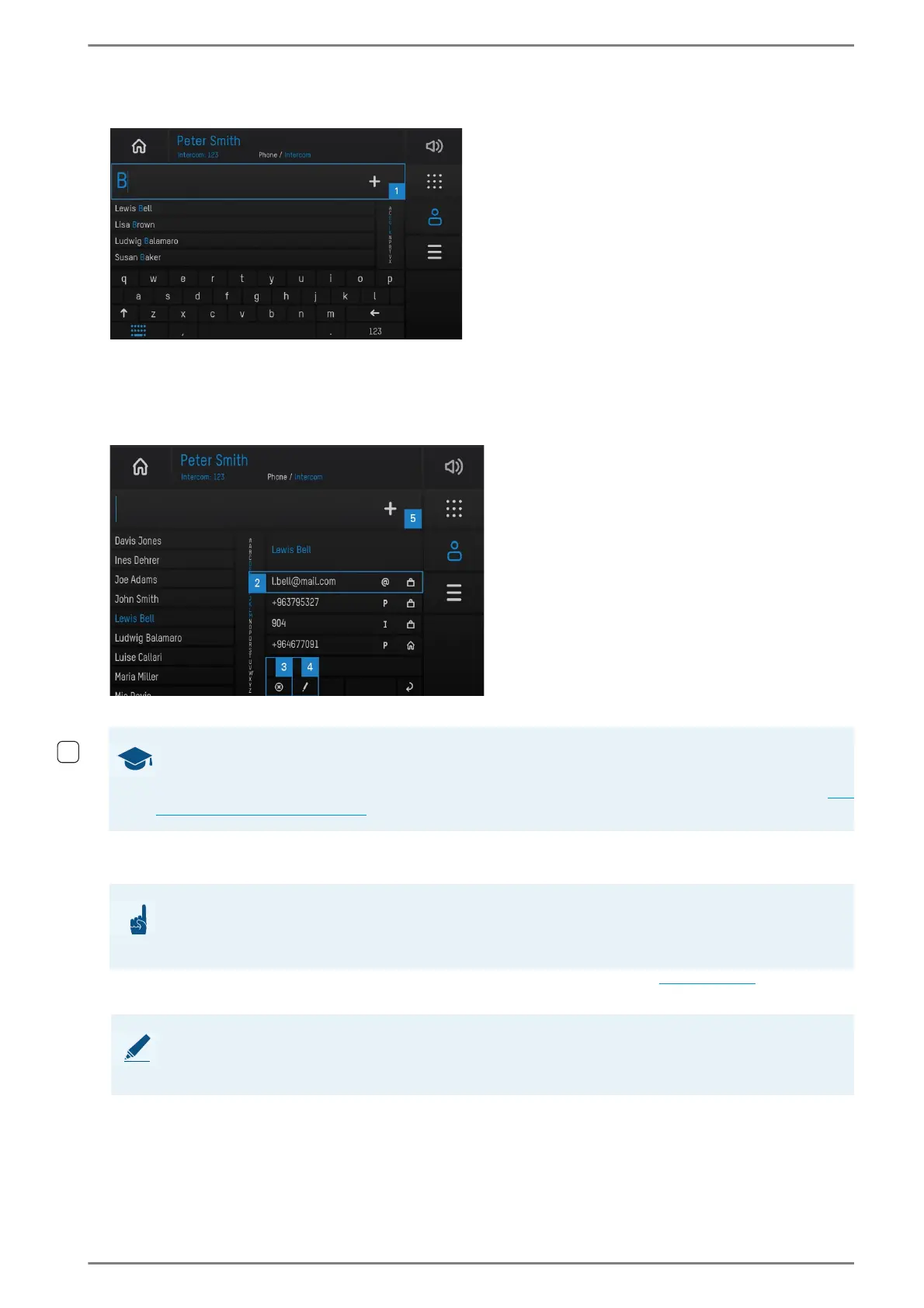
User interface “address book search”
Tap on the input field 1 and enter the name of the contact via the keyboard. The address book can
also be browsed by scrolling on the touch screen.
Tap on the desired contact to display the contact details:
User interface “contact details”
Call a contact 2: Tap on a call number in the contact details.
Delete a contact
3: Tap on the button and accept the appearing alert.
Edit a contact 4: Tap on the pen button to switch to the contact form (see page 116) and to edit
the contact details.
GOOD TO KNOW: Fonts, languages and special characters
The DUETTO device supports the Latin and the Russian keyboard. Additionally via the web interface created
contacts can be extended with further fonts (actual only Hebrew). To edit contacts in the web interface see
”System > General” on page 79.
ATTENTION: Intercom contacts will be restored when synchronising
Deleted Intercom contacts will automatically be replaced in the address book with the next
synchronisation with the Intercom Server!
NOTE: Synchronised Intercom contacts cannot be edited
Call numbers and names of Intercom contacts that have been received by the Intercom contacts cannot be
edited.


 To Next Page