Engineering Manual Engineer Menu 2-8
117
You can enter one of the following keys to view events of a specific type. (You may have to
wait a short period for the results to be displayed.)
1
Alarms
2 24 Hour Alarms
3 Fire Alarms
4
PA Alarms
5 Zone Tampers
6 User Codes
7 Set Wards
8 Unset Wards
9 Entry
Pressing 0 allows you to view events from a specified offset (position) in the log.
Option 2-8-2: Printing the Event Log
With offset of:-
0040
[
1234567890123456
1234567890123456
Log Functions 2
Print Log
How many events?
0030
[
0020
e.g.
e.g.
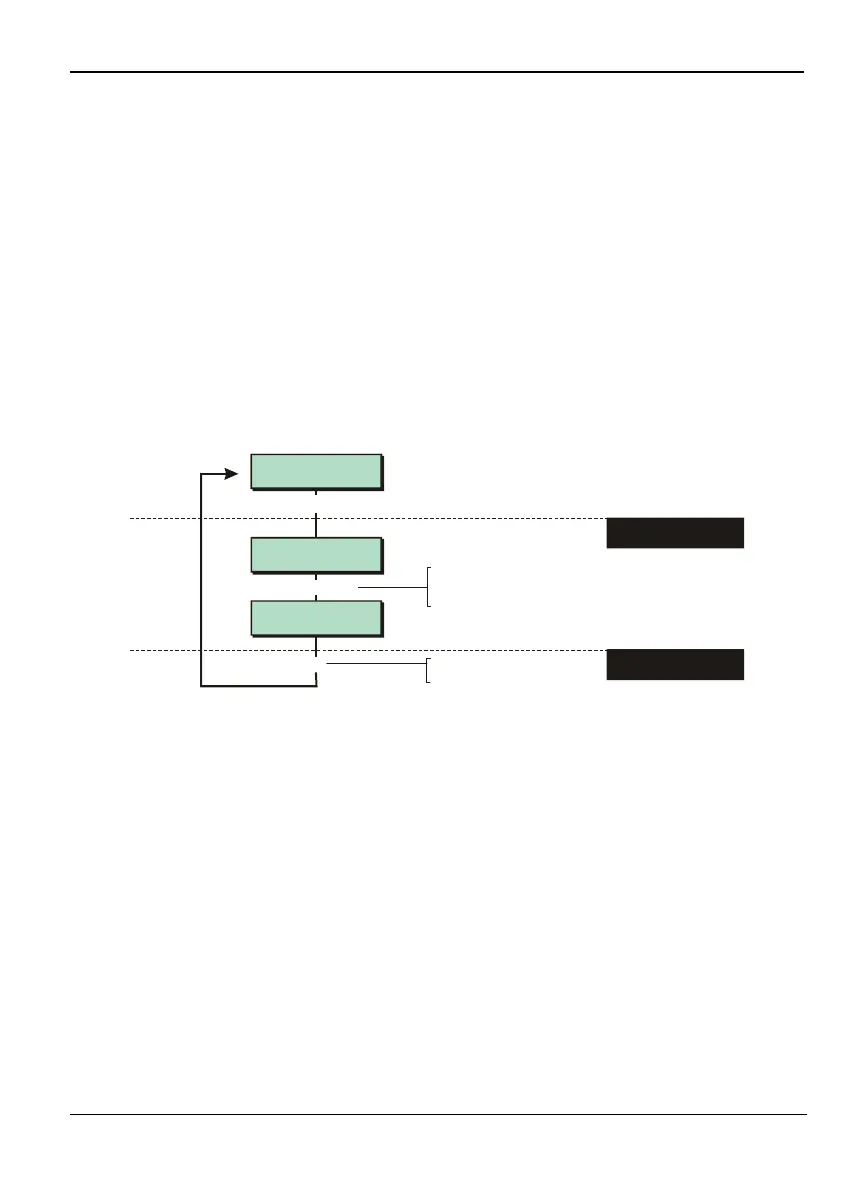
To specify the number of events to print:
Press or
"
"
|¬
to scroll the number, or
Enter the number directly
1. SPECIFY NUMBER OF
EVENTS TO PRINT
1. SPECIFY AN OFFSET
Specify the offset, then press
to begin printing
[
If a printer is connected to the control unit, you can print some or all of the events recorded in
the log.
Choose the number of events to print, then press [. Similarly, specify the offset, then press [.
If, for example, you choose to print 10 events with an offset of 50, the system will print events
50-59 (with event number 1 being the most recent). There may be more than one printed line
per log event.
If you want to stop the current print job, select the option again, but specify zero for the
number of events.
Once you have used the Print Log option, the system goes into online printing mode, where
every action is immediately printed. Switch off the printer to stop all printing.
Option 2-8-3: Viewing the Access Log
The access log stores every use of a user code of type Access (please refer to the Manager's
Manual). Press | or ¬ to scroll through the log (| displays earlier events).



 To Next Page