Engineer Menu 1-4 Engineering Manual
42
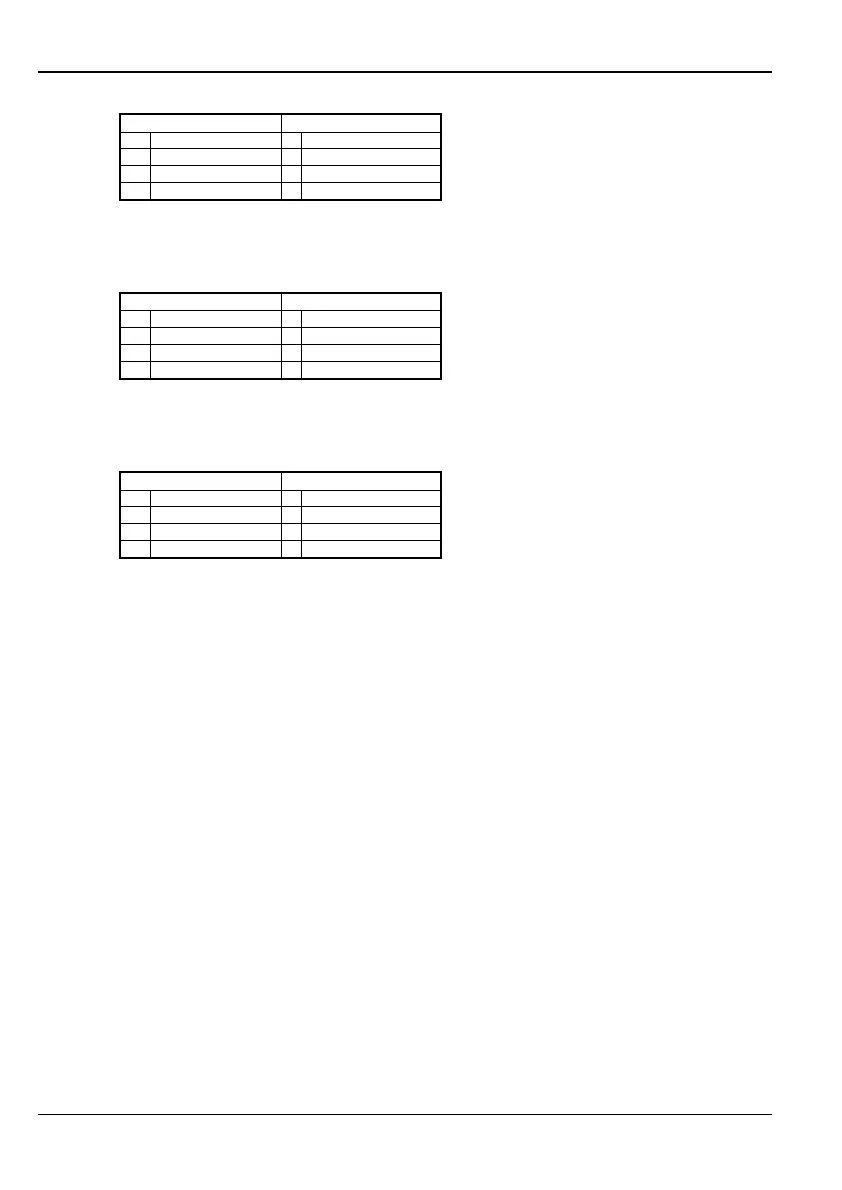
OR GATES AND GATES
1 Always Off 5 System Full Set
2 Always Off 6 System Full Set
3 Always Off 7 Alarm
4 Always Off 8 Alarm
Example 2:
The gates in custom output 2 have the following default settings. If the
defaults are used, the custom output activates only when the system is full set
AND
there
is a confirmed alarm.
OR GATES AND GATES
1 Always Off 5 System Full Set
2 Always Off 6 System Full Set
3 Always Off 7 Confirmed
4 Always Off 8 Confirmed
Example 3: The following example shows how to program a custom output to enable it
to activate when a monitored power supply reports a "PSU - Power" event AND a selected
ward is set.
OR GATES AND GATES
1 Always Off 5 PSU - Power
2 Always Off 6 Set (Ward option 08)
3 Always Off 7 Set (Ward option 08)
4 Always Off 8 Set (Ward option 08)
Step 2 – Select Output Number
Select the output of the chosen type to set up. For example, if you have chosen to set up a
Panel output, select whether to set up output 1, 2, 3, 4, or 5.
Step 3 – Select Item Output Follows
Select the source of the event that should activate the output:
1– System
The output activates when an event relating to the status of the alarm system in general
occurs.
2 – Ward
The output activates when an event relating to a specific ward occurs.
3 – Zone
The output activates when an event relating to a specific zone occurs.
4 – User
The output activates when a specified user's user code is used. The operation of the
output depends on whether Timed code o/p or Latched code o/p is selected (page 75).
5 – Group
The output will follow the status of a specified output group (page 34). The output is
activated if any of the zones in the group are triggered.



 To Next Page