123
Appendix A: Text Keys
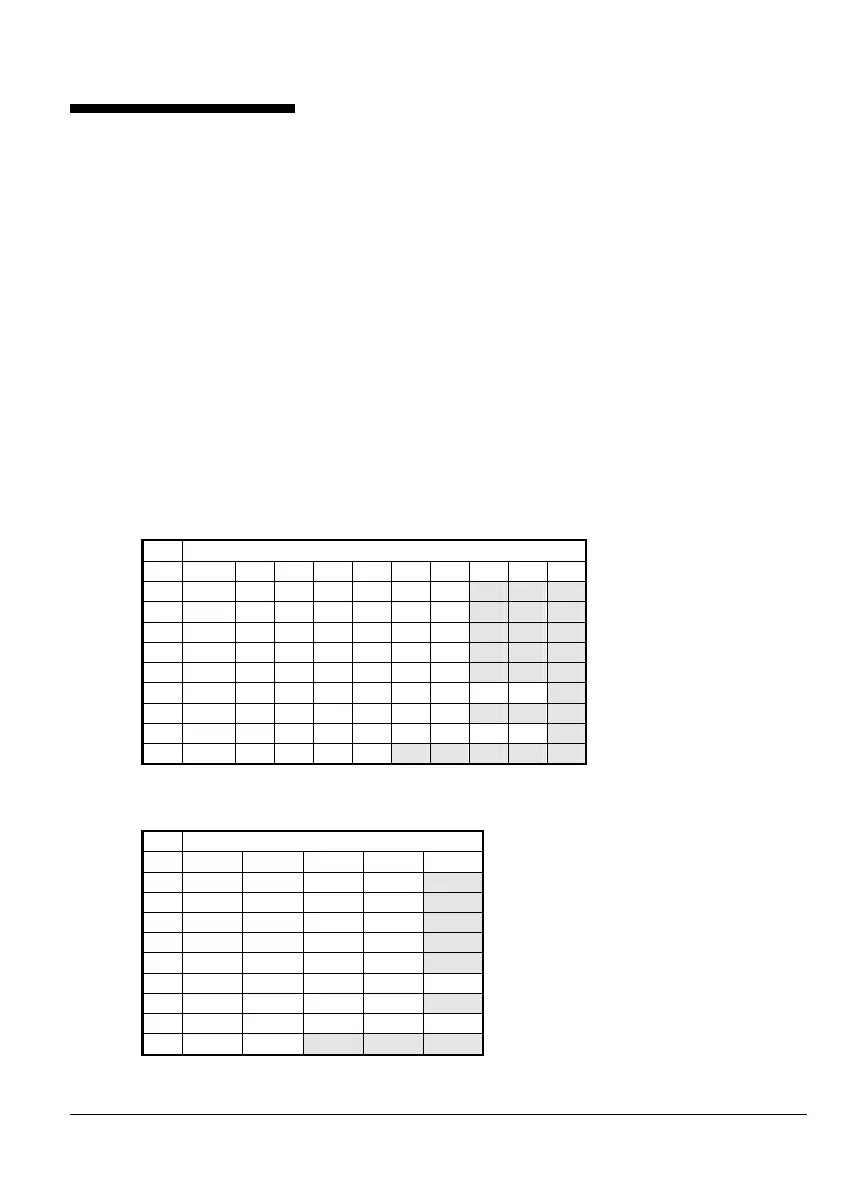
The following tables show how to obtain characters when entering descriptions or names at
the keypad. There are two tables: use Table 1 for options that normally require a text
description. Use Table 2 for options that normally require a numeric value, but where
alphabetic characters are also accepted.
If, for example, you want to obtain the "B" character using Table 1, press 2 twice.
Once you have chosen the character you require, press | to move the cursor to the right to
edit the next character. The ¬ key moves the cursor to the left.
Note: When you reach the end of the character sequence, the next press of the same key
takes you back to the beginning of the sequence. For example, in Table 1, the eighth press of
the 2 key displays the "A" character.
Note:
<sp> represents the space character.
Table 1: Obtaining characters for options that normally require a text description
Key
Characters Generated (in Sequence)
1
. , ? ! 1 @ " - & '
2
A B C 2 a b c
3
D E F 3 d e f
4
G H I 4 g h i
5
J K L 5 j k l
6
M N O 6 m n o
7
P Q R S 7 p q r s
8
T U V 8 t u v
9
W X Y Z 9 w x y z
0
<sp> 0 , # *
Table 2: Obtaining characters for options that normally require a numeric value
Key
Characters Generated (in Sequence)
1
1 . , ? !
2
2 A B C
3
3 D E F
4
4 G H I
5
5 J K L
6
6 M N O
7
7 P Q R S
8
8 T U V
9
9 W X Y Z
0
0 <sp>



 To Next Page