Set up your Dell Pro Rugged 13 RA13250
About this task
NOTE: The images in this document may differ from your computer depending on the configuration you ordered.
Steps
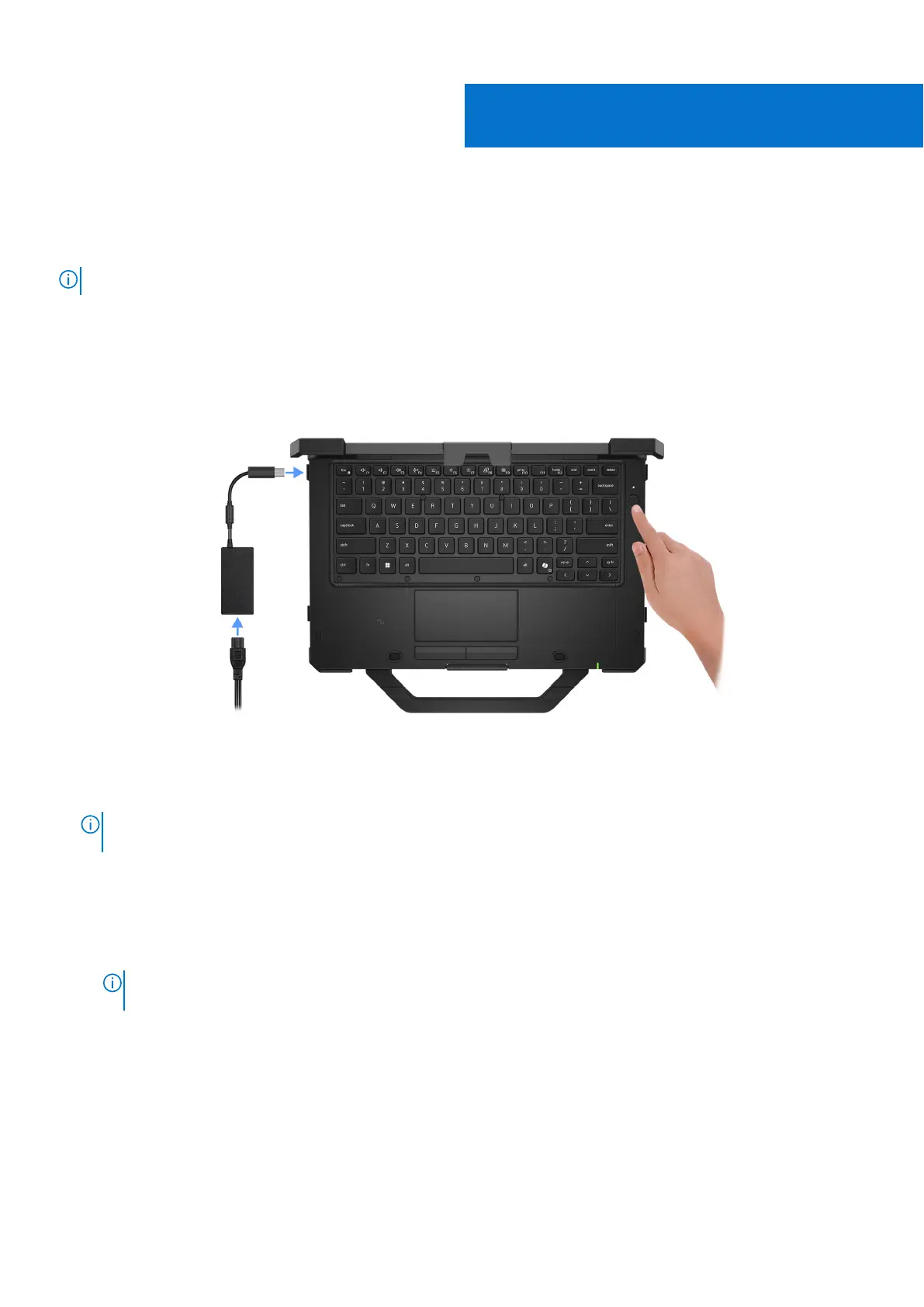
1. Connect the power adapter and press the power button.
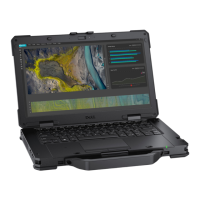
Figure 8. Setting up Dell Pro Rugged 13 RA13250 Laptop
NOTE:
The battery may go into power-saving mode during shipment to conserve charge on the battery. Ensure that the
power adapter is connected to your computer when it is turned on for the first time.
2. Finish the operating system setup.
For Windows:
Follow the on-screen instructions to complete the setup. When setting up, Dell Technologies recommends that you:
● Connect to a network for Windows updates.
NOTE:
If connecting to a secured wireless network, enter the password for the wireless network access when
prompted.
● If connected to the Internet, sign-in with an existing Microsoft account or create an account. If not connected to the
Internet, create an offline account.
● On the Support and Protection screen, enter your contact details.
3. Locate and use Dell apps from the Windows Start menu—Recommended.
2
16 Set up your Dell Pro Rugged 13 RA13250




 To Next Page