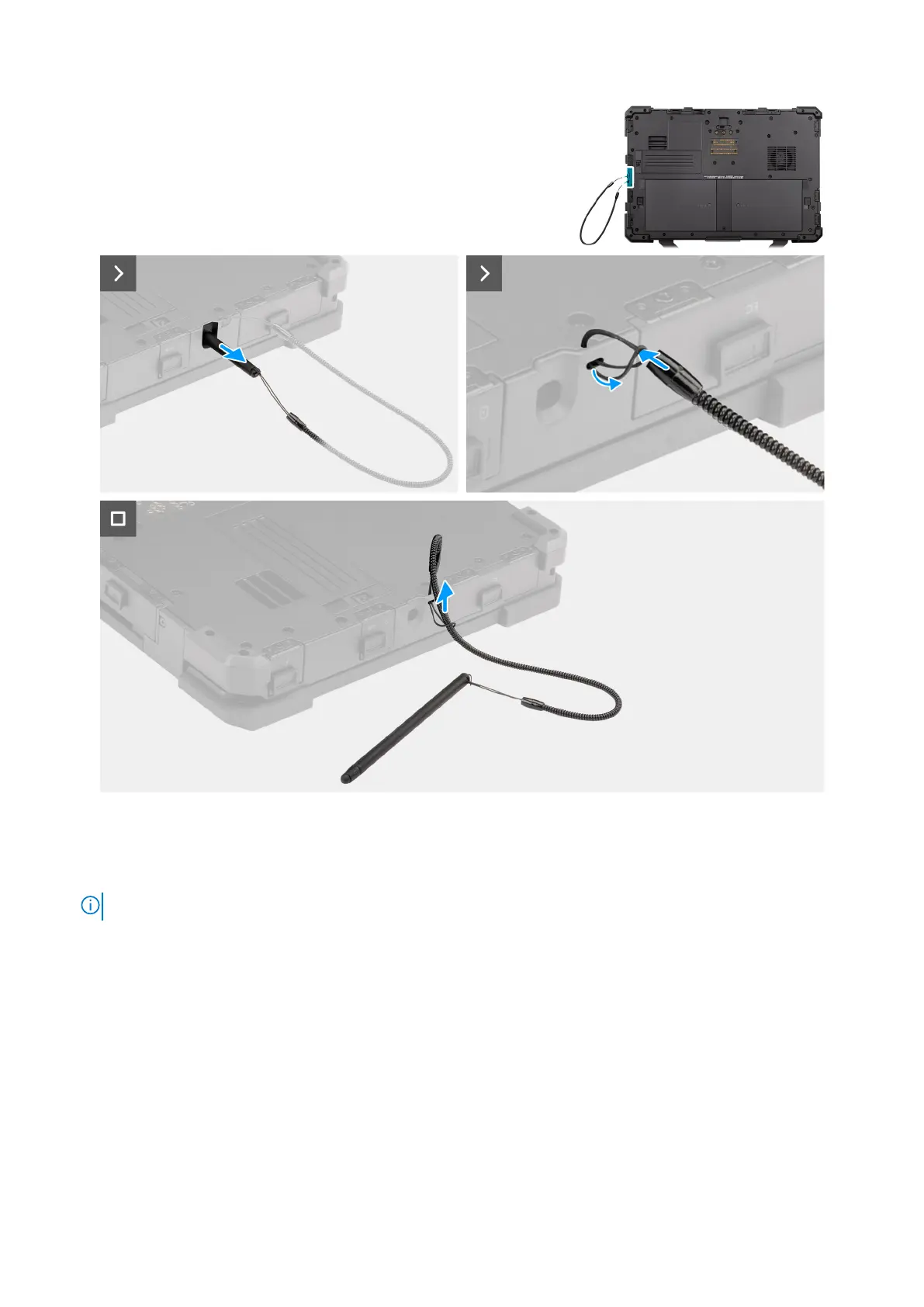
Figure 17. Removing the stylus
Steps
1. Slide the stylus out using the groove on the stylus pen.
NOTE: Avoid pulling the stylus with the stretchable thread.
2. Loosen the knot and slip the stylus through the hole to remove the tether from the computer chassis.
Installing the stylus
Prerequisites
If you are replacing a component, remove the existing component before performing the installation procedure.
About this task
The following image indicates the location of the stylus and provides a visual representation of the installation procedure.
Removing and installing Customer Replaceable Units (CRUs)
53




 To Next Page