Manuale operativo
CHORUS
48 Rev. 0 del 06/2012
4.2 DESCRIPTION OF THE WINDOWS
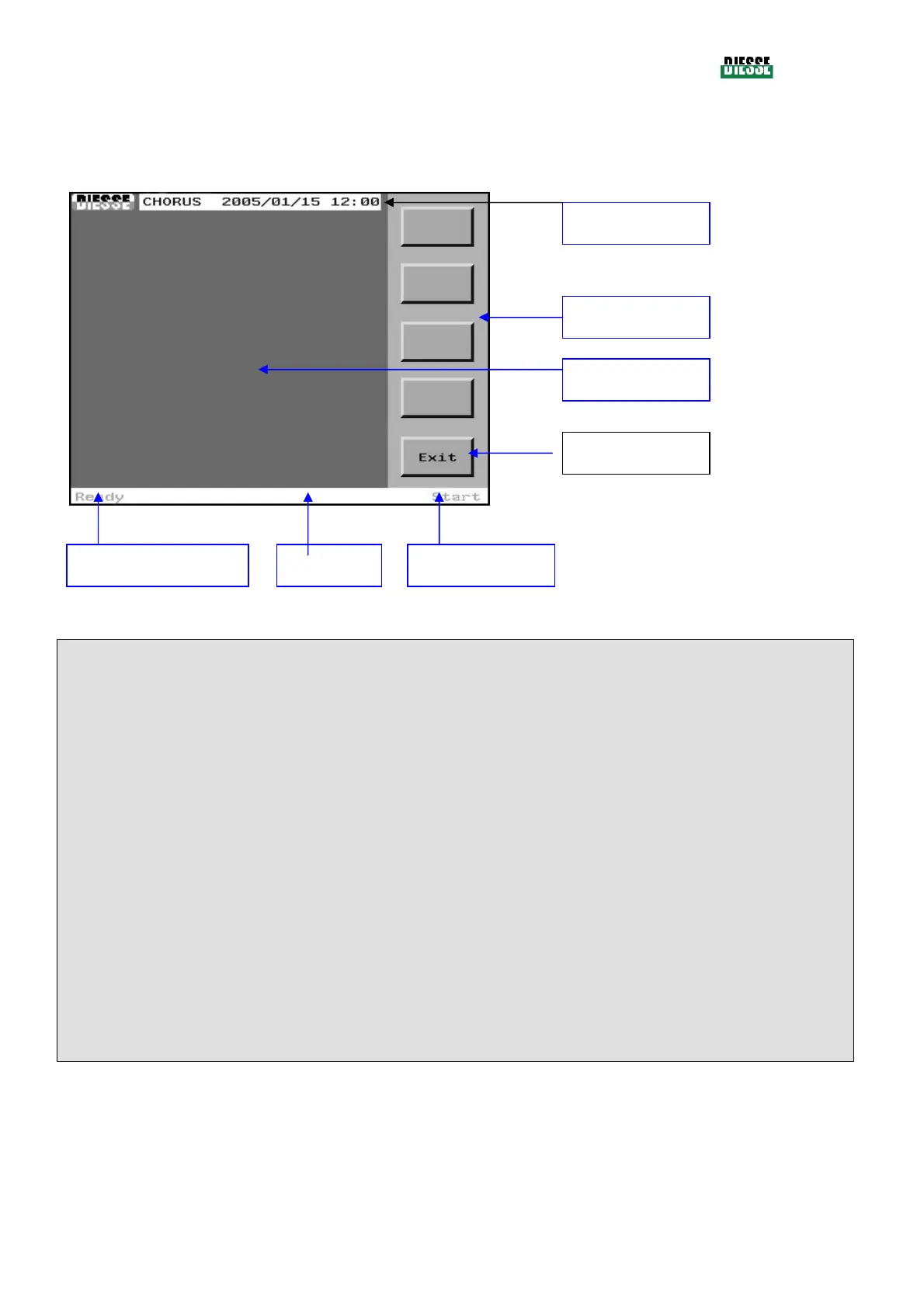
All of the CHORUS windows are structured like the following example:
fig. 30
Data area:
This is the part of the screen where all functional data is shown, sample list, tests, editing, results etc.
Command area:
Area dedicated to the command keys (related to the current screen). The only key that appears on all the screens
(except the start window) is the Exit key, used to return to the previous window.
Upper Bar
This shows the company logo, the name of the instrument, current time and date.
Status bar:
This shows information on the status of the instrument. The white background shows that the CHORUS
instrument is ready and/or running, the red, yellow, or magenta color indicates a problem interfering with normal
operation, while the blue color denotes the editing mode.
Status information:
show the indication if the instrument is able to operate or not.
“Ready” indicates that the instrument is ready to execute a cycle
“Not ready” indicates it is not able to execute a cycle, either caused by errors or because one or more checks
remained pending on the instrument.
Current window:
Indicates the path of the displayed window. The Start window is considered the main window.
Exit key
Command area
Current window
Data area
Status information Status bar
Upper bar



 To Next Page