11
Logging In
DuringtheQuick Start Guide procedure, you should have
successfully logged into the router’s Web Conguration user
interface (essentiallytherouter’soperatingsystemthat
controlshowitoperates)andestablishedsomeinitialsettings
and controls for the router.
Ifyouwishtochangetherouter’ssettings (establisha
newusernameandpasswordforthepersonwhomanages
andmaintainstherouter,setParentalControls,establish
aGuestAccess-SSIDsettingforvisitors,oranynumberof
othersettings)youcanlogintotheWebCongurationagain
throughthewebbrowser(InternetExplorer,Safari,Chrome,
Firefox)onyourcomputerortabletdevice.
To do this, enter the router’s default IP address of
192.168.0.1intoyourbrowser’saddresswindow.
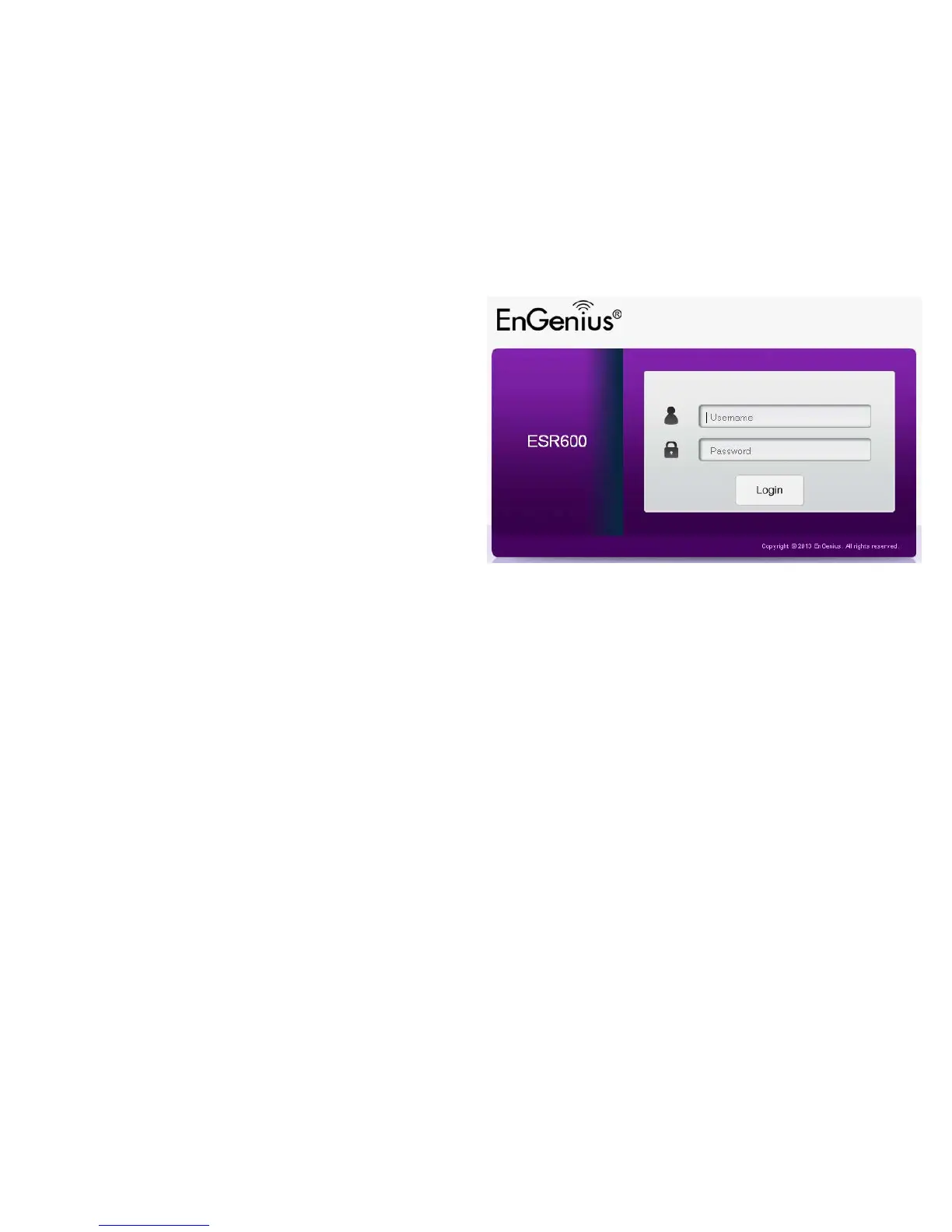
1.Attheloginscreenenteryourusernameandapassword
2.ClickLogintocontinue.
Thedefaultloginsettingsare:
username:admin
password:admin
It’s highly recommended that, if you haven’t done so already,
to change these default names, so your router and the devices
connectedtoitonyourhomenetworkaremoresecure.


 To Next Page