9
Physical Interface
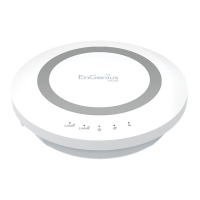
Dimensions and Weights
Weight:0.5lbs.
Diameter:6.36”
Height:1.64”
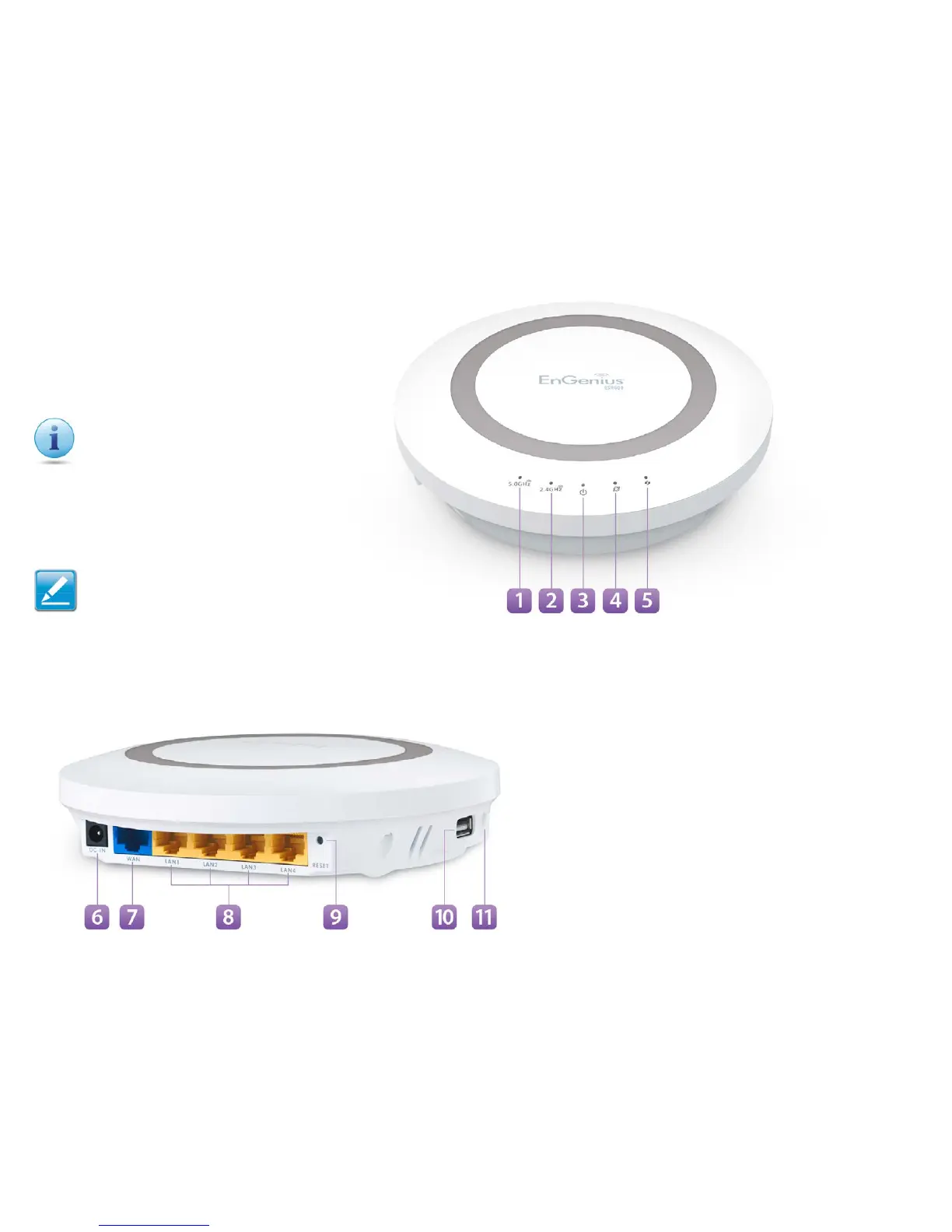
1 WLAN 5 GHz LED
2 WLAN 2.4 GHz LED
3 Power LED
4WAN Port/(Internet)
Status LED
5 WPS(WirelessProtected
Setup)LED
6 DC Power Jack—connectstheESRSeriesRoutertoitsDC
poweradapter
7 WAN Port—connectstheESRRoutertoacableorDSLmodem
toaccesstheuser’sbroadband(Internet)connection
8 LAN Ports (1 – 4) — for connecting home entertainment
components,computersorotherEthernet-enableddevices
usingEthernetcables
9 Reset Button — For resetting the router to its factory default
settingsbypressingbuttonformorethan11secondsoruntil
thePowerLEDstartsashing.
10 USB PortforconnectingaUSBStorageDevice
11 WPS Button—Wi-FiProtectedSetupbutton.Toassociate
anotherWPS-enabledclientdevice(computer,wirelessmedia
bridge,USBadapter,etc.)presstheWPSbuttonfor2to5
secondsontherouterwhilealsopressingtheWPSbuttonon
the end device.
Whenconsideringtheplacementofthe
router
rememberthefollowing:
• Itmustbeclosetoanelectrical
outlet.
• Foroptimalwirelessconnectivity,
place the router near the center of
theroomifpossible,atahighlevel
Otherelectronicdevicesandsome
architectural construction materials
orimpedimentsmayinterferewith
thewirelesssignal(s)oftherouter
and reduce its range or coverage. Try
tominimizethenumberofwallsor
oorsthattherouter’ssignalneedsto
penetratetoconnecttootherwireless
devices.


 To Next Page