34
Status and Save Settings
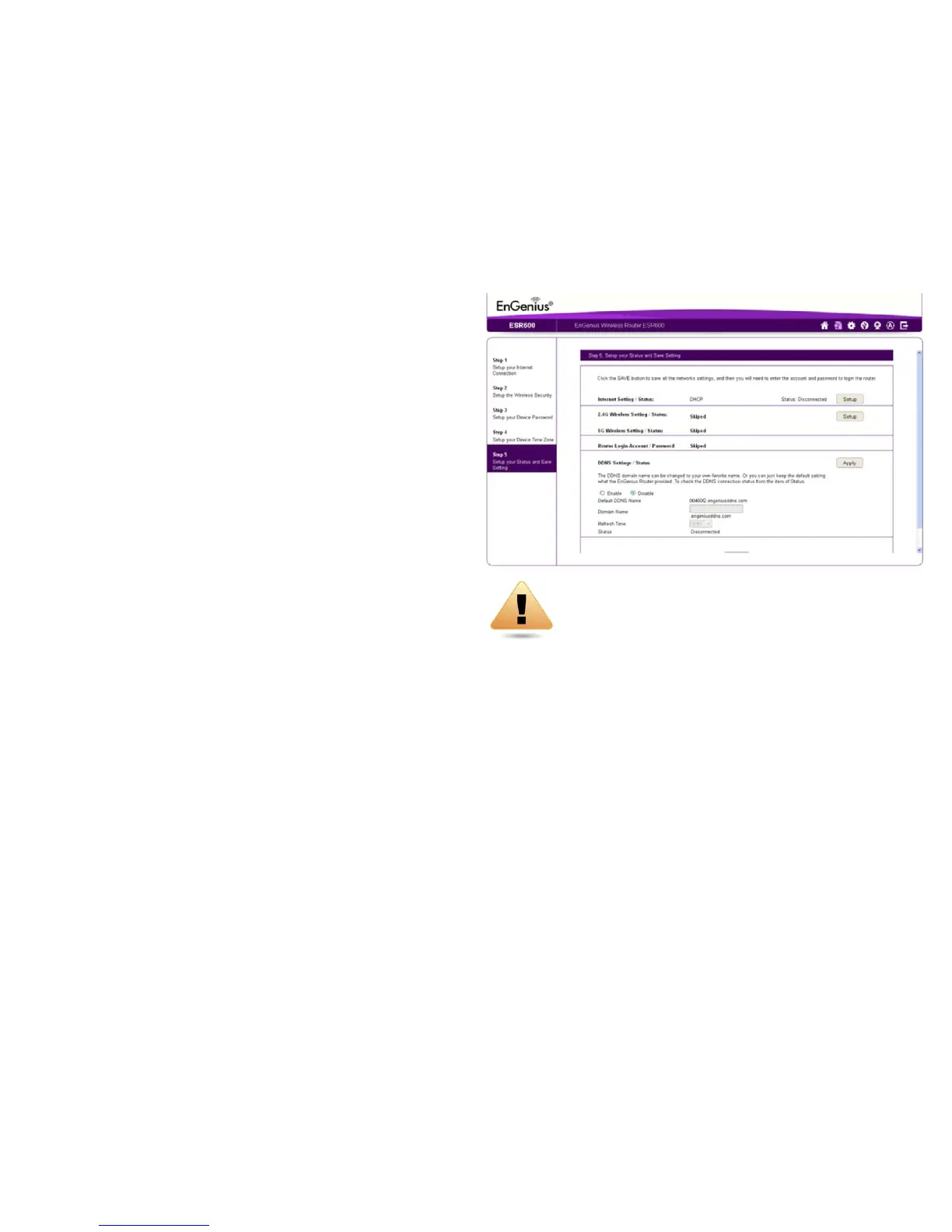
Thisscreenletsyoureview,changeandsaveyourInternet
connection,savewirelesssecuritysettingsorsetupupauser-
speciednameforthedefaultEnGeniusDDNSservice.
Toreviewormodifythedevicesettings,followthesesteps:
1.ReviewthesettingsshownonthescreenfortheInternet
connection,2.4GHzand5GHznetworks,andtherouter
administrator login.
2. You can change settings to the Internet connection and
wirelessnetworksettingsbyclickingtheSetupbutton.
Youmaywishtouseadifferentnamethat’seasiertoremember
forthedefaultEnGeniusDDNSserviceusedfortheEnShare™
feature.TospecifyyourownDDNSname,followthesesteps:
3. The Enableoptionshouldbeselectedbydefault.
a. Enter the name in the Domain Nametexteld.
b.SelectatimeintervaltorefreshtheDNSrecordsfromthe
Refreshdropdownlist.
c.ClickApplytosavetheDDNSnameyouhaveentered.
4.ClickSavetoexittheWebCongurationinterface.Therouter
willreboot(restart)toapplyallthesettingsyou’vespecied.
Devicesconnectedtotherouterwilltemporarilylosetheir
Internetconnection.Therebootmaytakeseveralseconds
beforetherouterandyourInternetconnectionareonceagain
available.
WARNING! Selecting DisableintheDDNSSettings/
Statuseldwilldisconnecttherouter’sconnection
tothedefaultEnGeniusDDNSserverandasaresult
willdisabletheEnSharefeaturewhichletsyouaccess
mediafromaUSBstoragedeviceconnectedtoyour
ESRpodrouterwhenyou’reawayfromyourhome.


 To Next Page