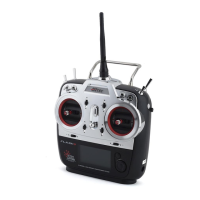
9 CHANNEL 2.4GHz AIRCRAFT COMPUTER RADIO SYSTEM
The First Screen
First Screen Additional Menu
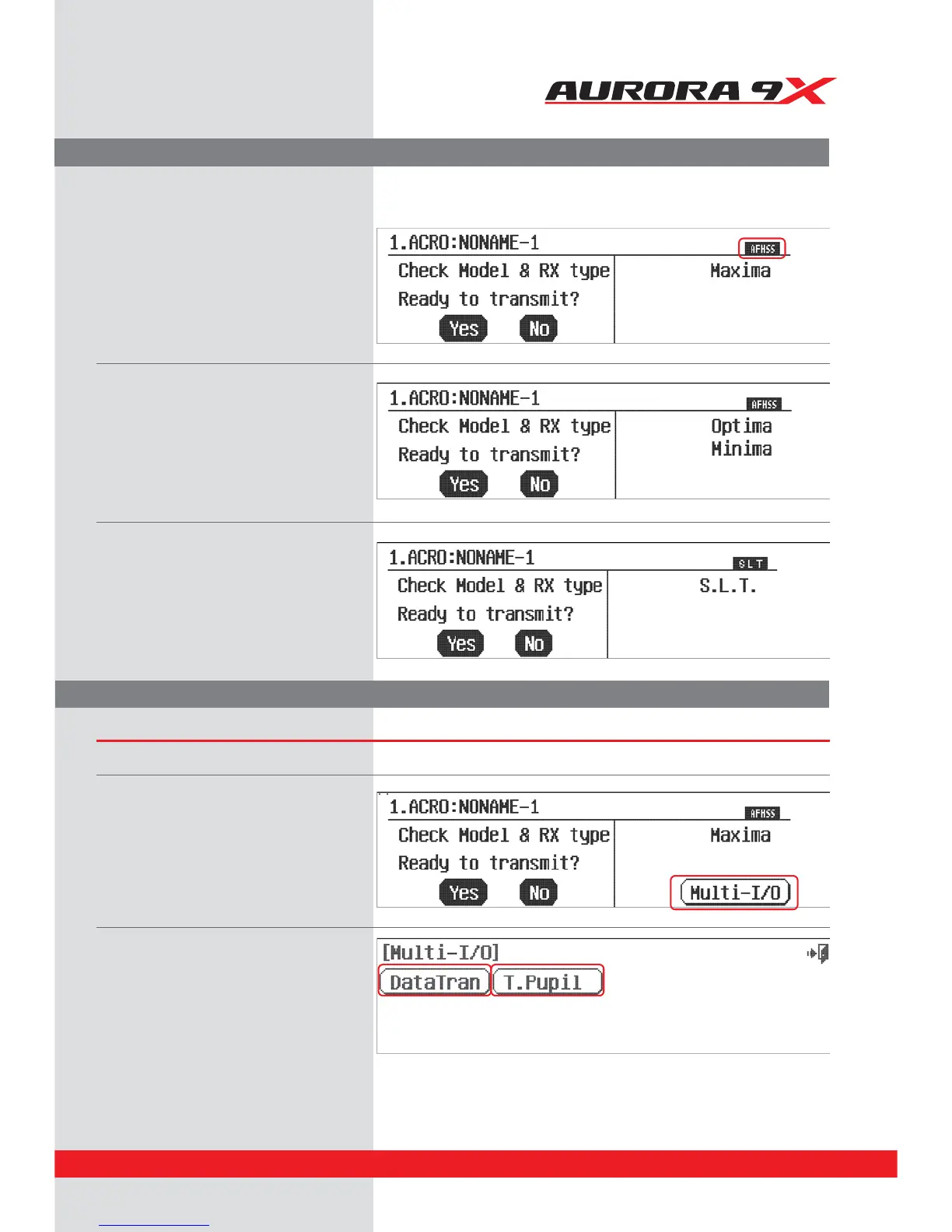
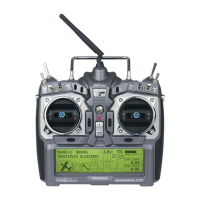
When you rst turn on the Aurora 9X, the following screen will appear and you can nd the information below.
In AFHSS mode (with Optima or Minima RX) :
To access the Multi-I/O port screen:
a. Plug in the trainer cord or HPP-22 PC interface
in the “trainer” port of the Aurora 9X on the
back.
b. Turn on the Aurora 9X.
d. Press the Data Tran icon to transfer data
between radios or to save/load data from a PC.
e. Press the T.Pupil icon to set the Aurora 9X in
student mode.
c. Press the Multi-I/O port icon to access.
1. The upper line has the number and name of the
active model on the left.
2. The current 2.4GHz mode type you are using
appears in the upper right corner and the
pre-set MAXIMA will appear right below.
3. You are asked “Ready to Transmit” by selecting
the Yes or No icon.
1. The upper line has the number and name of the
active model on the left.
2. The current 2.4GHz mode type you are using
appears in the upper right corner and the pre-set
OPTIMA or MINIMA will appear right below.
3. You are asked “Ready to Transmit” by selecting
the Yes or No icon.
The Multi-I/O port
The Aurora 9X displays a Multi-I/O format that is shown in the rst screen of all AFHSS and SLT modes.
In SLT mode :
1. The upper line has the number and name of
the active model on the left.
2. The current SLT mode you are using appears
in the upper right corner and the pre-set RX’s
name will appear right below.
3. You are asked “Ready to Transmit” by selecting
the Yes or No icon.
In AFHSS mode (with Maxima RX) :
31


 To Next Page