For multi-slice thermal scans, use the Keyboard UP and Down Arrows or buttons to navigate between
different slices of the temperature maps. Annotation on the bottom of the selected image (main image)
will indicate the scan location.
7.3.2. Thermal Evaluation Action Tools
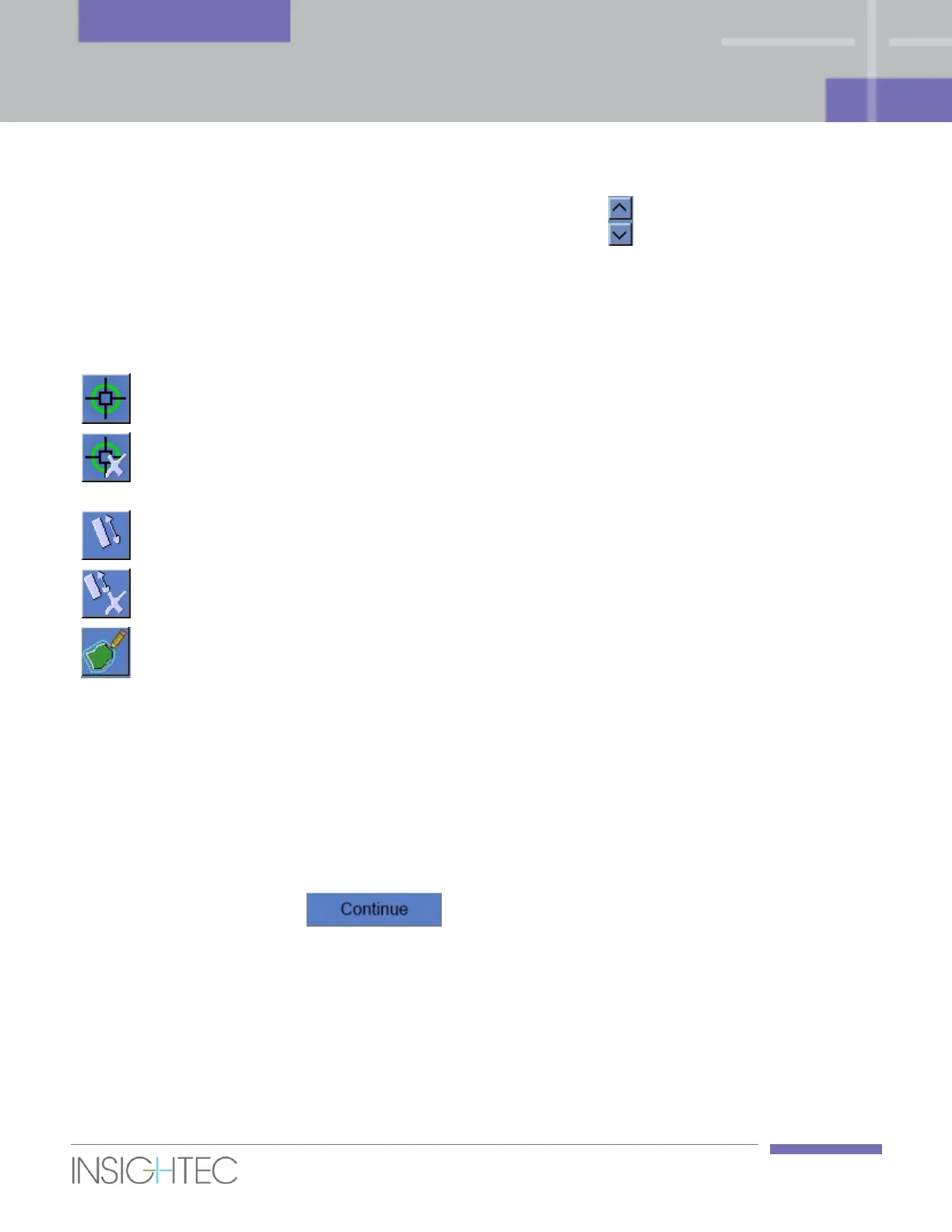
To perform spot location adjustment, select the temperature map with the
hottest spot to the Selected Image window.
Click to display the predicted dose overlay (in white) and adjust it to the
measured thermal dose. Enabled after every sonication.
In case of erroneous thermal dose regions (caused by noise or artifacts),
mark the thermal dose on the temperature map as follows:
Click on a temperature map with thermal dose to display it in the selected
image window.
Click once on the Draw Dose Polygons button; the polygon will be
automatically drawn along the Prostate Capsule contour.
If it becomes necessary to refine or redefine the drawn polygon, move it by
clicking it and dragging, or delete by clicking it and then clicking the Delete
button. Pressing the button again (for the 2nd time) will allow you to
manually draw the polygon.
When clicking on this button, only the thermal dose
inside the Dose Polygons will be accumulated.



 To Next Page