Chapter 9 Tools 182
9.4 System log
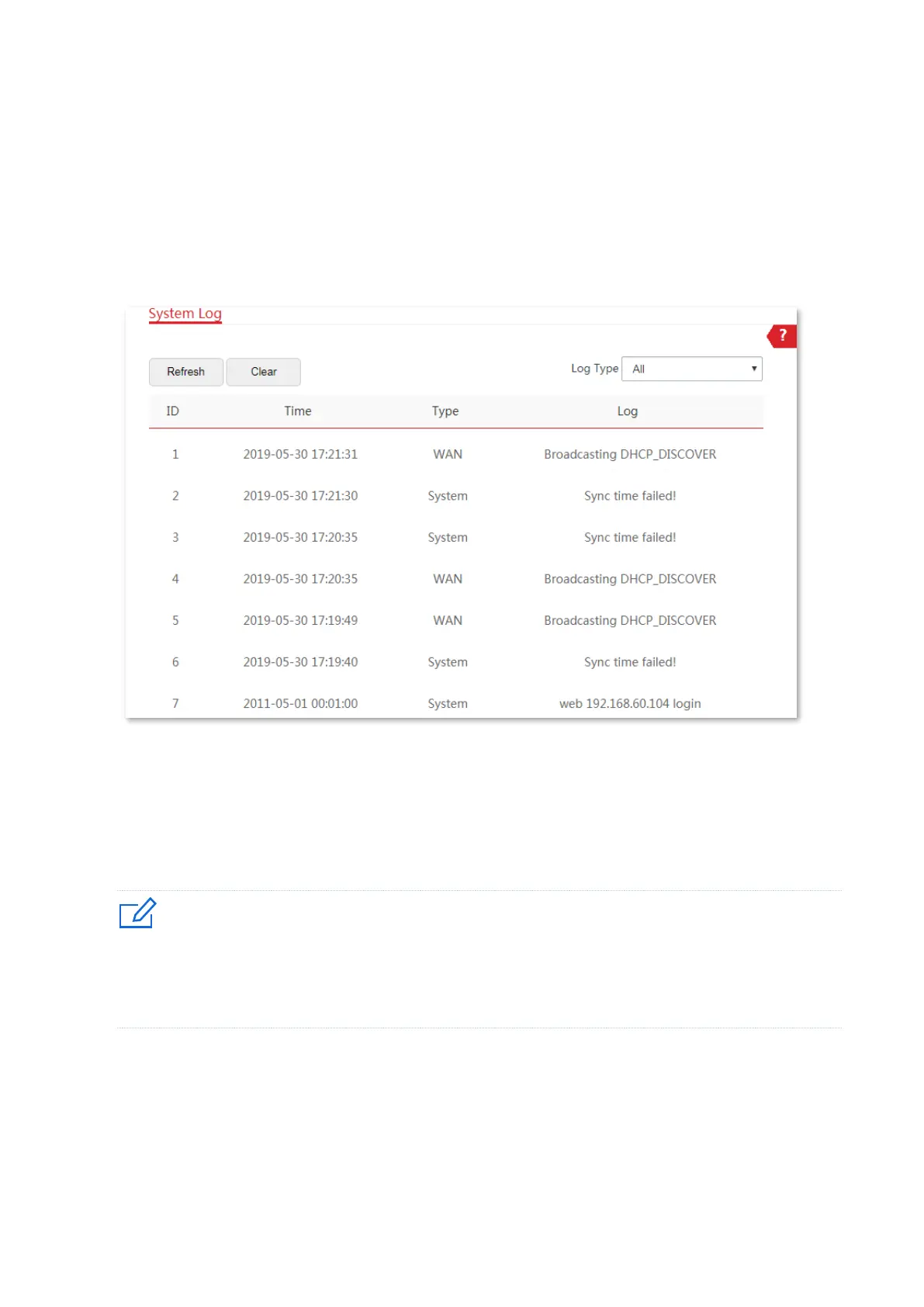
To access the page, choose Tools > System Log.
The logs of the CPE record various events that occur and the operations that users perform
after the CPE starts. In case of a system fault, you can refer to the logs during troubleshooting.
A maximum of 300 items can be saved. After the total log items exceed the maximum number,
the previous logs will be cleared.
To ensure that the logs are recorded correctly, verify the system time of the CPE. You can
correct the system time of the CPE by choosing Tools > Date & Time.
To view the latest logs of the CPE, click Refresh.
To clear the existing logs, click Clear.
− When the CPE reboots, the previous logs are lost.
− The CPE reboots when one of the following situations occurs: the CPE is powered on after a power
failure, the VLAN function is configured, the firmware is upgraded, the configuration of the CPE is
backed up or restored or the factory settings are restored.


 To Next Page