4-75
IV2 Series User's Manual (Control Panel)
3. Tool Settings (Setting the Judgment Method of the Target of Standard Mode)
Setting the Color/Brightness Average Tool
1
Add the [Color Avg.] tool (color type) or [Bright
Avg.] tool (monochrome type).
“Adding a tool” (Page 4-48)
The main screen for [Color Average]/[Brightness
Average] opens.
2
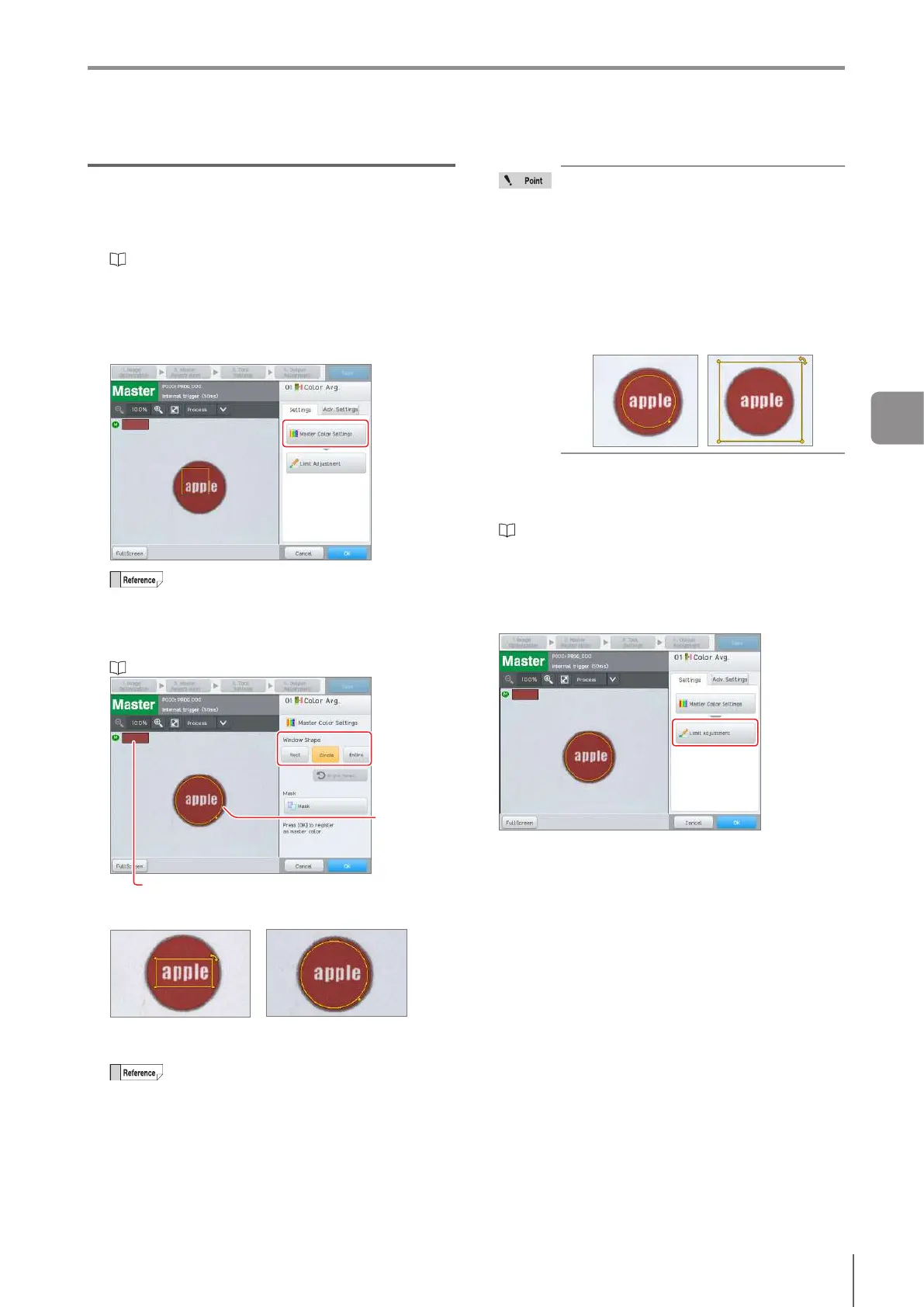
Tap the [Master Color Settings] button.
For monochrome type, tap the [Master Brightness
Settings] button.
Tapping the tool window will also allow for
editing of the window.
3
Select the tool window shape, position, size, and
angle according to the desired target.
“Editing the Window” (Page 3-19)
Set the
position, size,
and angle
Average color or average brightness in the window is
displayed
Rect
Circle
When [Entire] is selected, the tool window will be
hidden.
The window angle can be reset by the [Angle
Reset].
The average color or average brightness
value is automatically extracted from inside
the window.
Only set the window size to the color or
brightness area that you want to judge. If
the background is included, the average
color or brightness average that includes
the background color will be registered.
Therefore, the matching rate dierence
between “OK” targets and “NG” targets
that are desired to be judged will decrease.
Good example
Bad example
4
Apply the mask as needed.
The area inside the mask area is excluded from
average color or average brightness extraction.
“Mask” (Page 4-76)
5
Tap the [OK] button.
The system returns to the main screen for [Color
Average]/[Brightness Average].
6
Tap the [Limit Adjust] button.
The sensor changes to Test mode.
7
Take an “OK” image and a “NG” image.
If [Trigger Options] is set to [External] or [Internal
Trigger Control with IN1 Input] is set to [Yes], input the
external trigger.
If an external trigger cannot be input, tap the [Trigger
ON] button to take an image of the target using the
internal trigger.
4
Settings Navigator



 To Next Page