3-21
IV2 Series User's Manual (Control Panel)
Basic operation of the control panel
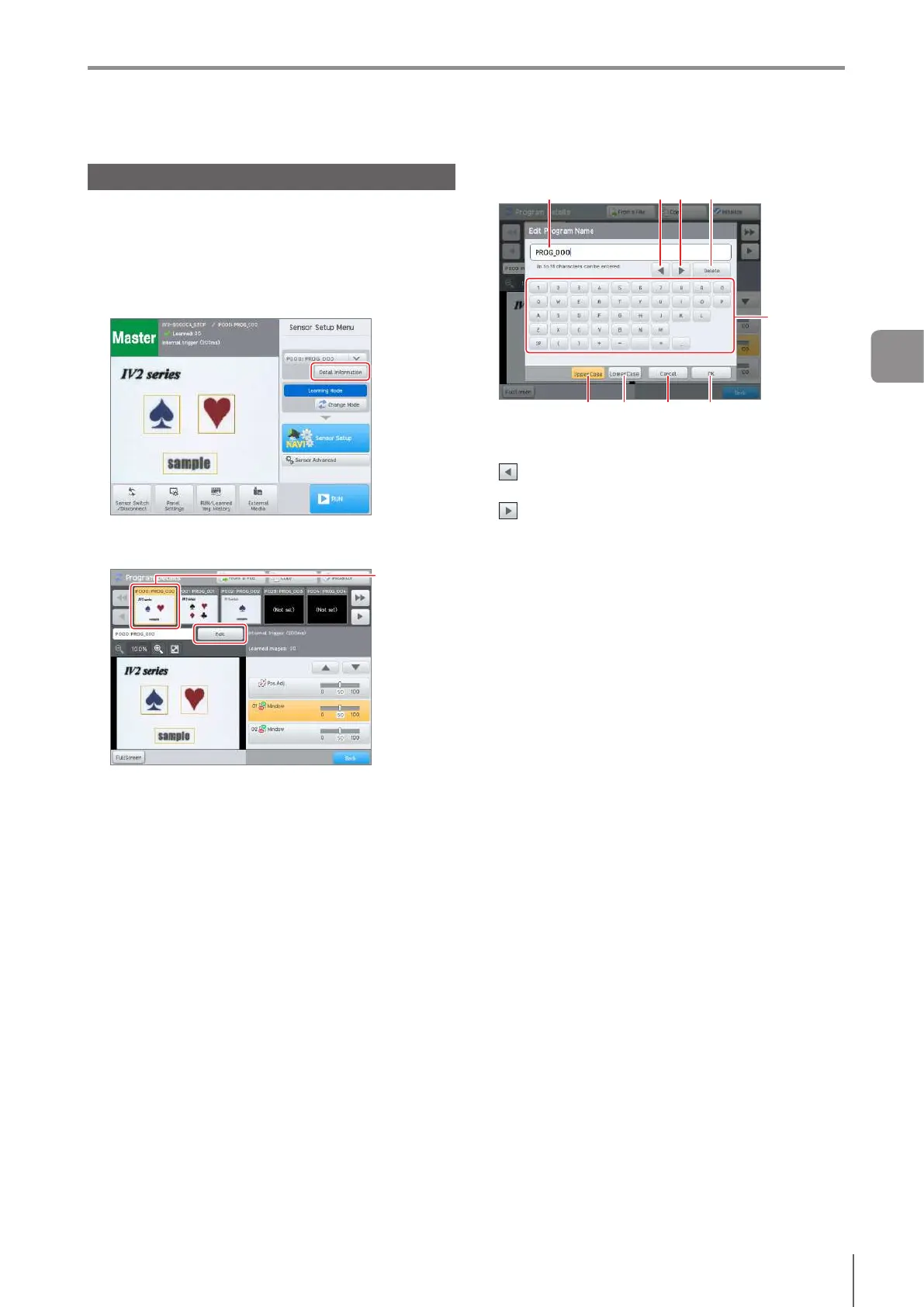
Inputting characters
The programs or tools to be displayed on the control panel
canbegivenauser-denedname.
This section explains how to input characters using the
example of [Program Name].
1
On the [Sensor Setup Menu] screen, tap the
[Detail Information] button.
2
Select the program to change the name and tap
the [Edit] button.
Select the
program
3
Edit the program name.
(1) (2) (3) (4)
(6) (7) (8) (9)
(5)
(1)
Name
Display the name of the program.
(2)
button
Moves the cursor position to the left.
(3)
button
Moves the cursor position to the right.
(4)
[Delete] button
Deletes one character to the left of the cursor.
(5)
Character button
Inputs the character that is tapped.
According to the selection of the [Full-width Kana]/[Half-
width Kana]/[Alphanumeric] button or [Upper-case]/
[Lower-case] button, the characters that can be input
willbedierent.
(6)
[UpperCase] button
Switches the character to be input to lowercase.
(7)
[LowerCase] button
Switches the character to be input to lowercase.
(8)
[Cancel] button
Discard the character input contents, and close the
character input screen.
(9)
[OK] button
Save the character input contents, and close the
character input screen.
4
After editing the name has completed, tap the
[OK] button.
3
Basic Operation



 To Next Page