3-22
IV2 Series User's Manual (Control Panel)
Basic operation of the control panel
Selecting the File/Folder in the USB
Memory
ThissectionexplainshowtoselectaleintheUSBmemory
connected to the control panel using an example of [Transfer
Program Settings].
1
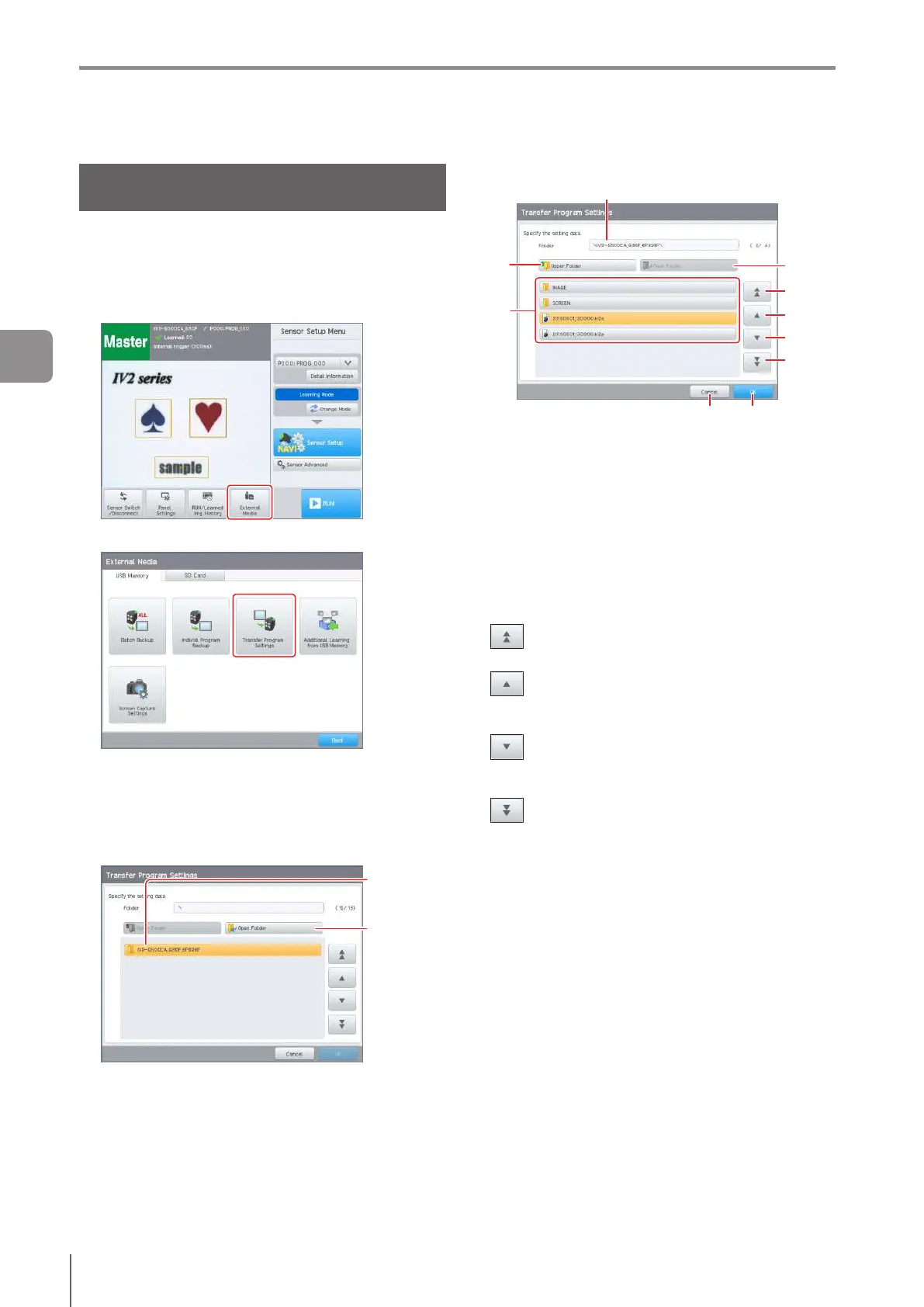
Tap the [External Media] button in the [Sensor
Setup Menu] screen.
2
Tap the [Transfer Program Settings] button.
Theconrmationscreenopens.
3
Tap the [OK] button.
ThefolderandleintheUSBmemoryaredisplayed.
4
Select the folder that stores the data and tap the
[Open Folder] button.
Tap
Select Folder
Thefolderandlestoredintheselectedfolderwillbe
displayed.
5
Select the le to be sent.
(1)
(9) (10)
(5)
(3)
(6)
(7)
(8)
(4)
(2)
(1)
Folder display
Displays the path of currently displayed folder.
(2)
[Up One Folder] button
By tapping the button, you can go to the upper hierarchy
of currently displayed folder.
(3)
[Open Folder] button
By tapping the button when selecting a folder, you can
open the folder.
(4)
File / Folder display
Displaysthelesandfoldersstoredinthecurrently
displayed folder.
(5)
button
Moves to the last page in the folder.
(6)
button
Changeswhichleorfolderisselected,movinginthe
upward direction.
(7)
button
Changeswhichleorfolderisselected,movinginthe
downward direction.
(8)
button
Moves to next page in the folder.
(9)
[Cancel] button
Cancels the setting and returns to the [External Media]
screen.
(10)
[OK] button
Determinestheleselection.
6
After selecting a le, tap the [OK] button and
proceed to the next setting.
3
Basic Operation



 To Next Page