4-17
IV2 Series User's Manual (Control Panel)
1. Image Optimization (Clearly Image a Target)
Lighting
1
Select the [Adv. Settings] tab.
“Main screen for Image Optimization” (Page 4-8)
2
Tap the [Lighting] button.
3
Select the lighting mode between [Flash]/
[Continuous]/[OFF].
4
When setting is completed, tap the [OK] button.
If the lighting mode is changed, re-register the
master image and re-set the tool. Otherwise a
correct judgment may not be possible.
When [Continuous] has been selected, the
lightgoeso(forapproximately0.2ms)right
before imaging.
When the IV2-G300CA/IV2-G600MA is used,
[Continuous] cannot be selected.
Color Filters (color type only)
Thecolorltersarenotappliedtothefollowing.
Detection window (learning mode)
Color area tool (standard mode)
1
Select the [Adv. Settings] tab.
“Main screen for Image Optimization” (Page 4-8)
2
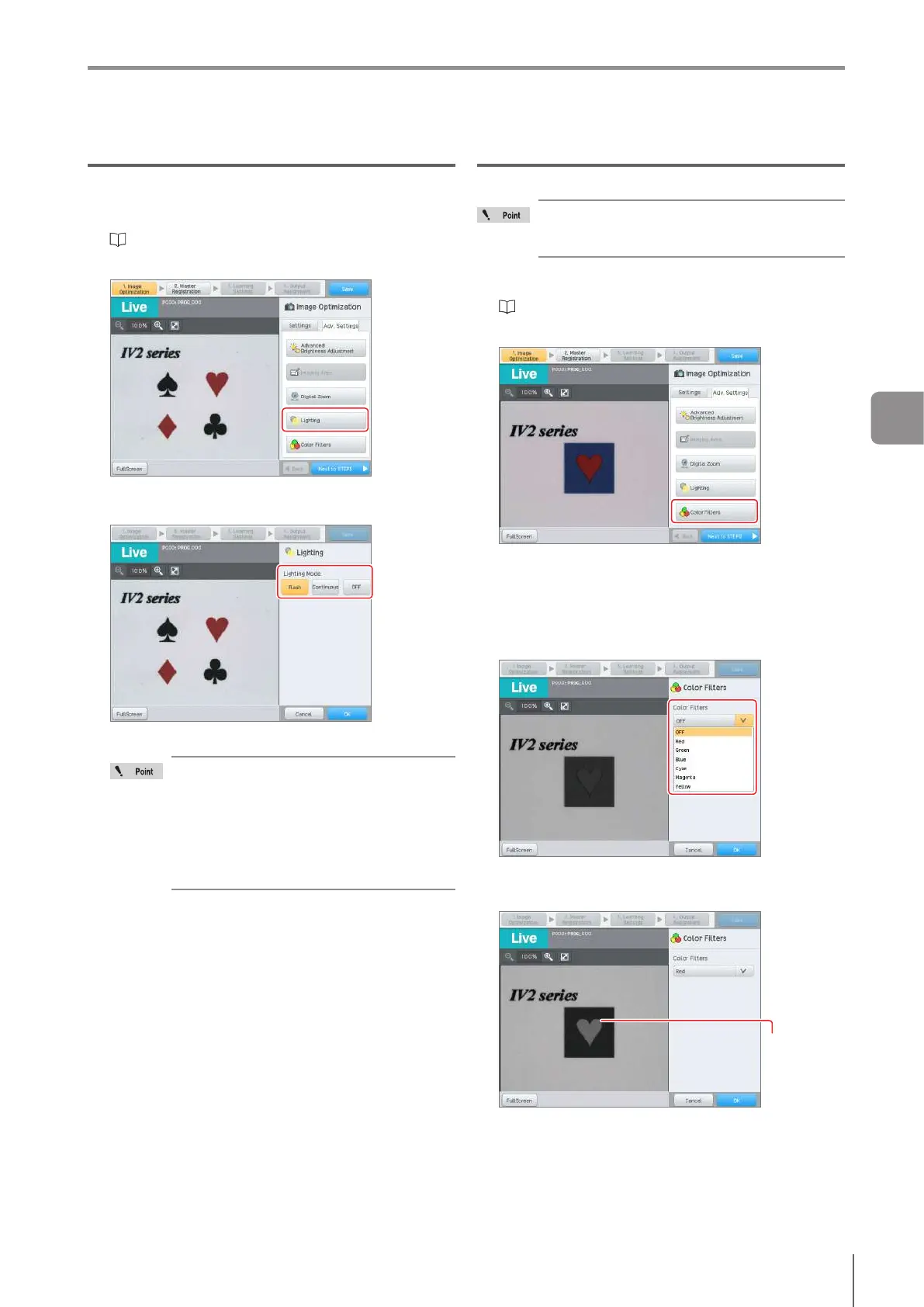
Tap the [Color Filters] button.
The image changes to monochrome. In the example
inthegureabove,theredandblueoutlinesbecome
unclear.
3
Select the color to apply the color lter.
Selectthelterforthecolororthecomplementarycolor
to be detected. Select red here.
Thecolorltercorrespondingtotheselectedcolorwill
be applied. The red color becomes brighter and the
outline with the blue color becomes clear.
Claried
outline
4
When setting is completed, tap the [OK] button.
4
Settings Navigator



 To Next Page