4-79
IV2 Series User's Manual (Control Panel)
3. Tool Settings (Setting the Judgment Method of the Target of Standard Mode)
Color Range/Brightness Range
1
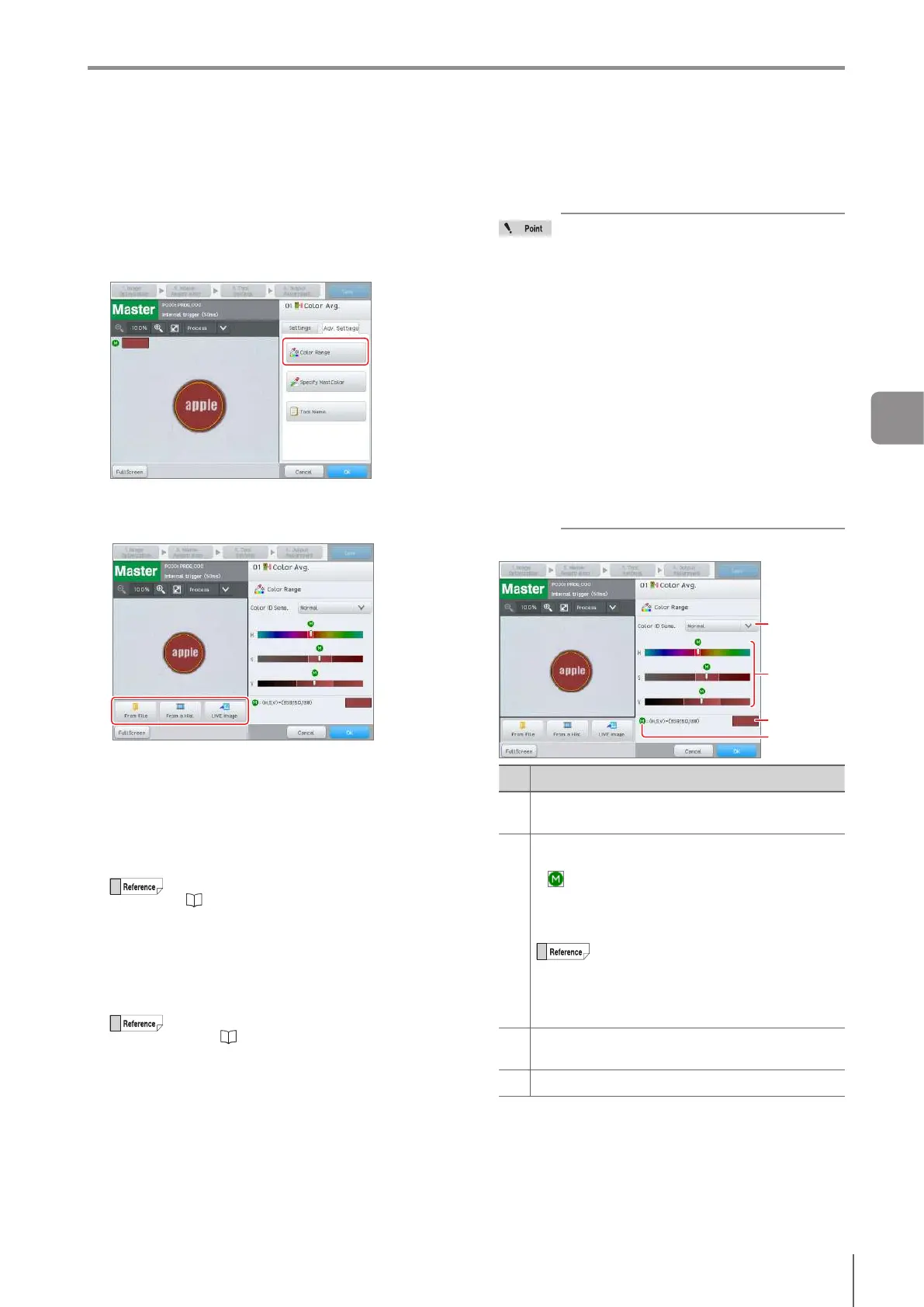
Select the [Advanced Settings] tab.
2
Tap the [ColorRange] button.
For monochrome type, tap the [BrightnessRange]
button.
3
Select an image for which you want to adjust the
color/brightness area.
If you want to use the master image, go to step 4.
To use the Live image
Tap the [Live Image] button.
The color area can be set based on the Live image of
the target.
When importing from the image history
Tap the [From a Hist.] button to select the image that is
desired to be used.
For details of how to perform this operation, refer
to “When importing from the image history”
(Page 4-69).
When importing from a le saved in a USB
memory
Tapthe[FromaFile]buttontoselecttheledesiredto
be imported.
For details of how to perform this operation,
refer to “Whenimportingfromalesavedin
USB memory” (Page 4-68).
Ifabatchbackuple(*.iv2a)isselected,selectthe
image type from the following types:
Running Image History
Master Image
OK/NG Registration Image
Learning Image History
Select the target program when the learning image
history is selected.
4
Select the color/brightness judgment sensitivity.
For color type
Selecting [Hi Sens]/[Normal]/[LowSens]
automatically sets the judgment area. (The
average color (HSV) value is the center of
the master image window.)
To narrow the OK area, select [Hi Sens].
This enables small color dierences to be
dierentiated.
To widen the OK area, select [LowSens].
This setting makes judgment resistant to
individual OK color dierences and light
interference.
[Manual] enables the desired area to be set
as needed.
Re-registering the master image or
registering an external master image
automatically updates the area in
conjunction with the average color for
the updated master image. If [Manual] is
selected, it is automatically updated while
retaining the specied area.
Selecting sensitivity on the master image
(2)
(3)
(1)
(4)
No. Description
(1)
Select the color/brightness judgment sensitivity ([Hi
Sens]/[Normal] (default)/[LowSens]/[Manual]).
(2)
The following items are displayed on the bar graph
(H/S/V).
(Average color value of the master image)
Solid line (color judgment sensitivity area)
Dotted line (threshold area of the color average
tool)
Bar graph scale
H : Automatically adjusts the average
color value of the master image to
be centered on the bar.
S/V : Left end is 0 and right end is 255.
(3)
Displays the average HSV value of the master
image.
(4) Displays the average color of the master image.
4
Settings Navigator



 To Next Page