4-7
IV2 Series User's Manual (Control Panel)
Basic Operation of the Settings Navigator
Finishing the Settings Navigator
Finishing by completing all steps
1
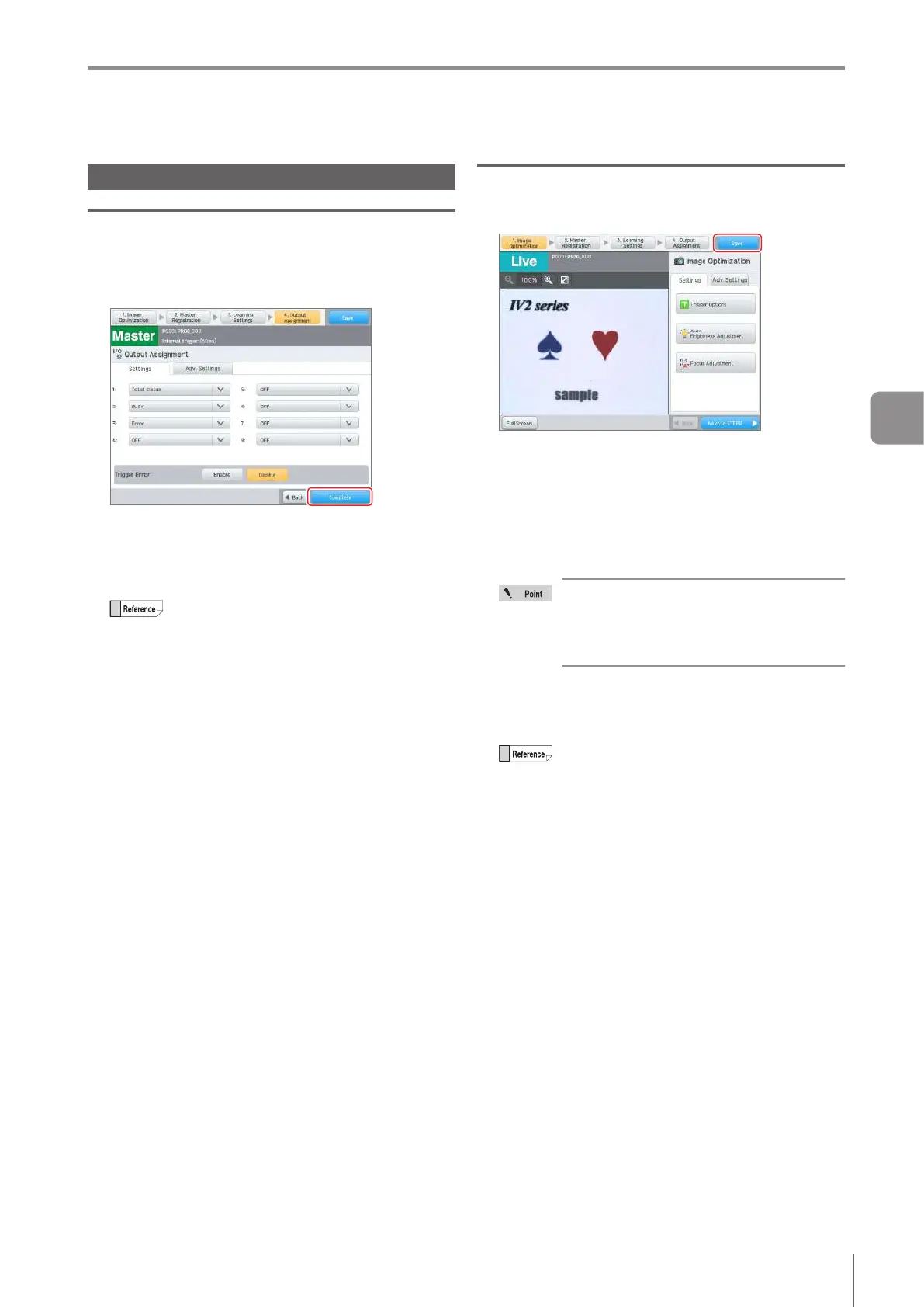
Set all steps in the Settings Navigator.
2
Tap the [Complete] button.
Theconrmationdialogtosaveopens.
3
Tap the [Yes] button.
The settings in the Settings Navigator will be saved and
the system returns to the [Sensor Setup Menu] screen.
Bytappingthe[No]button,theconrmation
dialog to cancel the settings opens. By tapping
the [Yes] button, the Settings Navigator closes
without saving the settings.
By tapping the [Cancel] button, the system
returns to the Settings Navigator screen.
Finishing without completing the step
1
Tap the [Save] button.
When the required settings are completed
Theconrmationdialogtosaveopens.
When the required settings are not completed
Theconrmationdialogtonishopens.
Bytappingthe[Yes]button,theconrmationdialogto
save opens.
By tapping the [No] button, the system returns to the
Settings Navigator screen.
The required settings have not been
completed yet. Even if the [OK] button is
tapped and the setting contents are saved
in the program, proper operation cannot be
performed.
2
Tap the [Yes] button.
The settings in the Settings Navigator will be saved and
the system returns to the [Sensor Setup Menu] screen.
Bytappingthe[No]button,theconrmation
dialog to cancel the settings opens. By tapping
the [Yes] button, the Settings Navigator closes
without saving the settings.
By tapping the [Cancel] button, the system
returns to the Settings Navigator screen.
4
Settings Navigator



 To Next Page