4-8
IV2 Series User's Manual (Control Panel)
1. Image Optimization (Clearly Image a Target)
1. Image Optimization
(Clearly Image a Target)
Setting the Image Optimization
In this section, adjust the Image Optimization settings
used for taking an image of the target. Adjust the image for
deningdierencesinan“OK”and“NG”image.
Trigger Options
A trigger in this manual indicates the timing to start
imaging with the built-in camera of the sensor. In the
Trigger Options, set the timing to image a target within
theeldofviewofthisdevice.Thisdevicecanimagea
target at any timing and can image continuously.
“Setting the Trigger Options” (Page 4-9)
“Checking the Field of View and installed distance”
(Page 2-2)
Auto Brightness Adjustment
Thesensorimagesatargetbyreceivingthereected
light from the built-in light exposed to a target using the
CMOS image sensor.
In the Auto Brightness Adjustment, a target can be
imaged with an appropriate brightness by automatically
adjusting the light intensity and shutter speed according
to the shape and surface condition (color, shininess,
material) of the target.
“Auto Brightness Adjustment” (Page 4-12)
Focus Adjustment
Adjusts the focus of lens. Adjusts the focus to clearly
image the shape of the target. Auto focus can adjust the
focusing position automatically.
“Focus Adjustment” (Page 4-12)
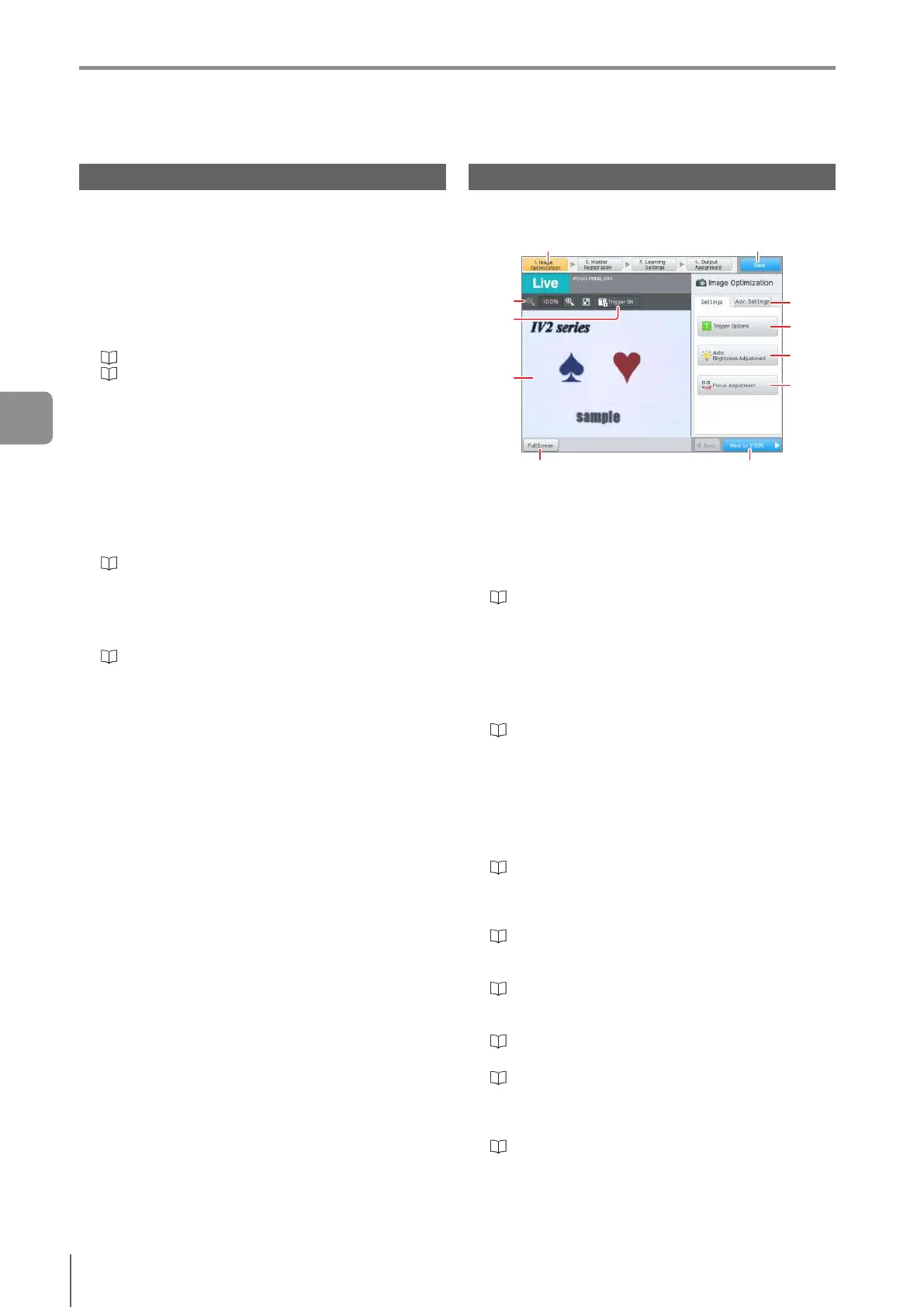
Main screen for Image Optimization
This section explains the main screen for Image
Optimization.
(1) (2)
(11)(10)
(5)
(3)
(4)
(6)
(7)
(8)
(9)
(1)
Navigation button
Moves steps in the Settings Navigator.
(2)
[Save] button
Finishes the Settings Navigator and returns to the
[Sensor Setup Menu] screen.
(3)
Image tool bar
“Operation of the Image Tool Bar” (Page 3-18)
(4)
[Trigger ON] button
If [External] is selected for [Trigger Options] or [Internal
Trigger Control with IN1 Input] is set to [Yes], the [Trigger
ON] button will be displayed.
Tapping the button will capture an image using the
internal trigger. Tap this button to image a target in a
situation where an external trigger cannot be input.
“Internal Trigger Control with IN1 Input” (Page 7-15)
(5)
Image taken by the sensor
Displays an image taken by the sensor. The image
typetobedisplayeddiersdependingonthesettings
screen.
(6)
[Adv. Settings] tab
Displays the advanced settings menu for image
optimization.
“Advanced Settings for Image Optimization” (Page
4-14)
(7)
[Trigger Options] button
Adjust the settings for the Trigger Options.
“Setting the Trigger Options” (Page 4-9)
(8)
[Auto Brightness Adjustment] button
Automatically adjusts brightness.
“Auto Brightness Adjustment” (Page 4-12)
(9)
[Focus Adjustment] button
Automatically adjusts focus.
“Focus Adjustment” (Page 4-12)
(10)
[Full Screen] button
“Operation with Full Screen Display of Image” (Page
3-18)
(11)
[Next to STEP2] button
Proceeds to “2. Master Registration”.
“2. Master Registration (Registering an Image as a
Reference)” (Page 4-18)
4
Settings Navigator



 To Next Page