3-14
IV2 Series User's Manual (Control Panel)
Switching and Terminating the Sensor to be Connected
Switching the Sensor to be Connected
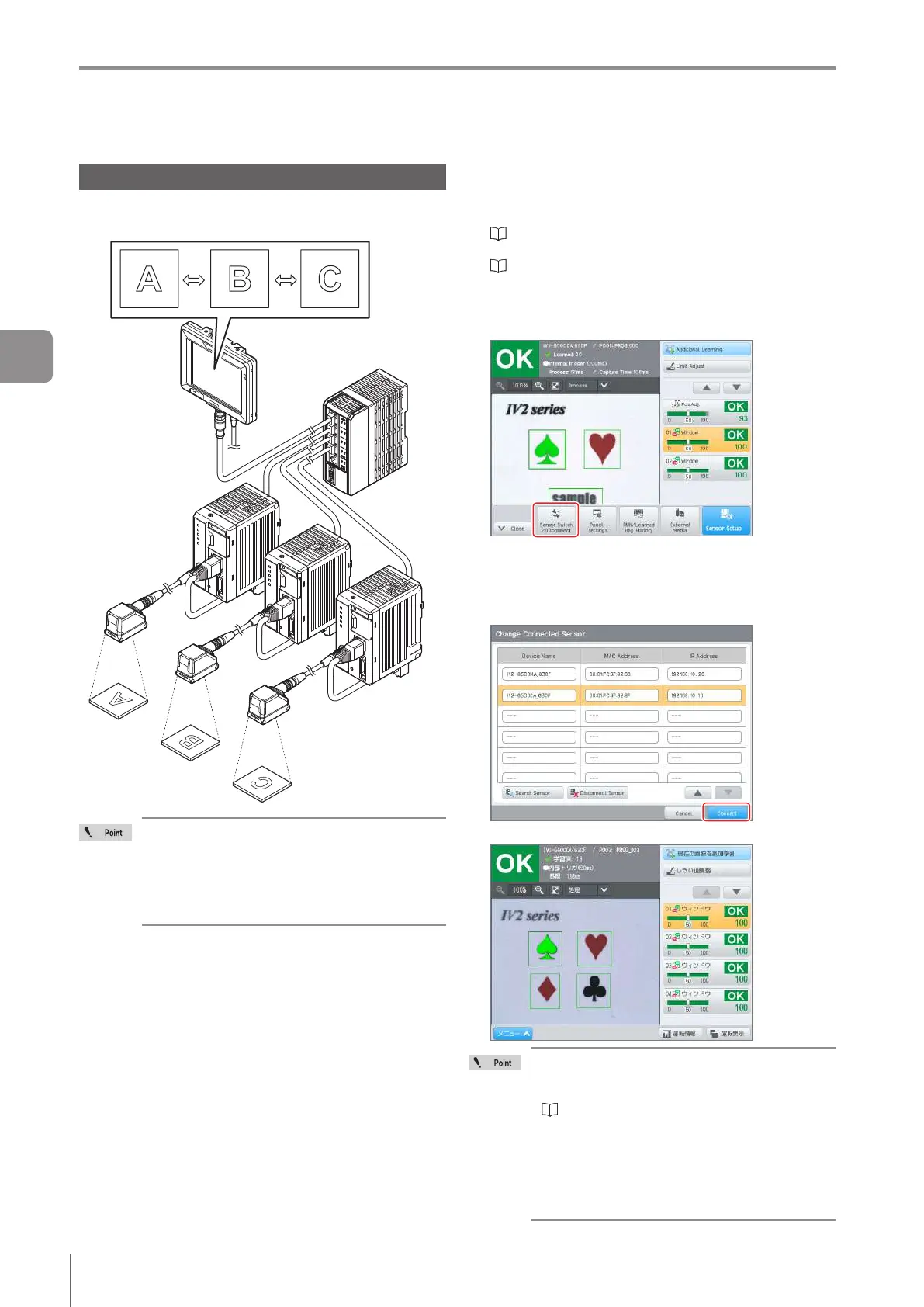
When multiple sensors are connected to a control panel, the
sensor displayed on the control panel can be changed.
Control panel
IV2-CP50
Ethernet switch
When direct connection (1 unit) is used, this
function cannot be used.
The IV2 series and IV series can be mixed
and the display changed.
When connecting to the IV series, the mode
changes to IV-M30 mode.
1
Connect the control panel with the sensor by
direct connection (2 units or more) or via network
connection.
“When directly connecting with multiple sensors (2
units or more)” (Page 7-29)
“When connecting to the sensor via network
connection” (Page 7-30)
2
Display the control panel menu, and tap the
[Sensor Switch/Disconnect] button.
The list of sensors connected to the control panel will
be displayed.
3
Select the sensor with the desired inspection and
tap the [Connect] button.
The screen for the selected sensor opens.
If the settings for the selected sensor have
not been made, the [Sensor Setup Menu]
screen will be displayed. For details, refer to
“4 Settings Navigator” (Page 4-1).
The sensors displayed on the [Change
Connected Sensor] screen are those
displayed as the search results of the
network search. Sensors added to the
network later can be displayed on the list by
tapping the [Search Sensor] button.
Switching and Terminating the Sensor to be
Connected
3
Basic Operation



 To Next Page