Key Operator Mode 11-29
Key Operator Mode
Lock Job Memory [5]
Use this function to lock/unlock or delete a Job that has been programmed.
A locked job is indicated by a lock icon ( ) on the job number of the Job Selection Screen.
The settings of a locked job cannot be changed.
❒ Setting options: Lock Job memory; Unlock Job memory; Delete Job memory
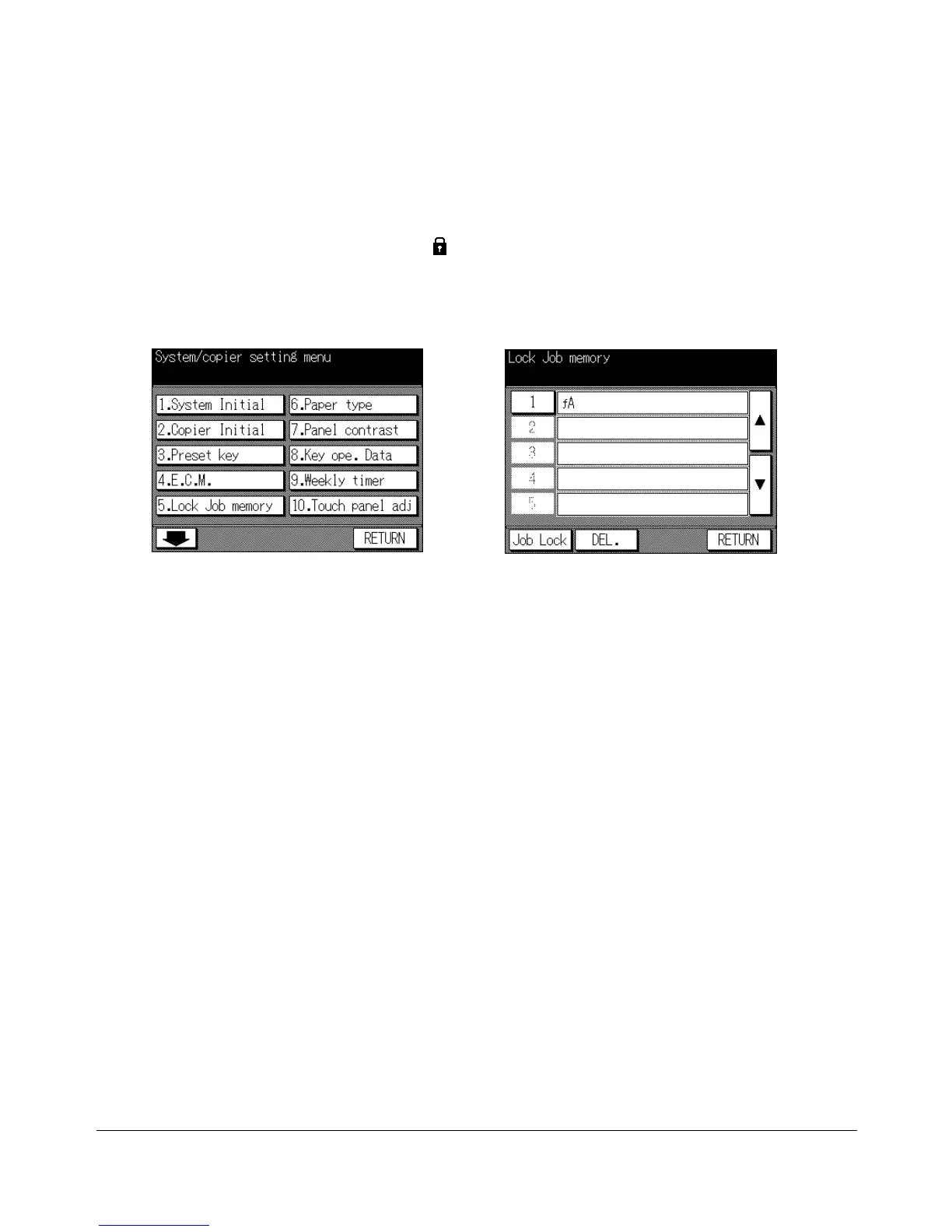
Key Operator Mode Screen Job Memory Lock/Delete Screen
1 Press [HELP] to display the Help Screen, then touch Key-Ope mode.
Enter a 4-digit key operator password, then touch OK to display the Key Operator
Mode Screen.
NOTE: If an invalid key operator password is entered, continue by entering the valid 4-digit password.
2 Touch 5. Lock Job memory to display the Job Memory Lock/Delete Screen.
3 To lock or unlock a job memory, operate the procedure below.
(1) Use ▲ Upper arrow and ▼ Lower arrow keys on the right in the Job Memory
Lock/Delete Screen to scroll to the job to be locked/unlocked.
(2) Touch the desired job number key to highlight it.
(3) Touch Job Lock. The job to be locked will display the lock icon in the job number.
The previously locked job will be unlocked and the lock icon will disappear.
4 To delete a job memory, operate the procedure below.
(1) Use ▲ Upper arrow and ▼ Lower arrow keys on the right in the Job Memory
Lock/Delete Screen to scroll to the job to be deleted.
(2) Touch the desired job number key to highlight it.
(3) Touch DEL. Programs and the name will be deleted from the job memory.
NOTES:
• A locked job can also be deleted, with the lock on the job number released at the same time.
• Once deleted, the programs cannot be restored.
5 Touch RETURN to restore the Key Operator Mode Screen. If other key operator
settings are required, touch the desired key.
6 If no further changes are required, touch RETURN to restore the Basic Screen to
perform copying operations.










 To Next Page