11-52 Key Operator Mode
Key Operator Mode
Application Customize [14]
Use this function to rearrange, display, or hide the application keys on the Application
Selection Screen.
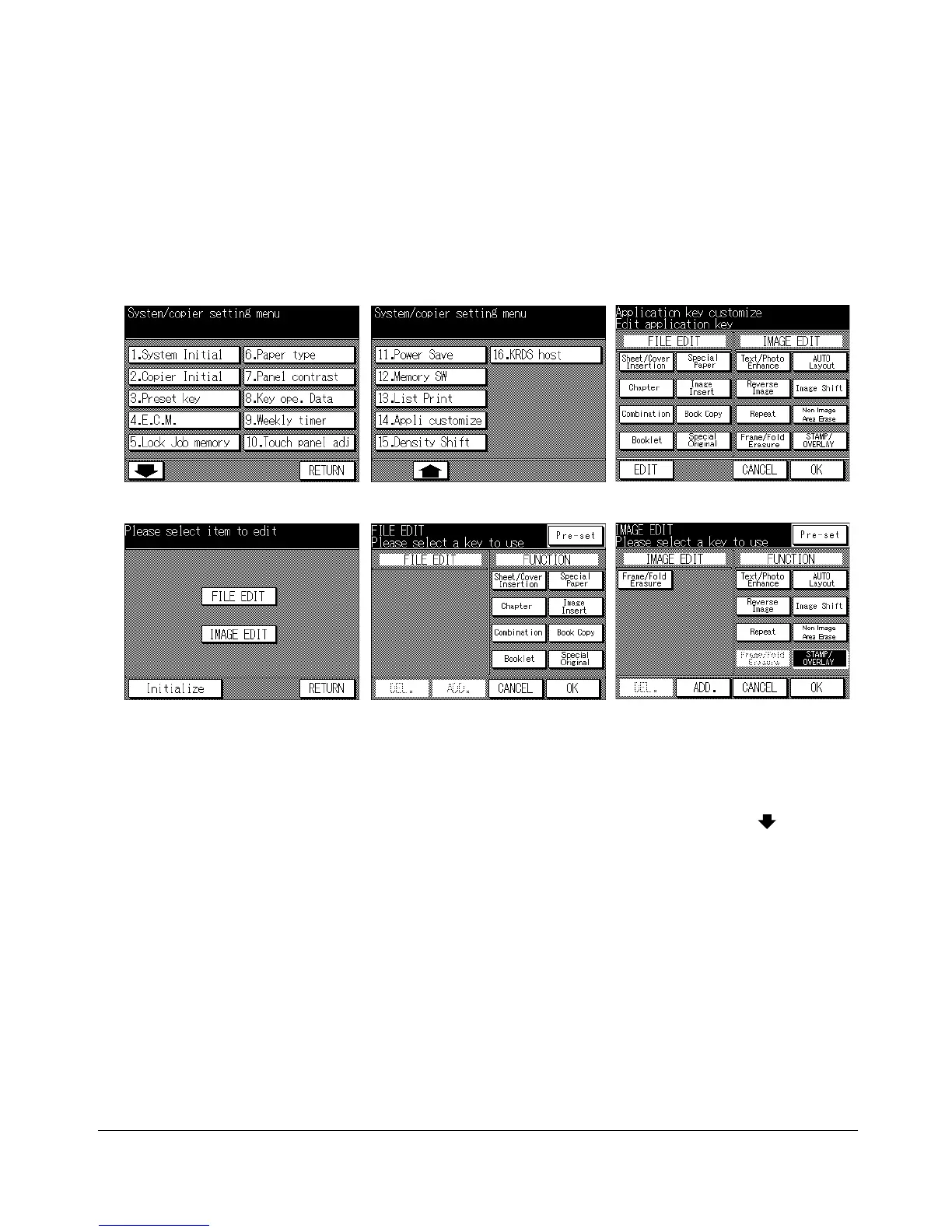
Key Operator Mode Screen 1 Key Operator Mode Screen 2 Application Customize Screen
Item Selection Screen File Edit Customize Screen Image Edit Customize Screen
1 Press [HELP] to display the Help Screen, then touch Key-Ope mode. Enter a 4-digit
key operator password, then touch OK to display the Key Operator Mode Screen.
NOTE: If an invalid Key operator password is entered, continue by entering the valid 4-digit password.
2 To display menus 11. to 16. of the Key Operator Mode Screen, touch the Lower
arrow key.
3 Touch 14. Appli. customize to display the Application Customize Screen.
The application function keys currently set are displayed on the screen.
When setting change is desired, touch EDIT to display the Item Selection Screen.
4 Touch FILE EDIT or IMAGE EDIT, as desired.
5 On the File/Image Edit Customize Screen, touch to highlight the desired application
function key on the right, then touch ADD. Selected key will move to the left part of
the screen, while the key on the right will be dimmed to show inactivity.
6 To cancel the selection you made, touch to highlight the desired key on the left, then
touch DEL. The selected key will disappear.
Touch Pre-set to restore the previous setting.










 To Next Page