Basic Operations 6-25
Basic Operations
Store Mode (continued)
RADF Store Mode
Use this feature to scan more than 50 originals into memory from the RADF. Use this
function in conjunction with the Reserve function to increase efficiency of the copying
job.
❒ Incompatible : Image Insert, Book Copy
1 Make required copying selections, and select 1-1 or 1-2 copy mode.
2 Press [APPLICATION] on the control panel to display the Application Selection
Screen, then touch Store Mode to highlight it.
You may find the key already highlighted due to the copying selections made.
3 Touch OK to complete the application settings and return to the Basic Screen.
4 Enter the desired print quantity from the control panel keypad.
To change the print quantity, press [C] (CLEAR QTY.), then enter the correct quantity.
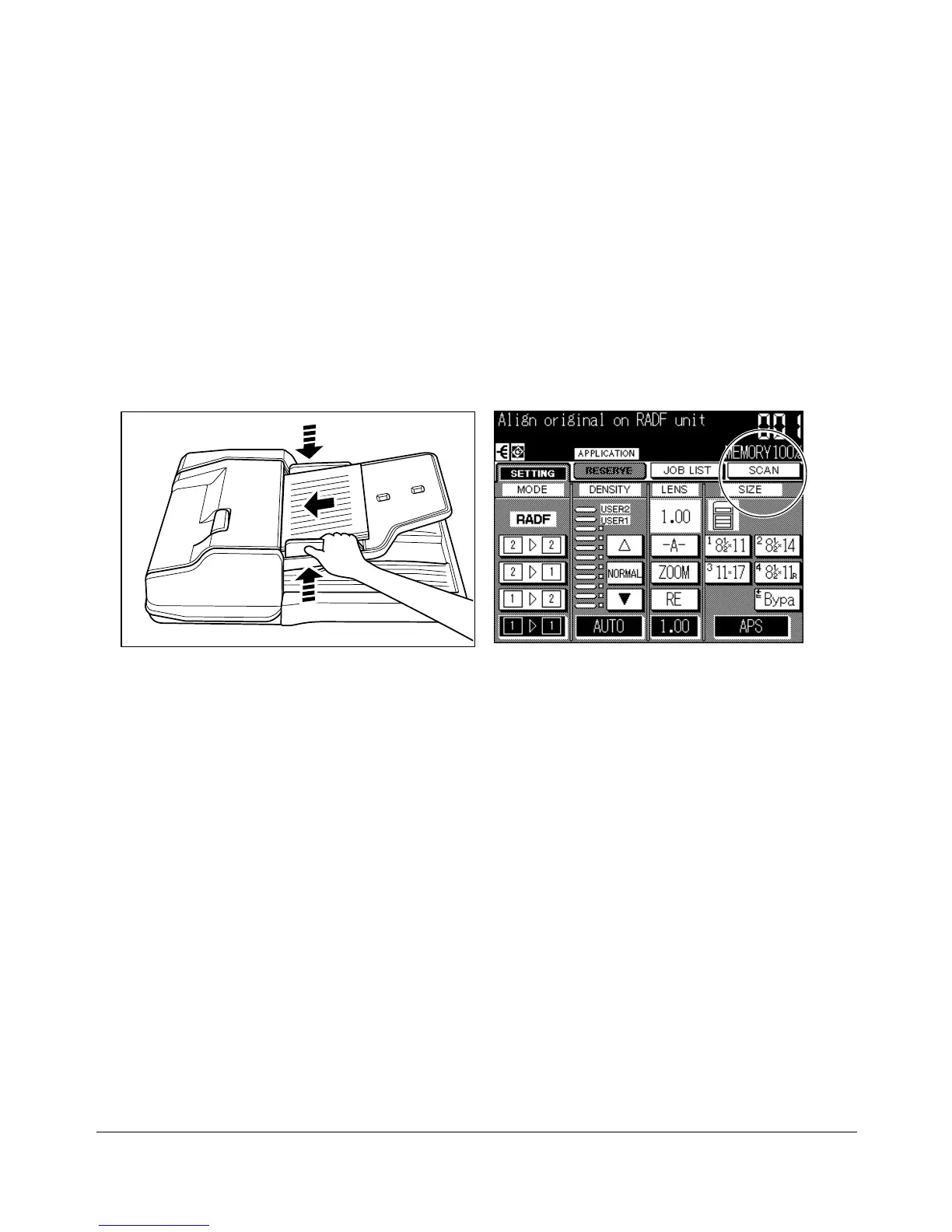
5 Place original FACE UP in the document feeder.
NOTES:
• For details on positioning original, see p. 4-4.
• For original and copy paper information, see Section 4.
6 Touch SCAN on the Basic Screen to scan and store the data into memory.
7 Repeat steps 5 to 6 until all originals are scanned.
Memory indicator on the upper right of the Basic Screen allows you to check the
remaining memory.
NOTES:
• See p. 13-4 to p. 13-7 if memory overflow occurs.
• To delete the scanned data without printing, press [STOP/CLEAR].
8 Press [START] to print. All the data in memory will be output.
Basic Screen










 To Next Page