Basic Operations 6-23
Basic Operations
Store Mode
Store mode allows you to scan multiple originals by touching the SCAN key on the Basic
Screen after setting copying conditions, and then output the complete set by pressing
[START].
Platen Store Mode
Use Platen store mode for originals that cannot be fed through the document feeder due
to thickness, size or condition.
When scanning thick originals that require keeping the document cover open, select
Non-image area erase to prevent exposure of the glass area around the border of the
original. This feature ensures a clean copy result and reduces toner consumption. The
Non-image area erase mode automatically releases after the original for which it is
selected is scanned. Additional images may be scanned.
❒ Incompatible : Image Insert
1 Make required copying selections, and select 1-1 or 1-2 copy mode.
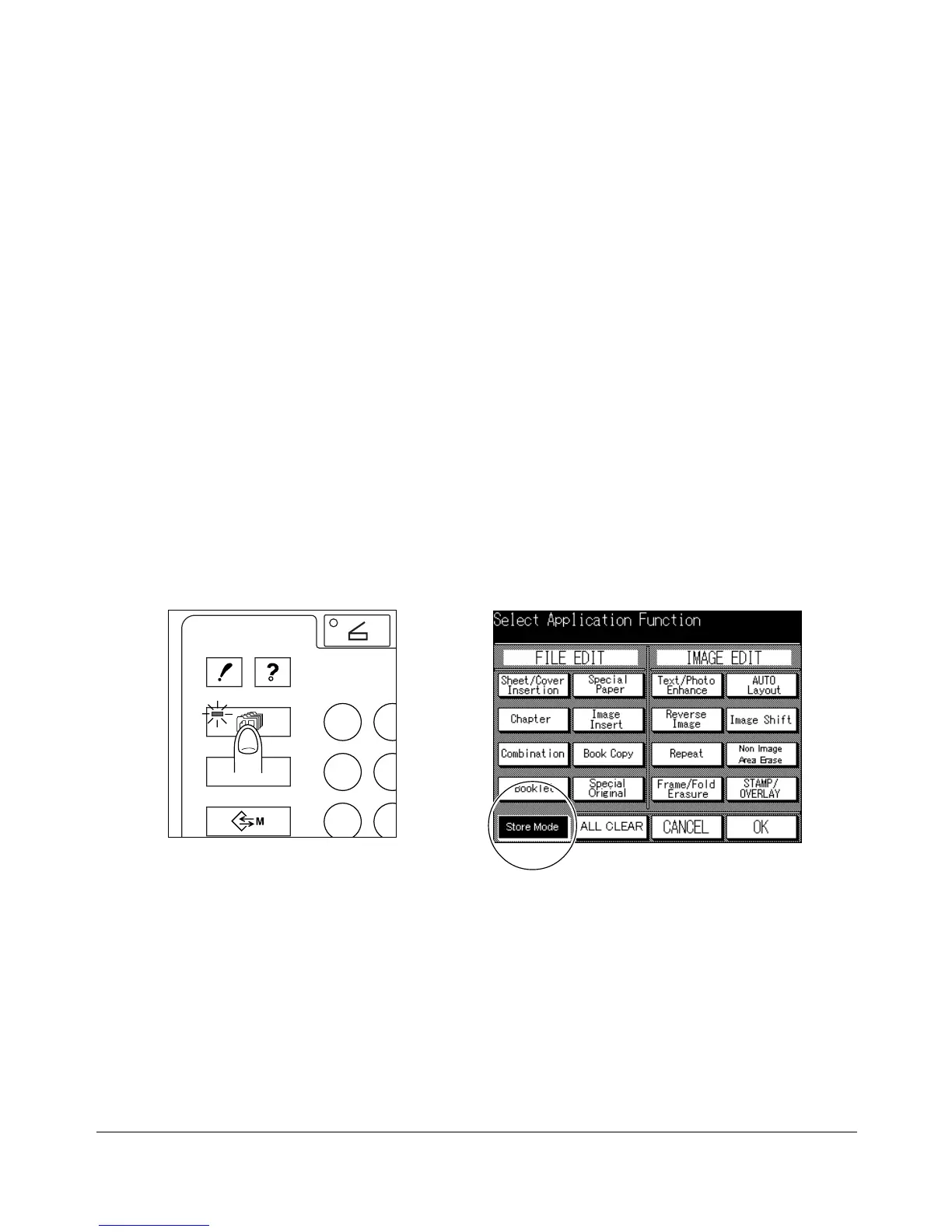
2 Press [APPLICATION] on the control panel to display the Application Selection
Screen, then touch Store Mode to highlight it.
You may find the key already highlighted due to the copying selections made.
3 Touch OK to complete the application settings and return to the Basic Screen.
4 Enter the desired print quantity from the control panel keypad.
To change the print quantity, press [C] (CLEAR QTY.), then enter the correct quantity.
Application Selection ScreenControl Panel
SCAN
OUTPUT
APPLICATION
CHECK HELP










 To Next Page