How to Perform a Study
Laborie NXT Pro Owner’s Manual LBL-00146 [C], MAN2010 33
How to Perform a Study
To perform a typical study, follow the instructions provided in this chapter.
Starting a Study
Running the Study
i) FreeFlow Study
ii) Urology Urodynamic Study
iii) Cystometry Study
iv) Tests
Finishing the Studies
Printing the Study Result (Optional)
3.1 Starting a Study
Ensure that the computer and printer are turned on.
Start the Synergy application and log in using your credentials. A successful login
will load the Synergy main window. For information on how to log in to the
Synergy application, refer to the section
Login on page 45.
Ensure that all devices required for the study are ready (i.e., fully charged). For
instructions on charging the NXT system modules, refer to the section
Hardware
on page 102.
Verify that all devices required for the study are connected to the NXT system
either via Bluetooth technology or USB cable. The Bluetooth Dongle NXT must be
connected to complete all studies available in Synergy.
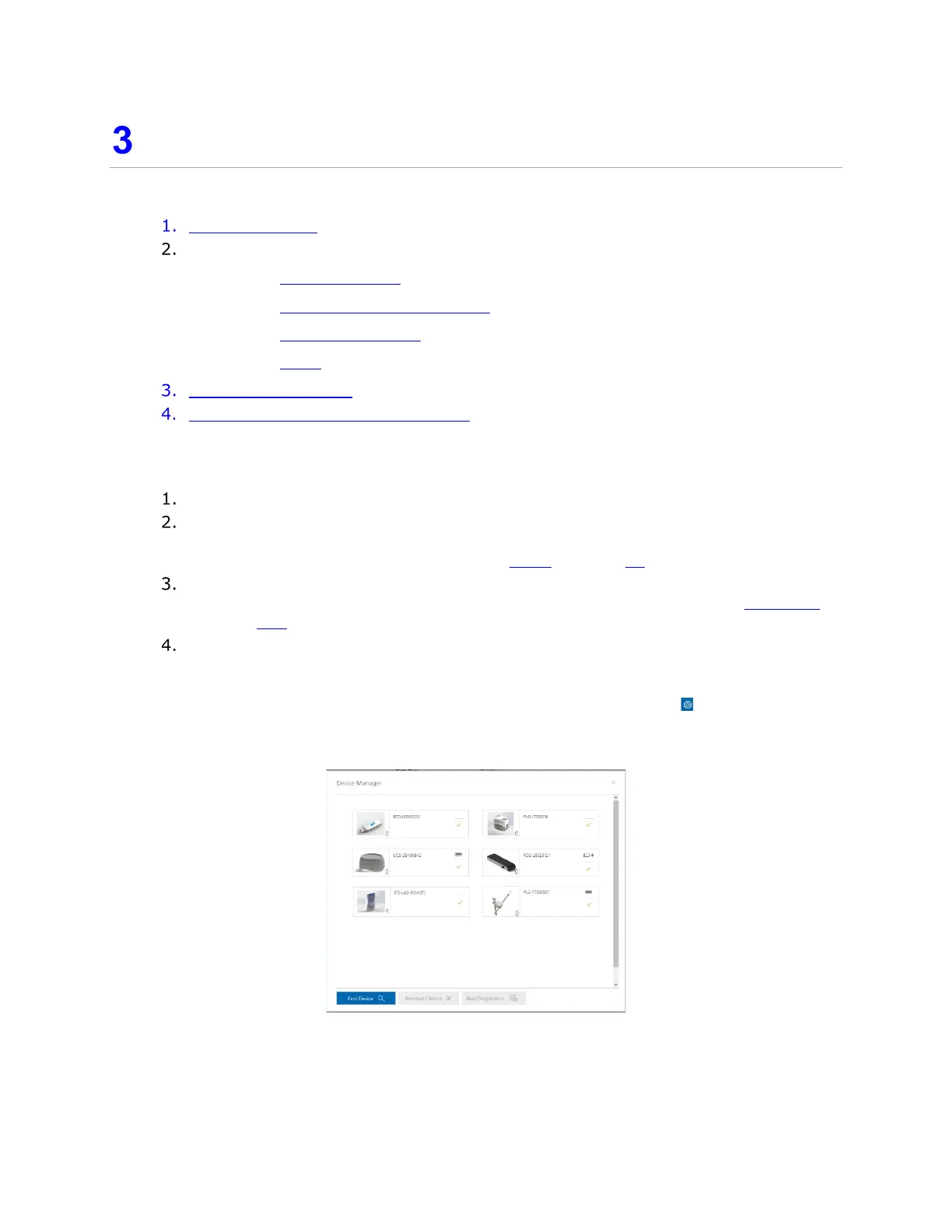
a) On the title bar of the Synergy application, click the Settings ( ) icon and then
click the Device Manager option; the Device Manager window opens, as shown
in Figure 20.
Figure 20: Device Manager Window
b) In the Device Manager window, identify the Bluetooth Dongle NXT, Urocap NXT,
Roam NXT, Pump NXT, and UPP Puller NXT, and verify that each device is properly
connected, which is indicated by a green checkmark.



 To Next Page