Synergy Software
Laborie NXT Pro Owner’s Manual LBL-00146 [C], MAN2010 52
4.3.1.1 Adding a New Patient
In the Patients section, click the New Patient button.
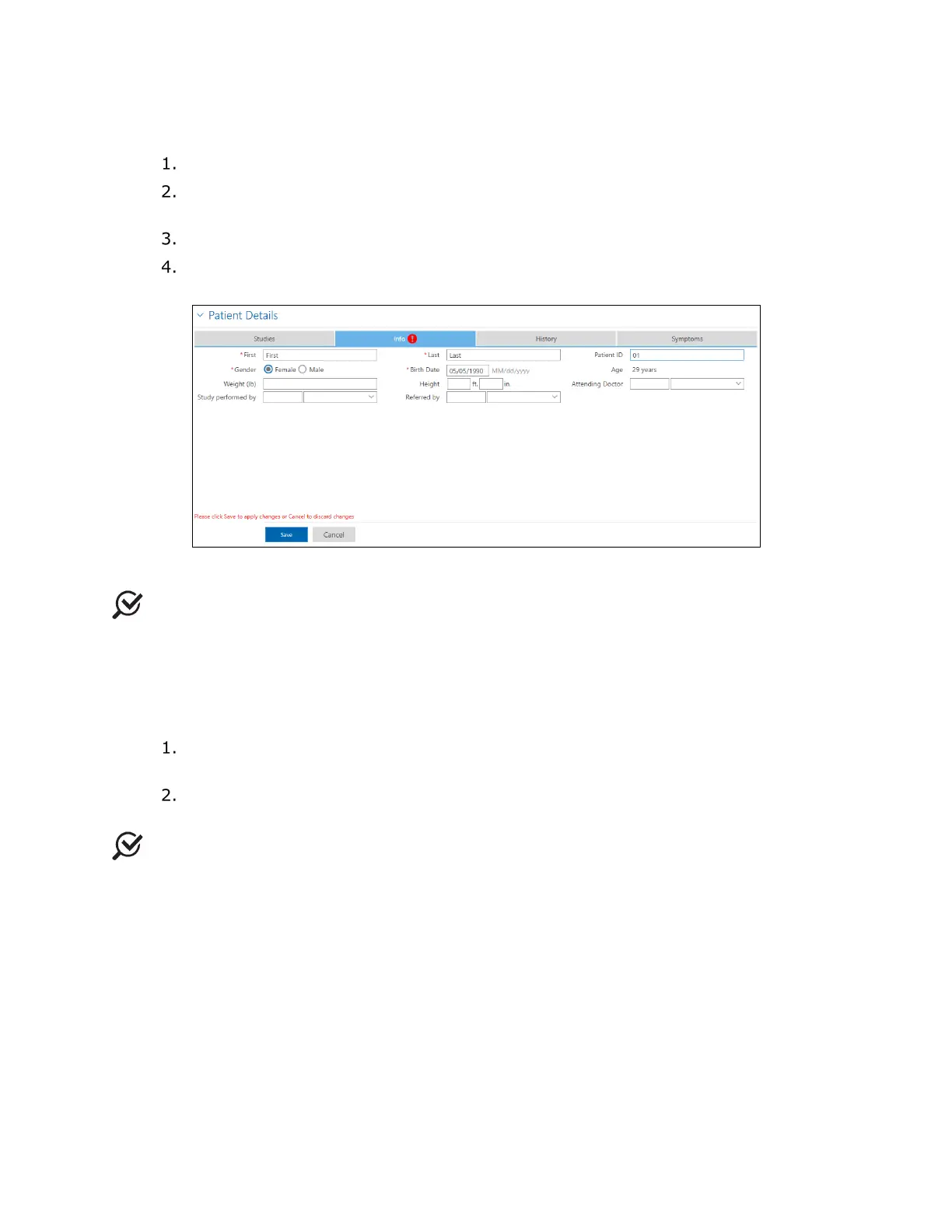
On the Info tab, in the Patient Details section, provide the patient details
(
Figure 38).
Click the Save button to save the patient details.
If required, enter the relevant past medical history on the History tab. Synergy
will automatically save the information.
Figure 38: Default Patient Details
NOTE: You can customize the fields in the Patient Details section by using the
Patient Settings dialog box. Click the Settings Icon > Patient Settings > Patient
Display Settings. You can customize the fields for the Patients section and the Patient
Details. Mandatory fields are marked with a red asterisk.
4.3.1.2 Deleting Patient Data
In the Patients section, right-click the patient that you want to remove. In the
context menu that opens, select the Delete <<Patient Name>> option.
In the User Notification message window that opens, click the OK button to
proceed.
NOTE: Deleted patients can be restored from within the Database Management
dialog box.
4.3.1.3 Searching for a Required Patient
The Patients section will not show patient information until a search is initiated. Use the
Search List box located in the Patients section to search for specific patients. Type an
asterisk (*) to view all patients, a plus sign (+) to view the last-entered patient, or an
element of the patient’s name to view a specific patient. All fields provided in the Patients
section are searchable.



 To Next Page