Synergy Software
Laborie NXT Pro Owner’s Manual LBL-00146 [C], MAN2010 74
4.5.4.6 Sending Reports to EMR
Open the report from the Patients section or from the Reports workflow step and then, on
the report ribbon bar, click the Send to EMR button ( ). This icon will be visible only if
the user has an EMR license enabled. When the Send to EMR button is clicked, Synergy
validates whether the EMR service is running. If the service is running, Synergy will send
the report to the EMR system. If the EMR service has stopped, Synergy will display a
notification message. All studies in Synergy can be sent to an EMR system if an EMR license
is enabled.
Synergy displays a progress indicator while waiting for acknowledgement from the EMR
system. Synergy will wait for 10 seconds, then display a message asking whether you want
to continue waiting. This 10-second wait time is configurable and can be increased if needed
from the Synergy application configuration file. After 60 seconds from the time the report
was sent to EMR, the process will timeout and show an Export Failed message box (Figure
64) if no acknowledgement had been received from EMR system.
Figure 64: EMR Sending Status
NOTE: The Send to EMR button will not be accessible when using the Preview
Changes feature to view report configuration. To access the Send to EMR button, in the
report Configuration Settings panel, click Apply Changes.
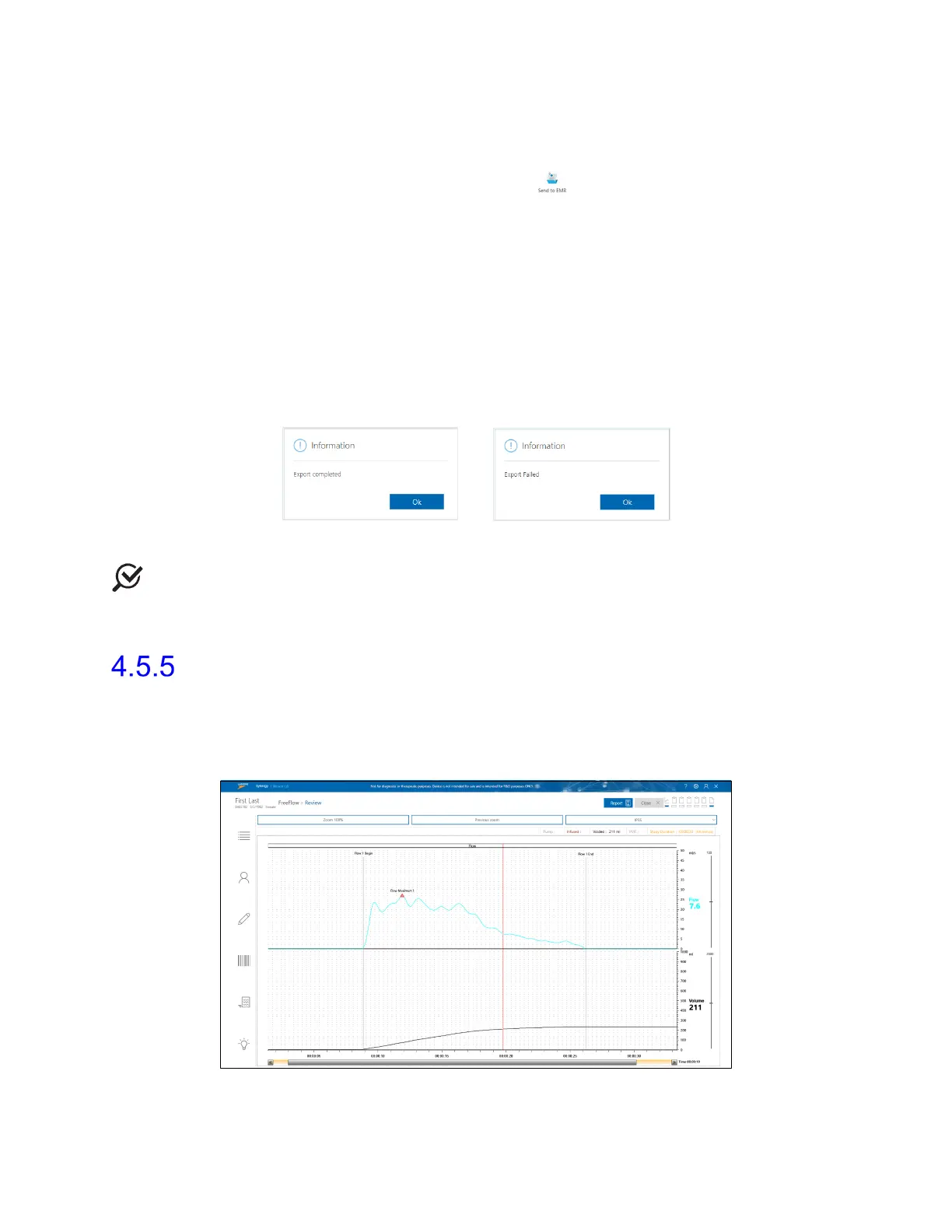
Review
The Review workflow step allows you to assess the information recorded during the study.
To review the study, in the Patients section, select the patient, click the Studies tab in the
Patient Details section, and then click the Review button; the Review window opens
(Figure 65).
Figure 65: Review—FreeFlow Study



 To Next Page