Synergy Software
Laborie NXT Pro Owner’s Manual LBL-00146 [C], MAN2010 45
Synergy Software
This chapter provides an overview of the Synergy application functions and features based
on standard workflow:
Accessing Synergy
i. User Access Control
ii. Sections and Icons in the Main Window
Overview of Synergy Setup Features Required to Start a Study
i. Patient Management
ii. Study Management
Overview of Synergy Functions Available During a Study
i. Workflow Steps
Study Process Review
i. UDS Intelligence
4.1 User Access Control
Login
To log in to Synergy, do the following.
On the desktop, double-click the Synergy shortcut icon, or, from the Laborie
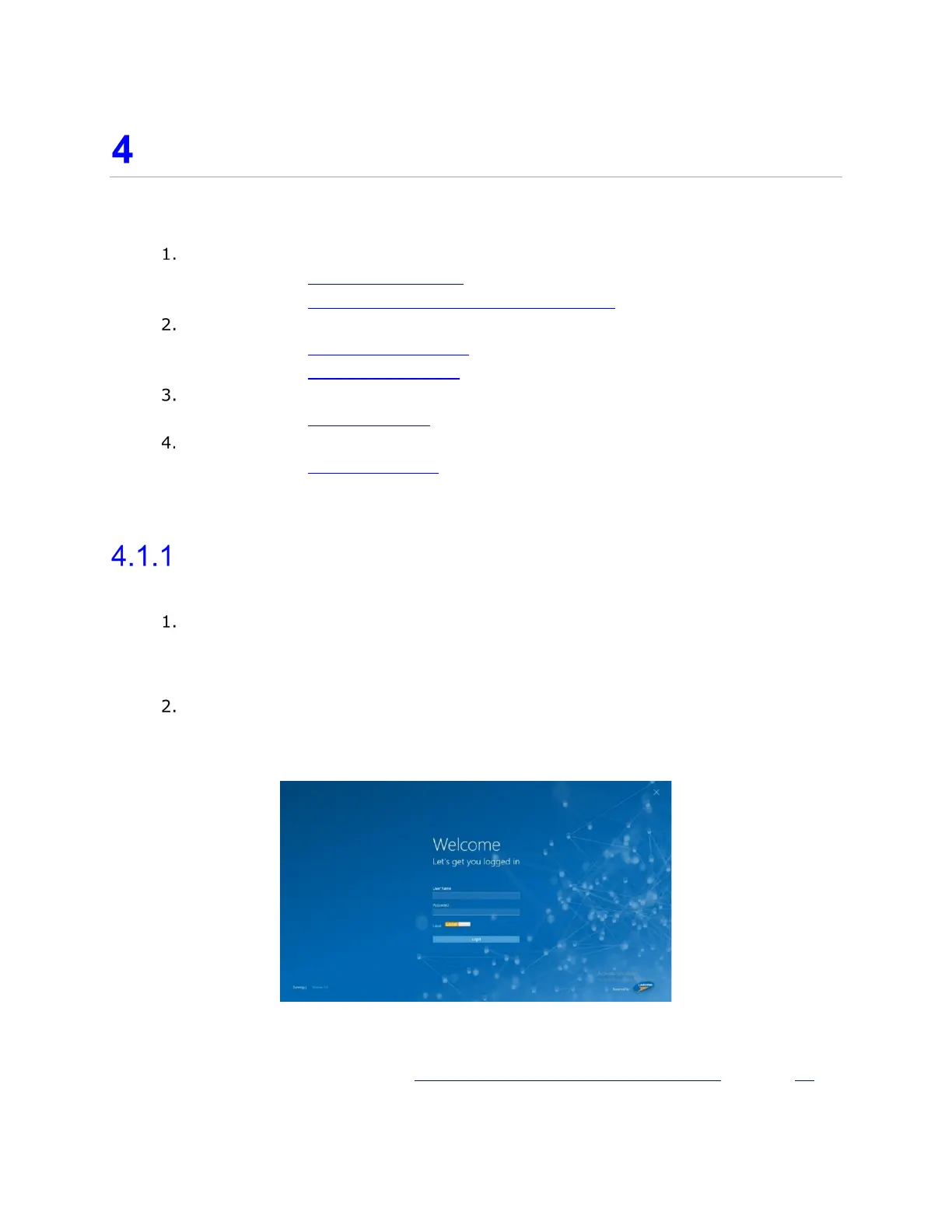
Dashboard, start the Synergy application. The Synergy Login window opens, as
shown in
Figure 29. Upon first login, you must accept the End User License
Agreement.
Input the account User Name and Password. Initial access information will be
set up during system installation. Users must update all access information upon
first use; do not use generic or universal login credentials. You can create
additional access accounts by using the User Setup function.
Figure 29: Synergy Login Window
Upon successful login, the Synergy main window opens. For an overview of features
available in the main window, refer to Sections and Icons in the Main Window on page 49
.



 To Next Page