Synergy Software
Laborie NXT Pro Owner’s Manual LBL-00146 [C], MAN2010 60
To run a UPP, ensure that you select a default workflow that
contains a UPP phase, such as Urogynecology 2P Urodynamics or
Urogynecology 3P Urodynamics. Alternatively, create a custom
workflow by adding a UPP phase to the default workflow templates
provided.
b. The Phases tab allows for customization of auto and manual event
markers per phase and of phase layout.
i. For information on customizing event markers, refer to the section
Customizing Control Panel on page 61
.
ii. The Phases tab provides a phase layout for the workflow selected.
You can update the phase layout for custom workflows by using
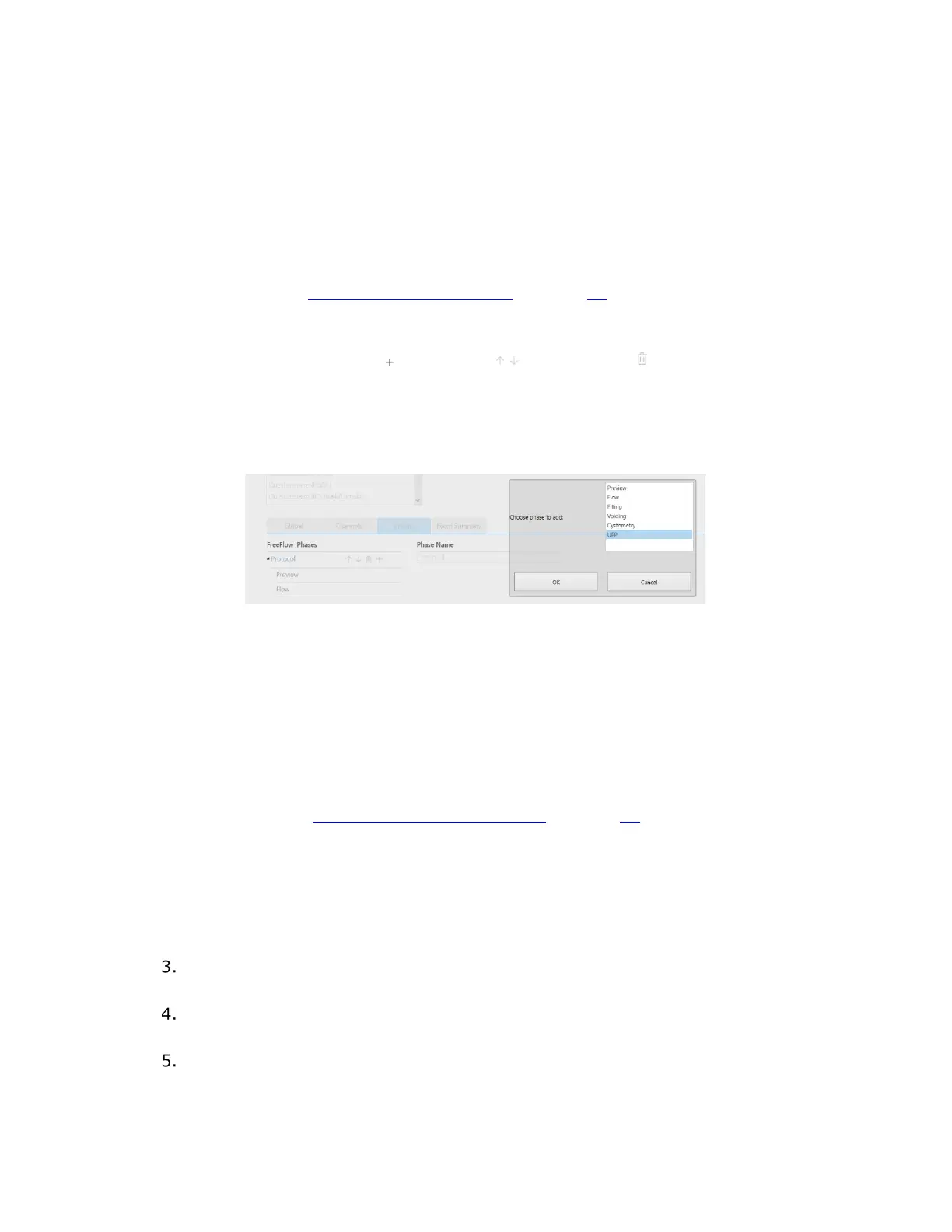
the plus ( ), up/down ( ), and delete ( ) icons provided. To
rearrange or delete phases under the Protocol heading, click the
phase heading and using the appropriate icon to complete the
change. To add a phase, select the Protocol heading and then
click the plus button. From the list box that opens, select the
desired phase and then click OK (Figure 47).
Figure 47: Adding a Phase to a Custom Workflow
iii. Adjust Fluid Density by entering a new value. The Fluid Density
setting is available in the Filling, Voiding, and UPP phases. If you’re
updating Fluid Density settings, be sure to update them in all
relevant phases. You can change the fluid density during a study
by using the Change Infusion Fluid button to fluid densities
previously saved to the workflow. Click the Fluid Density drop-
down menu to view previously saved fluid densities.
c. The Channels tab provides settings for hardware channels. Refer to the
section Accessing Hardware Channels on page 63
.
d. On the Event Display tab, you can select how study events are recorded
and displayed. Specify which events to include in the event summary by
selecting the corresponding checkboxes. You can view the event summary
in the Review and Report phases of the completed study. To set the graph
display options for event markers, use the drop-down menu provided. You
can adjust event marker settings to Off, Normal, or Minimal.
In the Workflow Steps list box, select Questionnaire or Review. On the
Settings tab, you can enable or disable automatic execution.
In the Workflow Steps list box, select Report. To customize Landscape Graph
Scaling settings, select scaling by Number of Pages or Time per Page.
Click OK to save the workflow.



 To Next Page