Synergy Software
Laborie NXT Pro Owner’s Manual LBL-00146 [C], MAN2010 59
Customizing Workflows
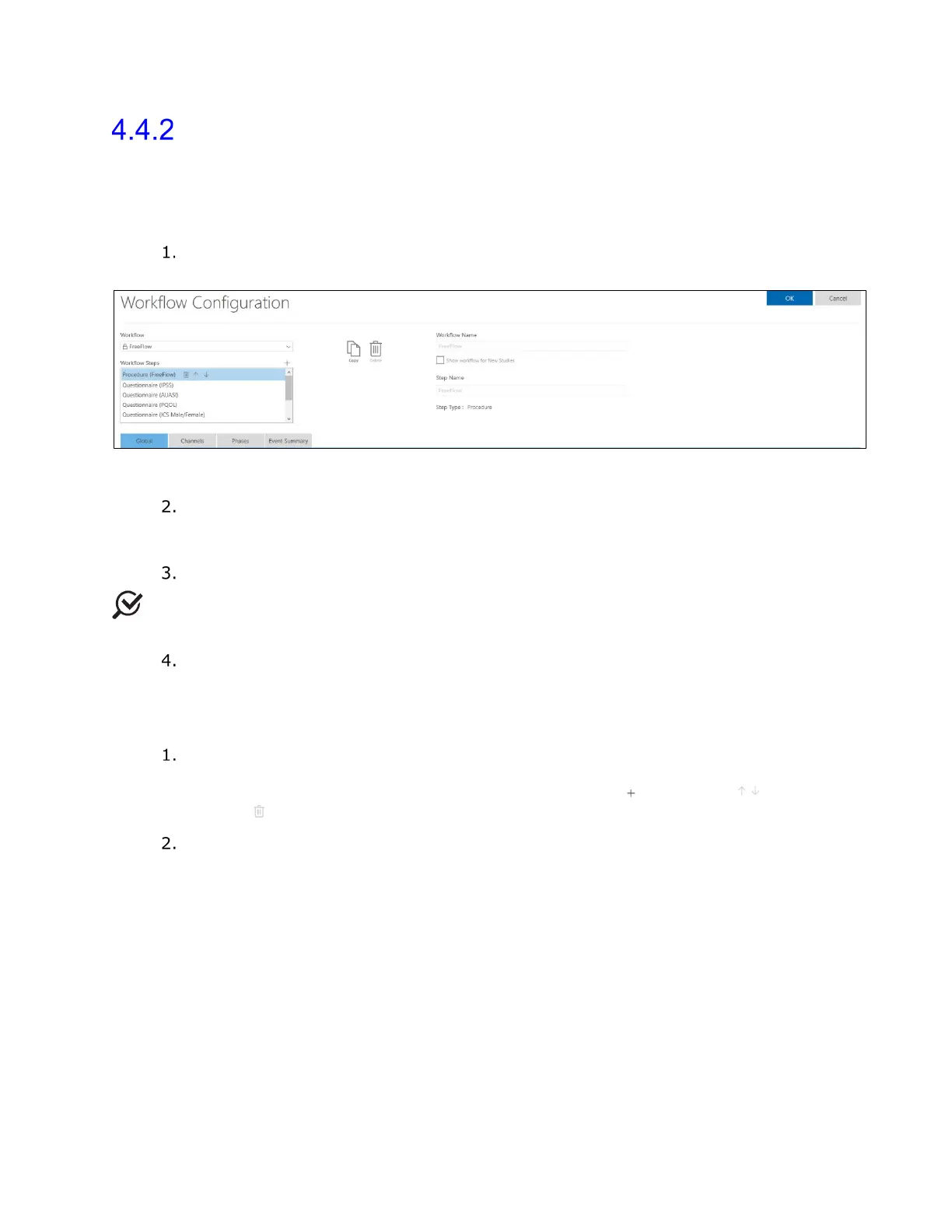
The Workflow Configuration window has three main sections: Workflow, Workflow
Steps, and the settings tabs (Global, Channels, Phases, and Event Summary). To
customize workflows or add workflows to the UDS tab, begin by creating a copy of the
workflow template, as described here:
In the title bar, click Settings > Workflow > Editor to open the Workflow
Configuration window (
Figure 46).
Figure 46: Workflow Configuration Window—Global Tab
From the Workflow drop-down menu, select the workflow template that you
want to edit and then click the Copy. This unlocks the editing options for the
Workflow Steps and settings tabs.
In the Workflow Name text box, rename the workflow.
NOTE: The name of the workflow, default or customized, will be shown in the header of
the study phases and on the final report.
Ensure that the checkbox for the Show workflow for New Studies option is
selected. To add the workflow to the UDS tab on the Synergy main window, click
OK, or continue customization.
To configure custom workflows, complete the following steps:
Customize the workflow step naming by selecting a step in the Workflow Steps
list box and then assigning a new name in the Step Name text box, if desired.
Update the Workflow Steps layout by using the plus ( ), up/down ( ), and
delete ( ) icons provided.
In the Workflow Steps list box, select Procedure. Customize Global, Channel,
Phase, and Event Summary settings by using the corresponding tabs available.
a. The Global tab provides settings standard across the default workflows.
These settings customize the view of the graph and its channels during a
study. You can set preferences for features such as Urocap Noise
Reduction Level, Video Settings, and Profile Settings.
i. Use the Urocap Noise Reduction Level feature to detect and
smooth chart spikes caused by environmental noise. For guidance
on option selection, contact Laborie Service.
ii. Activate or disable Video for custom workflows and set your
Desired Frame Rate.
iii. Select the UPP method, Manual Pull or Puller, using Profile
Settings. If using the Puller method, you must set Puller Speed.



 To Next Page