Synergy Software
Laborie NXT Pro Owner’s Manual LBL-00146 [C], MAN2010 53
4.3.1.4 Exporting Patient Data
Patient data can be exported from the system in different file formats (e.g., PDF, HTML,
RTF, DOCX, XLS, XLSX, Image) to a computer. To export patient data, follow these
instructions:
In the Patients section, select the patient.
In the Patient Details dialog box, open the report.
Click the export ( ) icon to open the Export Document dialog box.
NOTE: You can use the export drop-down icon to select the desired format in
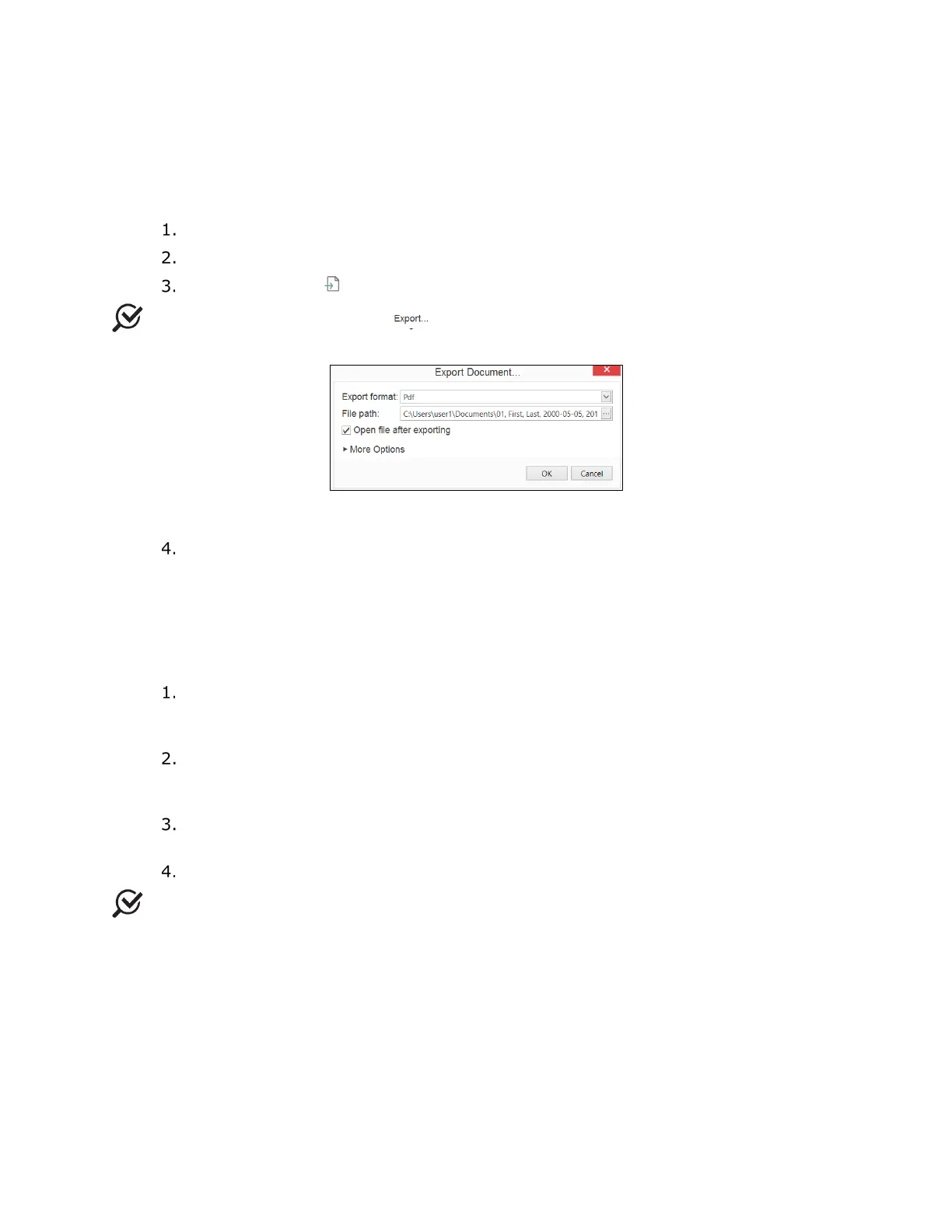
which to export the report. The Export Document window opens, as shown in Figure 39.
Figure 39: Export Document Window
Select the required format, file path, and other required options, and then click
OK.
4.3.1.5 Reassigning Study
The reassign function allows you to transfer study results from one patient to another if the
wrong patient was selected. Exercise caution when using this functionality.
In the Patients section, select the patient. On the Studies tab, in Patient
Details section, select the study to reassign. Right-click the study and then, from
the context menu that opens, select the Reassign Study option.
Back in the Patients section, select the appropriate patient to whom to reassign
the study. Right-click the patient and then select Reassign Study to <Patient
Name> option.
In the User Notification message window that opens, click the Ok button to
confirm the reassignment of the test.
To cancel reassignment, right-click the patient and then select the Cancel option.
NOTE: If the study being reassigned was previously sent to Electrical Medical Records
(EMR), contact the EMR vendor and request the deletion of the previously sent report.
Synergy will provide a warning message requesting confirmation of the action when
reassigning a study previously sent to EMR.



 To Next Page