How to Perform a Study
Laborie NXT Pro Owner’s Manual LBL-00146 [C], MAN2010 34
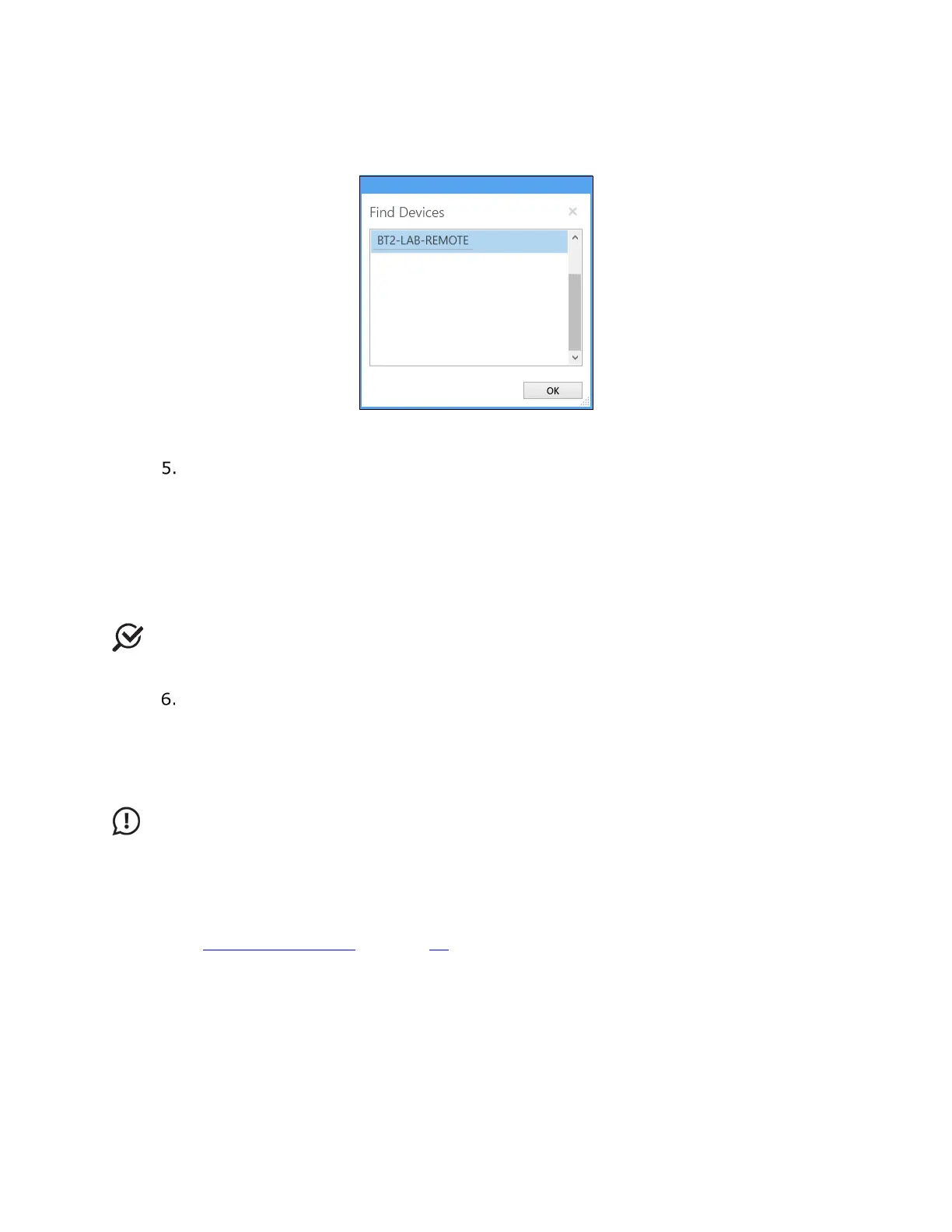
c) To connect the Remote Control NXT, ensure that the remote control is active and
then click the Search for devices button to open the Find Devices window
(Figure 21). Select the Remote Control NXT and then click the OK button.
Figure 21: Find Devices Window
In the Patients section, choose the patient.
a) If the patient already exists in the system, select the patient and proceed to the
next step.
b) To add a new patient, in the Patients section, click the New Patient button. On
the Info tab, in the Patient Details section, type the patient information
(Figure 38), and then click the Save button to save the new patient details. If
required, on the History tab, provide any relevant past medical history. After the
patient has been added, select the patient and then proceed to the next step.
NOTE: The following fields are mandatory for completing new patient setup: First,
Last, and Birth Date.
To begin the study, in the Patients section, ensure that a patient is selected.
Within the Patient Details section, on the Symptoms tab, select any applicable
symptoms immediately prior to starting the study. Symptoms are not
automatically saved in the Patient Details section. Symptoms are saved in the
study report. Next, on the UDS tab, select the applicable study and then click the
Start Study button.
IMPORTANT: Patient and test options must be selected to access the Start Study
button. If after this step the Start Study button remains inactive, in the Device Manager
verify that all devices required for the study type are connected and that all hardware
channels are set.
For more information on troubleshooting study start and workflow configurations, refer to
the section Study Management on page 58
.
3.2 FreeFlow Study
A FreeFlow study provides a measurement of the rate at which urine flows out of the body.
It can be performed using the Urocap NXT and Synergy application provided as part of the
Laborie NXT system.



 To Next Page