154
Version LMinicam Proteus
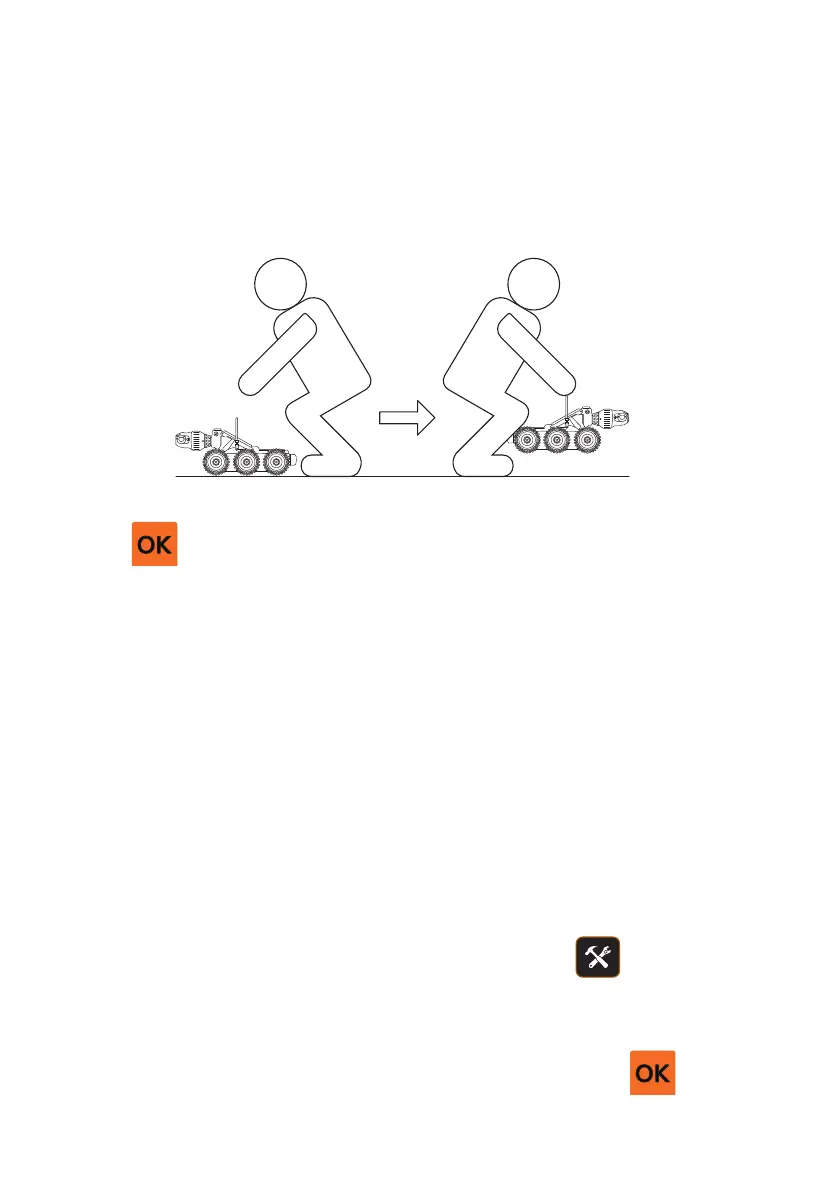
Pick up the crawler and turn it around through 180° so it faces in the
opposite direction, and place it in the same place on the same reasonably
at level surface. You have 30 seconds in which to do this.
Press to complete the calibration.
The inclination zero has then been calibrated, and the crawler is then
ready for use.
Setting the Inclination Smoothing
As the crawler drives along the pipe it encounters bumps, unevenness
and vibrations which can aect the sensor readings that are logged.
When this is subsequently plotted onto a graph, those inaccuracies can
show as spikes and bumps on the graph lines.
You can choose whether to have the CCU apply a “smoothing” to the
sensor readings, to help to atten out the bumps, unevenness and vibra-
tions. Then the plotted graphs will have much smoother lines. Normally
you may wish to have smoothing enabled.
• To enable or disable Inclination Smoothing, press for Setup.
• Then select the menu item Survey / Inclination.
• Then the menu item Inclination Smoothing.
• From there you can select Disable or Enable, then press .


 To Next Page