Connecting to your PC
Using Explorer in Windows
®
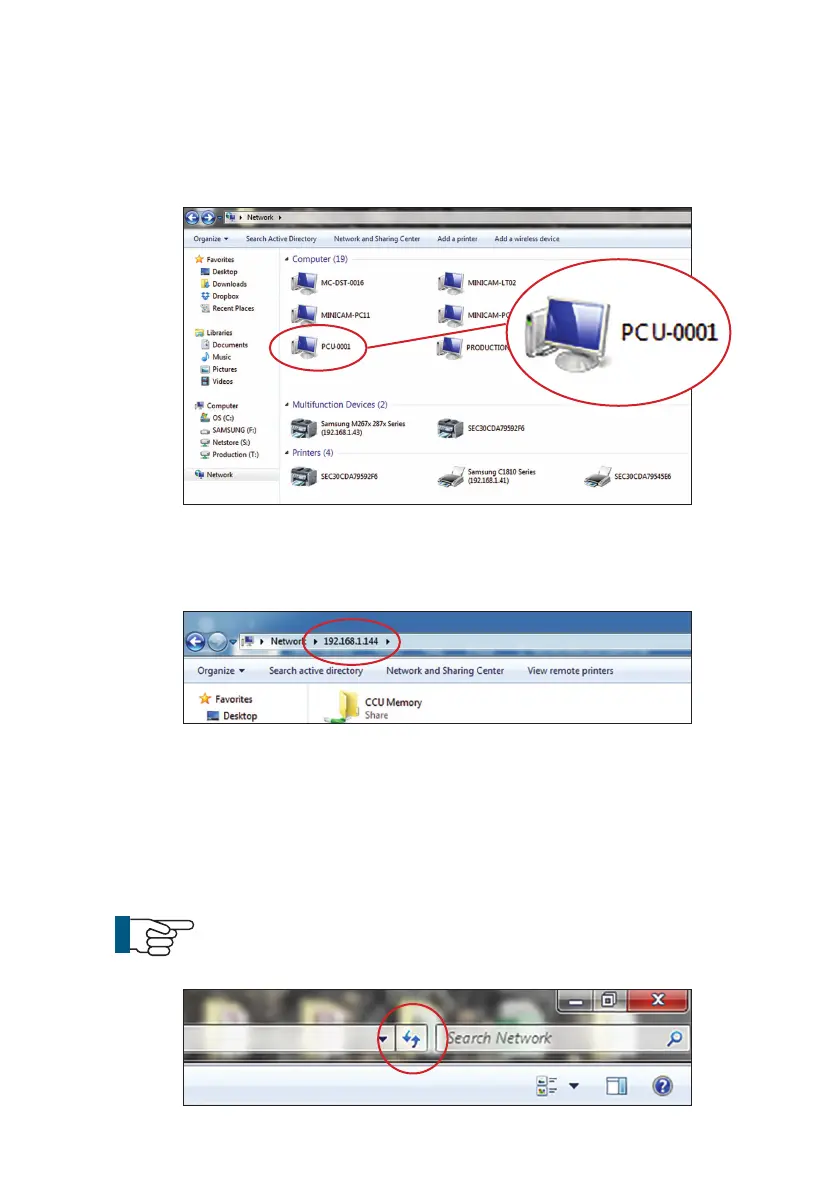
OS, the CCU may appear under the Network
Neighbourhood. You can access your les directly.
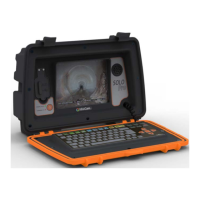
Alternatively, use the search bar in Explorer by typing \\ followed by the
IP Address shown on your Proteus (Example - \\192.168.1.144)
This will then connect you to your Proteus control unit which will display
a folder named CCU Memory. Double click on this folder to access all les
currently on that control unit. You then can open any le to view video
footage or still images and ProPIPE Reports or alternatively you can save
them onto your PC.
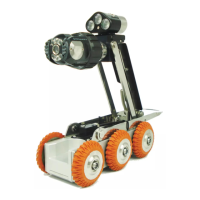
NOTE: If the CCU is not displayed after the rst search,
try searching again by hitting the Refresh button on the
menu bar
63
Version L Minicam Proteus


 To Next Page