Up (plus) button; pressing the button has the same effect as turning
the wheel in the clockwise direction:
In the status displays:
Every time you press the button the screen cycles to the next
status display.
In the menus:
Every time you press the button the cursor is moved to the
next menu item.
In a scrollable field:
Every time you press the button the value or the content of the
scrollable field is increased.
5.1.3 Text input
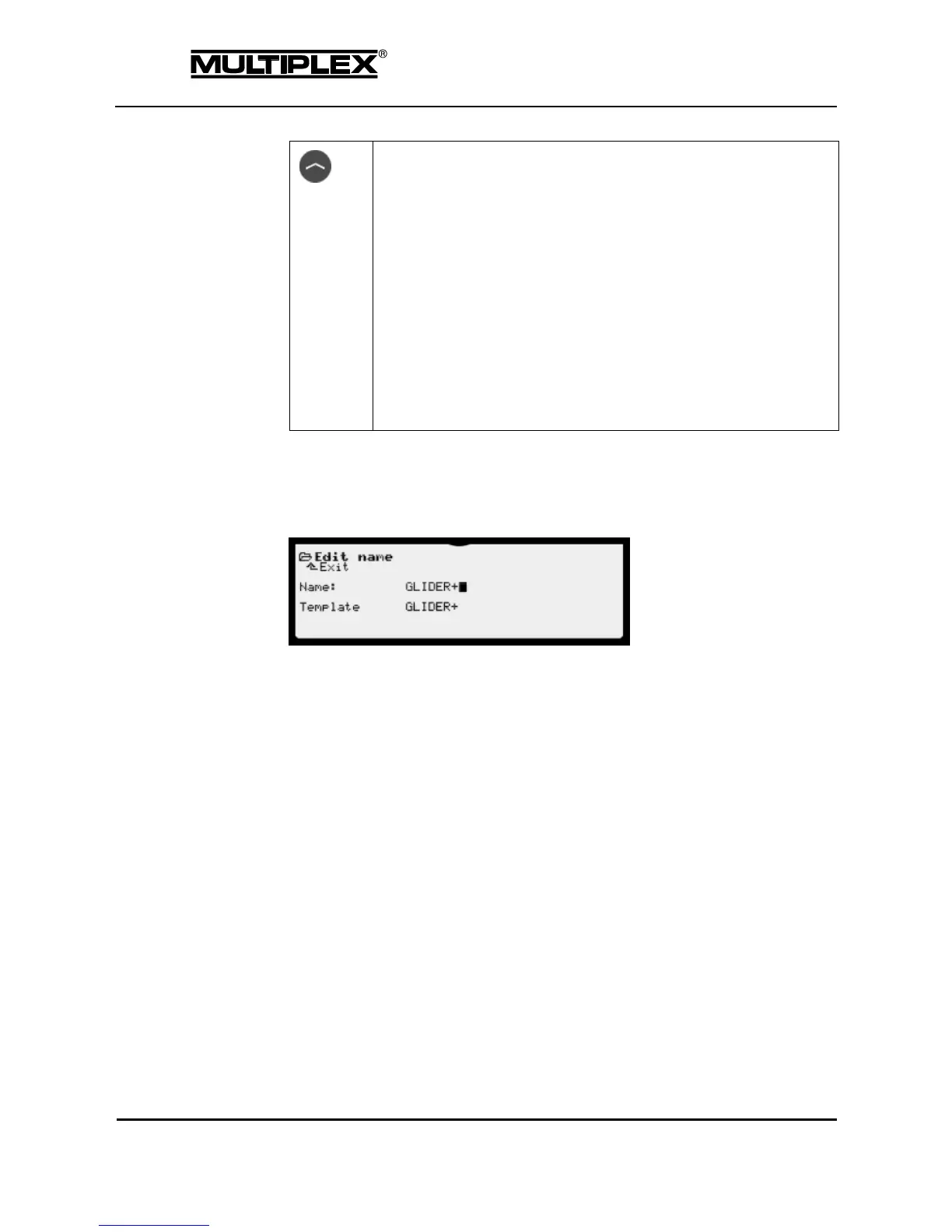
Use the buttons that are labelled with characters for text input:
1. Open the input field by pressing the ENTER button or the wheel. The first
character is now highlighted to indicate the input position.
2. Change the input position as needed using the wheel.
3. Enter the text at the input position.
The procedure for text input is identical to a simple mobile phone:
o A list of 3 to 4 alphabetic characters (upper and lower case plus
special characters) and one numeric character is assigned to each
button.
o The desired character is selected by repeatedly pressing the
button.
o The cursor moves to the next input position when you wait for
1.5 seconds or you use a different button.
4. Finish entering by pressing the ENTER button or the wheel.
5. If there are characters below or to the right of the input cursor, you are
prompted to confirm that these characters, i.e. the rest of the text, should be
deleted.
Press the REV/CLR button for "Yes".
Press the ENTER button for "No".
The prompt is not displayed if the input cursor is positioned on the first
character.



 To Next Page