- 191 -
OKI LPR Utility
Viewing, Deleting, and
Transferring Jobs
You can use the procedure below to display and
delete jobs.
You can also transfer print jobs to another
printer when printing is not possible on this
printer because it busy, offline, out of paper, etc.
Note
z
A job cannot be transferred to another manufacturer's
printer.
z
Transfer jobs to a printer that is the same model as the
source printer.
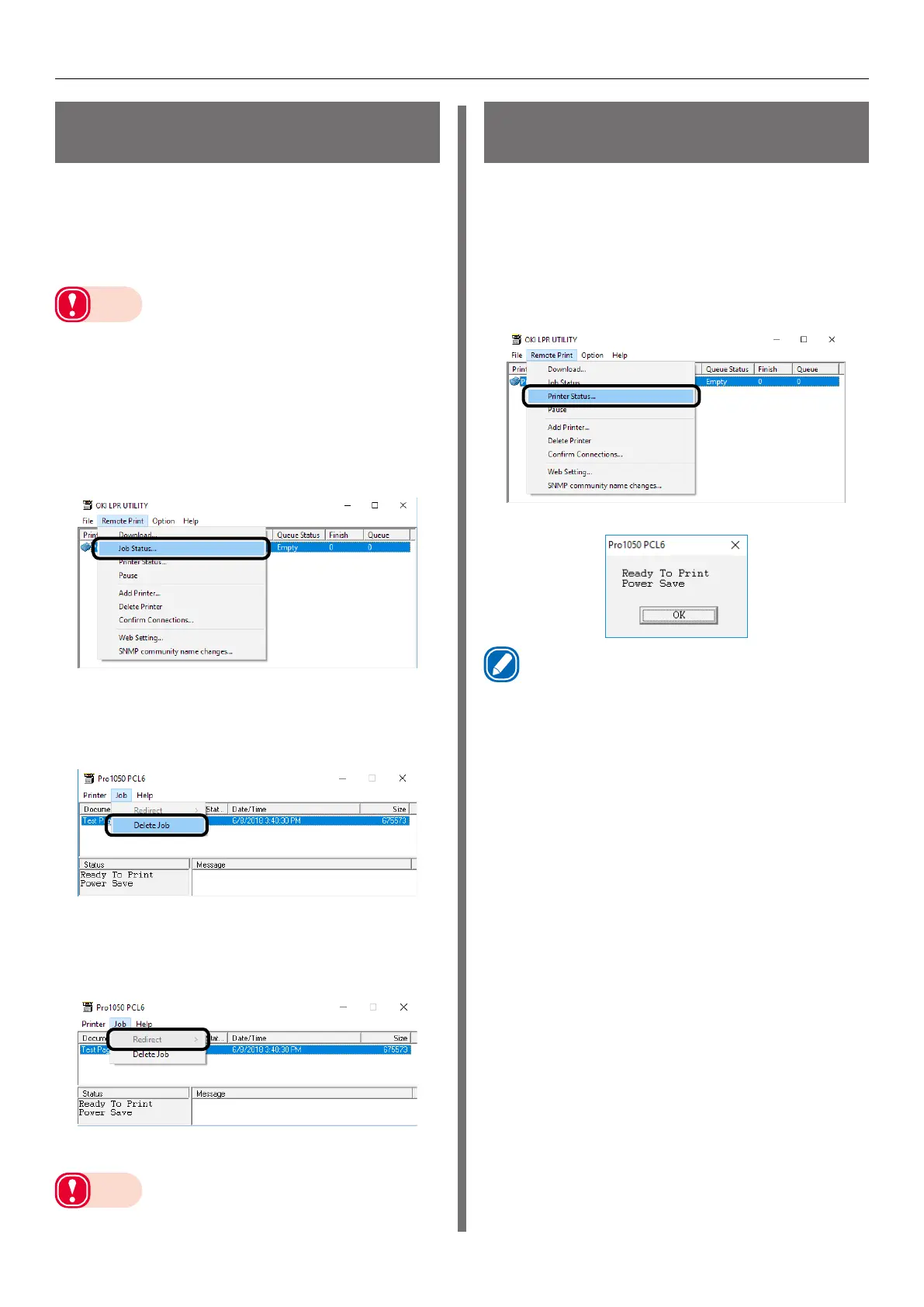
1
Select this printer.
2
On the [Remote Print] menu, select [Job
Status].
This displays the jobs.
3
Select the print job you want to delete.
Next, on the [Job] menu, select [Delete
Job].
This deletes the job.
4
Select the print job you want to transfer.
Next, on the [Job] menu, select the
printer to transfer to in [Redirect].
This transfers the job to the destination
printer.
Note
z
The printer being transferred to must be set up
beforehand using the OKI LPR Utility.
Checking the Printer
Status
You can use the procedure below to display the
status of the printer.
1
Select this printer.
2
On the [Remote Print] menu, select
[Printer Status].
This displays the printer status screen.
Memo
z
You can also check the printer status using "Status" on the
job display dialog box.



 To Next Page