- 172 -
Using a Web Browser to Configure the Network Setup
6
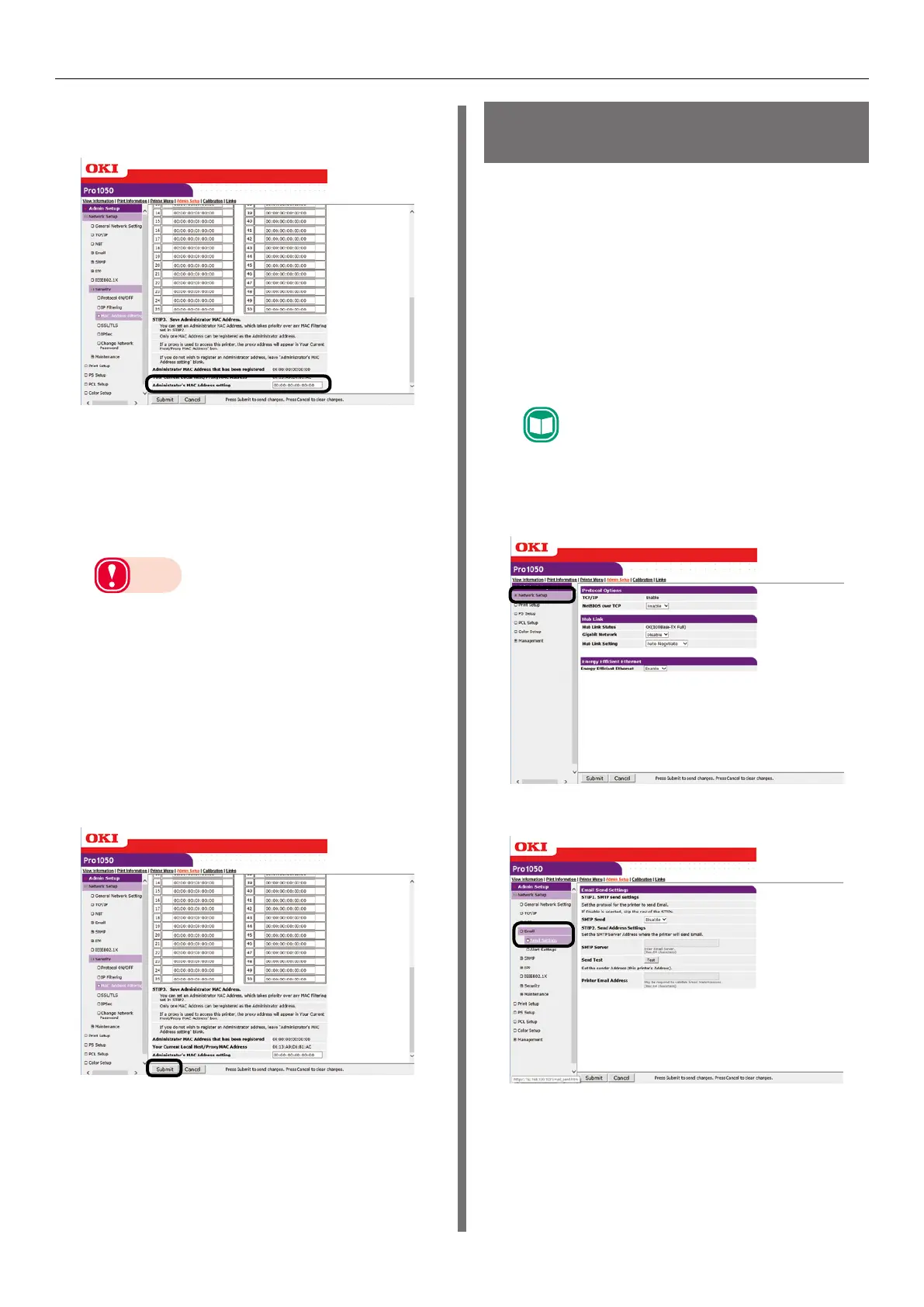
Under [STEP3], specify the
[Administrator’s MAC Address setting].
Even if the wrong settings are configured in
[STEP2] due to administrator MAC address
entry in [Administrator’s MAC Address
setting], the administrator can re-configure
the setting from a host with the MAC
address specified with [Administrator’s MAC
Address setting].
Note
z
If the printer is being accessed via a proxy, the
intermediate device's address will be displayed
as [Your Host MAC Address]. Consequently, the
address shown by [Your Host MAC Address] may be
different from your actual host address.
z
If nothing is registered for the administrator MAC
address, the setting in [STEP2] may make the
printer completely inaccessible.
z
If you do not want to register an administrator
MAC address, specify 00:00:00:00:00:00 for
[Administrator’s MAC Address setting].
7
Click [Submit].
8
Settings are saved on the printer and
the network function is restarted.
Sending Error Notifications
by Mail
The printer comes with a mail sending function
(SMTP) built-in. It can be configured to send a
mail message whenever an error occurs. You can
select whether to send a periodic mail message
about errors, or to send a mail message as soon
as an error occurs.
To configure settings for sending
mail
1
Log in as an administrator.
Reference
z
See "Logging in as an Administrator" (P.154).
2
Click: [Admin Setup] > [Network
Setup].
3
Click: [Email] > [Send Settings].



 To Next Page