5 Creating Measurement Scenes
5 - 12
Vision System FH/FHV/FZ5 Series User’s Manual (Z365)
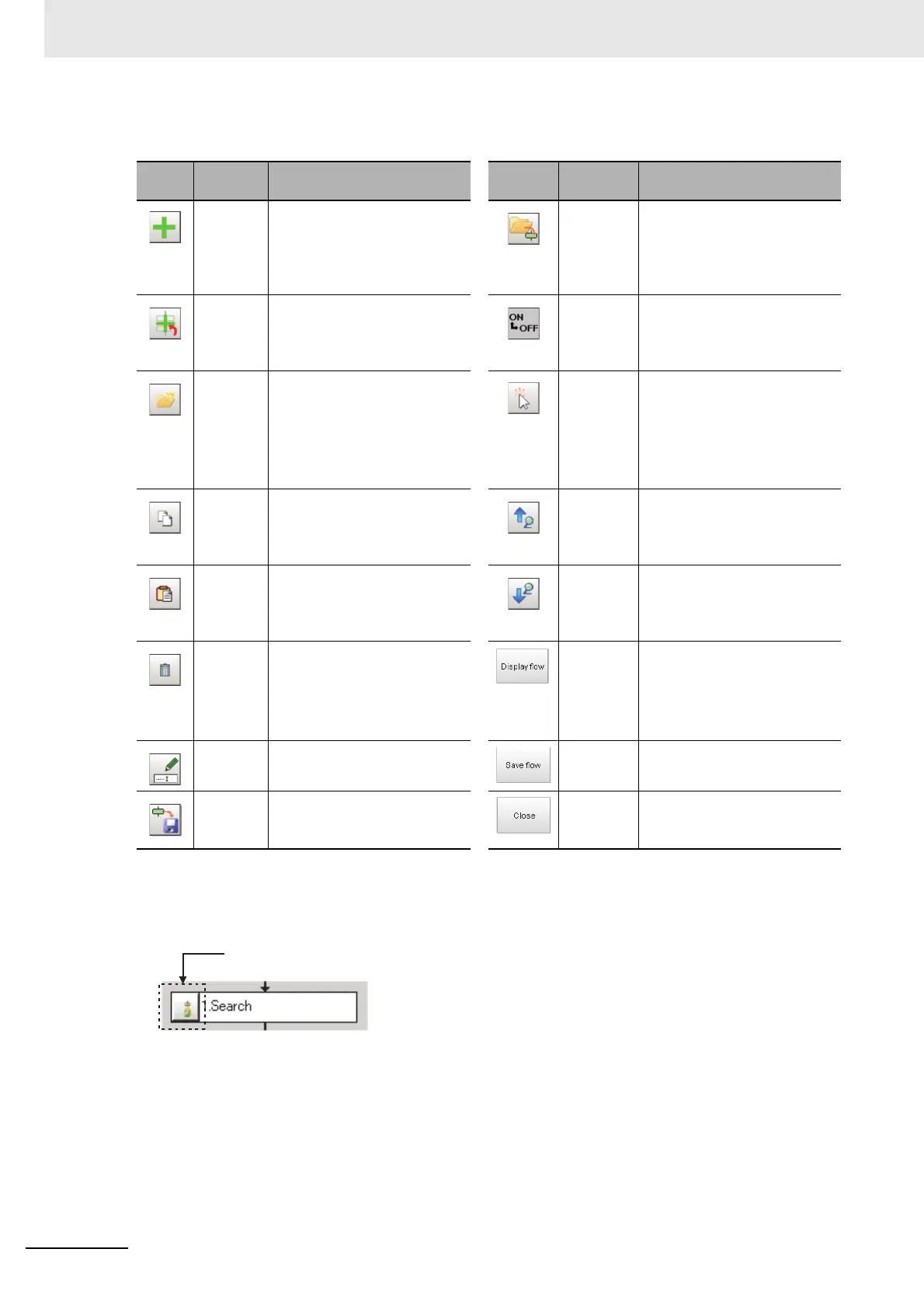
Edit and Control Buttons
Changing the Properties of Units in a Flow
On the Flow Builder, click the icon to the left of the unit for which to change the properties. The prop-
erty dialog box for the unit is displayed.
Icon
button
Function Description
Icon
button
Function Description
Add to
End of
Flow
Adds the selected item in the
item tree to the end of the flow
as a new unit.
Load Unit Loads the settings for a pro-
cessing unit from a file (exten-
sion .unit) and places it directly
before the selected unit in the
flow.
Add
before
Current
Unit
Adds the selected item in the
item tree to the position
directly before the selected
unit in the flow as a new unit.
Measure-
ment
ON/
OFF
Used to turn off measurement
execution for individual in-
scene processing units so that
measurement is not executed.
New
Folder
Creates a folder directly before
the selected unit in the flow.
Drag units to edit the contents
of the folder.
Move-
ment
mode
Enables the flow display posi-
tion to be moved by drag oper-
ations instead of by using the
scroll bar.
Press the button again to exit
Movement mode.
Copy Copies the selected unit in the
flow.
Search Up Searches for the selected item
in the item tree upward from
the selected position in the
flow.
Paste Pastes the copied unit to the
position directly before the
selected unit in the flow.
Search
Down
Searches for the selected item
on the item tree in the down-
ward direction from the
selected position in the flow.
Delete Deletes the selected unit from
the flow.
Display
Entire
Flow
Displays the entire flow in the
center of the view.
The [Save] button outputs the
same image as the [Save flow]
button.
Rename Renames the selected unit in
the flow.
Save Flow
Image
Outputs the entire flow as an
image file (extension .jpg).
Save Unit Saves the settings for the
selected unit in the flow to a
file (with the extension .unt).
Exit Flow
Viewer
Closes the Flow Viewer.

 To Next Page
 Loading...