Communications
16 SEL-351P Quick-Start Installation and User's Guide (Portuguese)
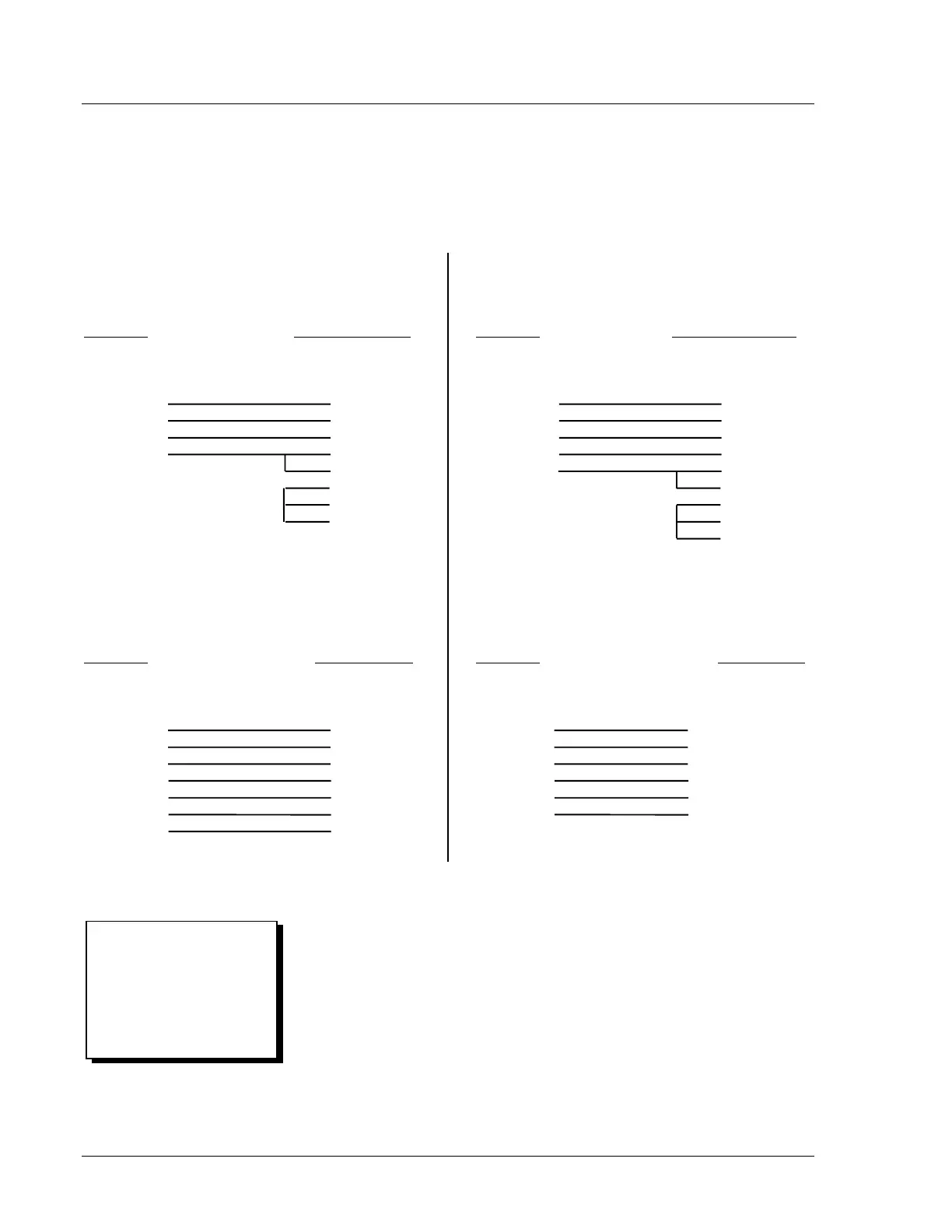
Cable Diagrams
The following cable diagrams correspond to the cables listed in Table 1
(most commonly used cables). The male/female references in the cable
diagrams refer to the cable connectors, not the device they are
connecting to (which would be the opposite gender). Contact SEL for
information on other available cables.
SEL-351P Recloser Control to Computer
Cable C234A
SEL-351P 9-Pin *DTE Device
9-Pin Male 9-Pin Female
“D” Subconnector “D” Subconnector
RXD 2 3 TXD
TXD 3 2 RXD
GND 5 5 GND
CTS 8 8 CTS
7 RTS
1 DCD
4 DTR
6 DSR
* DTE = Data Terminal Equipment (Computer, Terminal,
Printer, etc.)
SEL-351P Recloser Control to Computer
Cable C227A
SEL-351P 25-Pin *DTE Device
9-Pin Male 25-Pin Female
“D” Subconnector “D” Subconnector
GND 5 7 GND
TXD 3 3 RXD
RXD 2 2 TXD
GND 9 1 GND
CTS 8 4 RTS
5 CTS
6 DSR
8 DCD
20 DTR
* DTE = Data Terminal Equipment (Computer,
Terminal, Printer, etc.)
SEL-351P Recloser Control to SEL-2020/2030
Cable C273A
SEL-351P SEL-2020/2030
9-Pin Male 9-Pin Male
“D” Subconnector “D” Subconnector
TXD 3 2 RXD
RXD 2 3 TXD
IRIG+ 4 4 IRIG+
GND 5 5 GND
IRIG- 6 6 IRIG-
CTS 8 7 RTS
RTS 7 8 CTS
SEL-351P Recloser Control to Modem
Cable C222
SEL-351P **DCE Device
9-Pin Male 25-Pin Male
“D” Subconnector “D” Subconnector
GND 5 7 GND
TXD 3 2 TXD (IN)
RTS 7 20 DTR (IN)
RXD 2 3 RXD (OUT)
CTS 8 8 CD (OUT)
GND 9 1 GND
** DCE = Data Communications Equipment
(Modem, etc.)
Commands
The following serial port commands are available for use with the
SEL-351P. Much of the information available from the serial port
commands is also available via the front-panel pushbuttons (see
Pushbutton Primary Functions in the following section).
The commands are shown in upper-case letters, but they can also be
entered using lower-case letters.
Commands, passwords, or
settings you type appear in
bold/uppercase: DAKOTA.
Computer keys you press
appear in bold/uppercase/
brackets: <ENTER>.



 To Next Page